Nothing in the manual matches that. Try a shorter word, or ask us.
1. Start here
Your Way Kitchen is one account in two places: the phone app and the web app at app.yourwaykitchen.com. Everything you do in one shows up in the other.
Your Way Kitchen plans meals around you: your diet, allergies, dislikes, budget, skill and the equipment in your kitchen. It writes recipes with the AI, keeps a calendar of what you'll cook, builds the shopping list, logs what you eat and shows your trends. Shared community recipes, including those from partner chefs, are free for everyone.
Phone app (Android now; iPhone later): the full experience, including the camera features and buying the Pro plan.
Web app at app.yourwaykitchen.com: the same account on a bigger screen. Best for typing recipes, planning the week, and Cook Mode on a laptop or tablet.
Both use the same data, live. Plan on the laptop, shop from the phone, log dinner on either.
You can sign in with Google, or with an email address and password. Use the same method on both apps, or you'll end up with two separate accounts.
On the phone
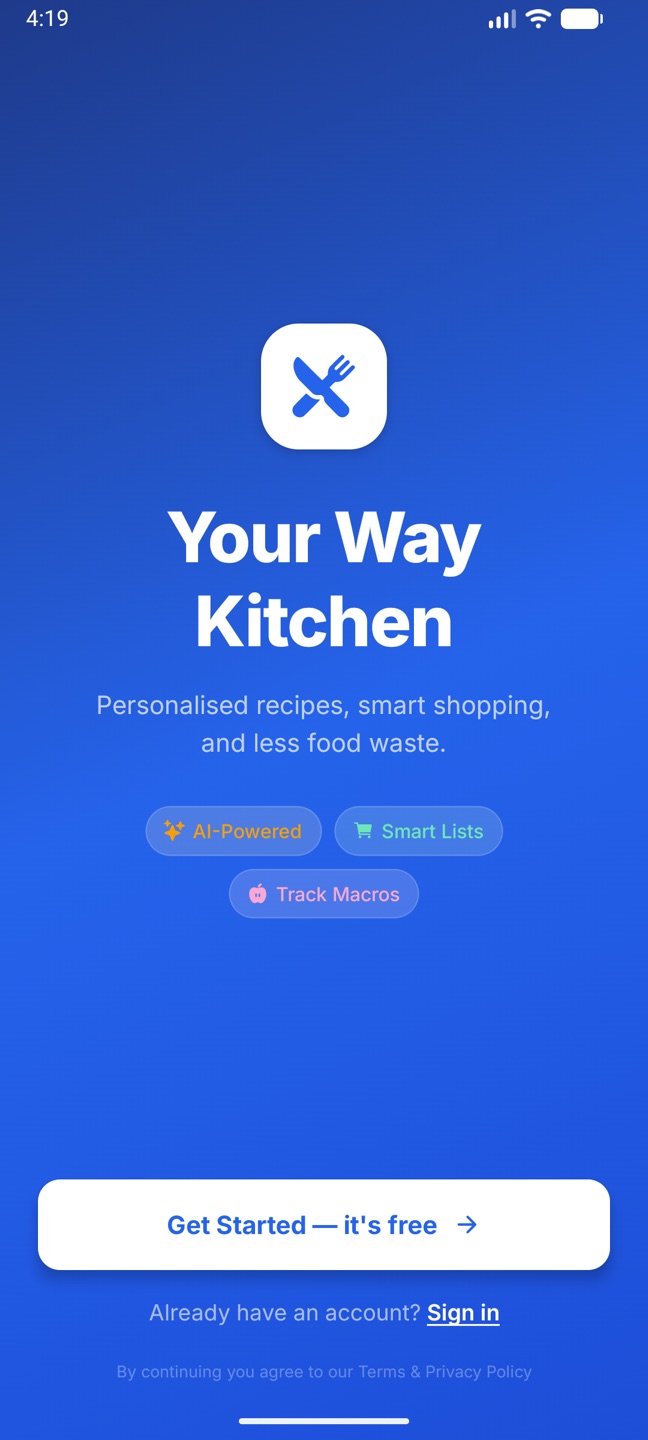
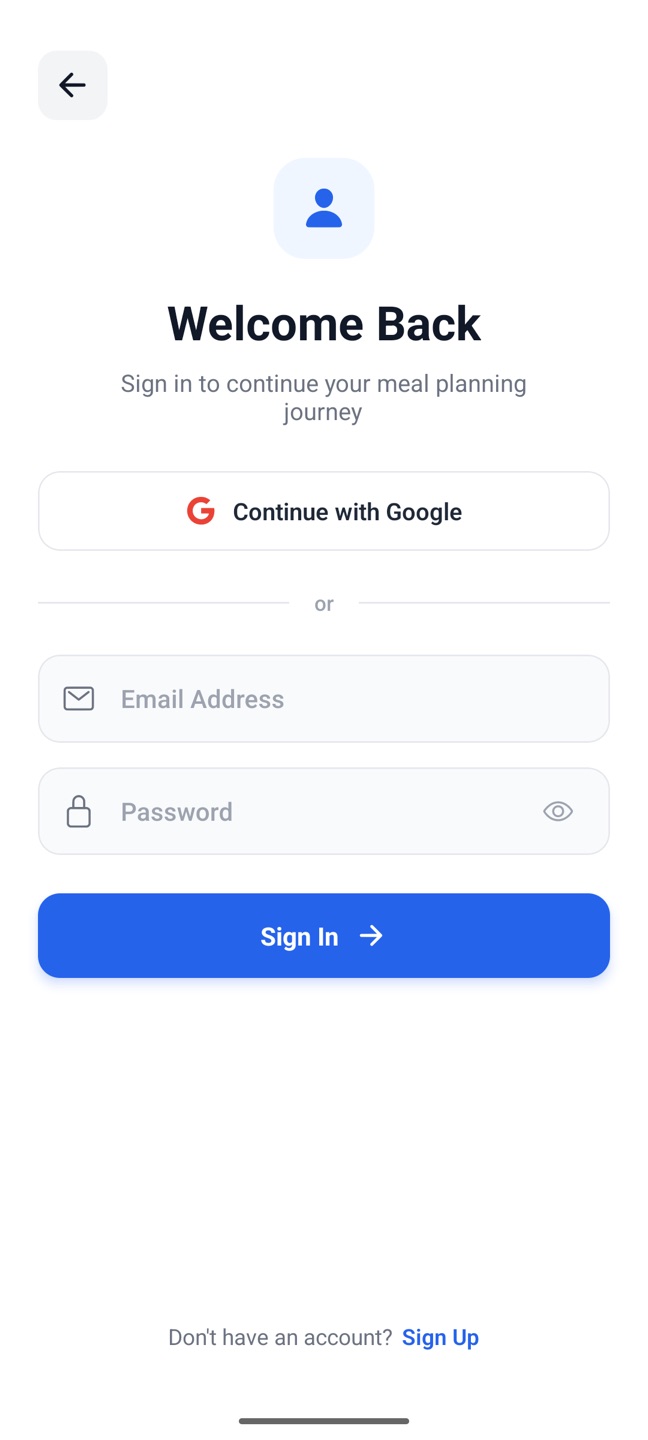
Open the app. The Welcome screen offers Get Started — it's free (create an account) or Already have an account? Sign in.
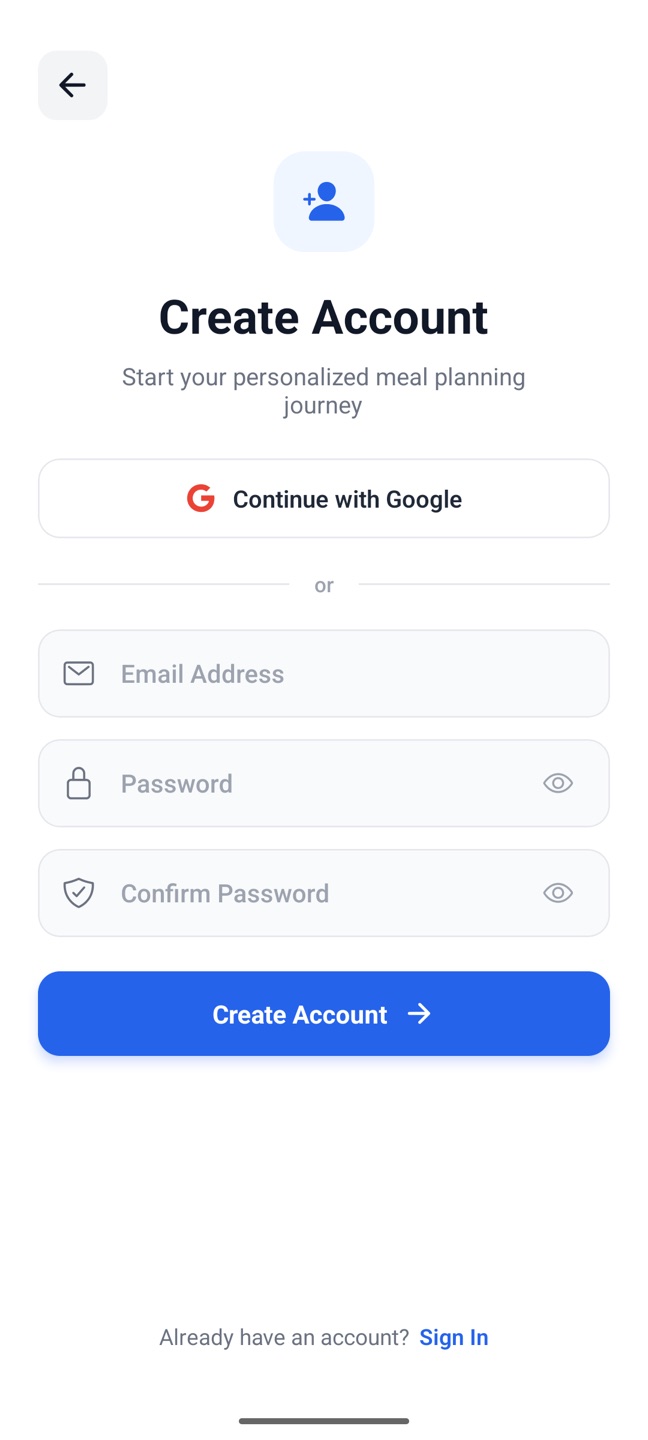
Choose Continue with Google, or enter an email and a password of at least 6 characters. Creating an account asks you to confirm the password.
A new account goes straight into profile setup (next topic).
On the web
Go to app.yourwaykitchen.com and sign in with Google or your email and password. Create an account is under the form.
If the account has no profile yet (created on the web, or the phone setup wasn't finished), you'll see Welcome to Your Way Kitchen. Press Set up my profile and you land on Preferences to fill in your answers.
Forgot your password? Use Forgot password? on the web sign-in page. Enter your email and we send a reset link; the link opens a reset page and then brings you back to the web app. The phone app has no reset button, so use the web for this.
Signing out: on the phone, the red exit icon at the top of Today; on the web, Sign out in the top bar.
A new account on the phone walks through four short steps. Everything here can be changed later in Settings.
Your Dietary Plan. Pick the option closest to how you eat (No Restrictions, Vegan, Vegetarian, Keto, Paleo, Low-Carb), or skip it.
Likes and Dislikes. Foods you love and foods to avoid. The app suggests listing allergies and intolerances under dislikes so meals steer clear of them.
Where are you?Use my location fills in your city or region, or type one, or pick a popular region. Only the city or region is kept, never your exact address. It's used for seasonal produce and local dishes. You can Skip.
Budget and Skill. A budget per serving in dollars, and your cooking level. Finish Setup opens the app.
On the web, a new account instead gets the Set up my profile button and then the full Preferences page.
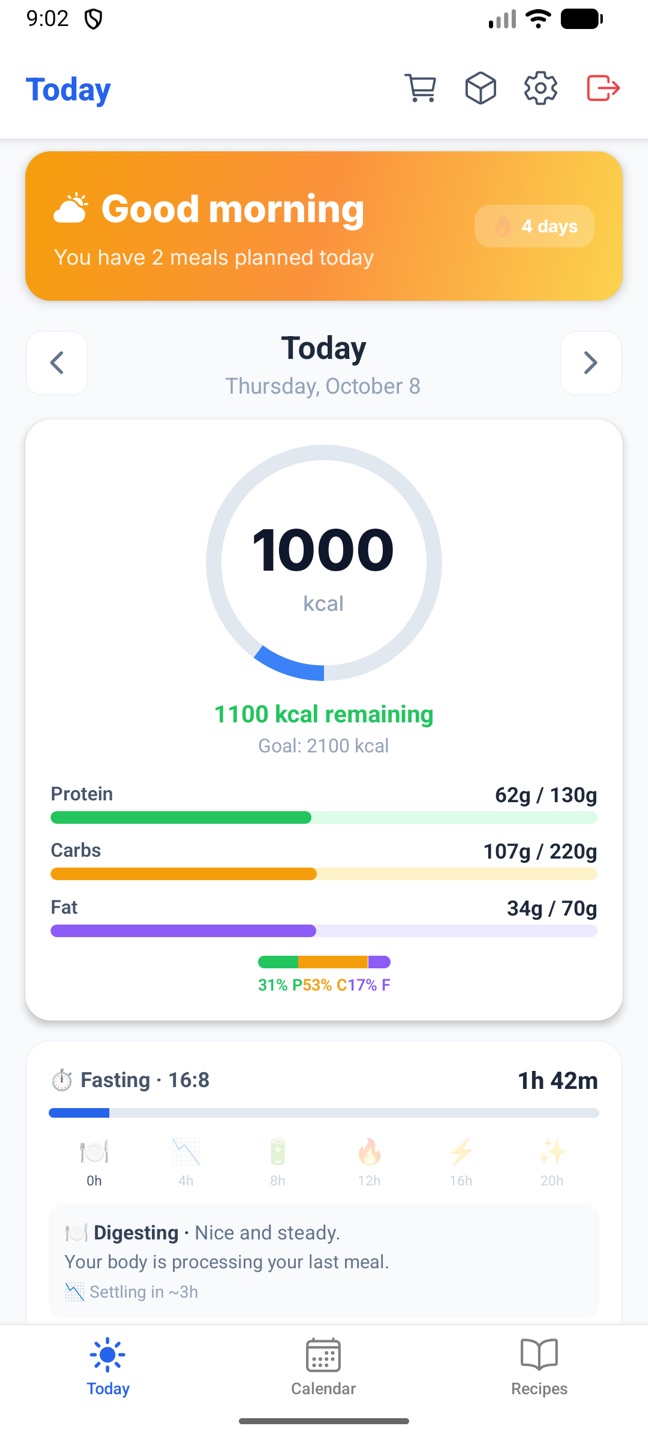
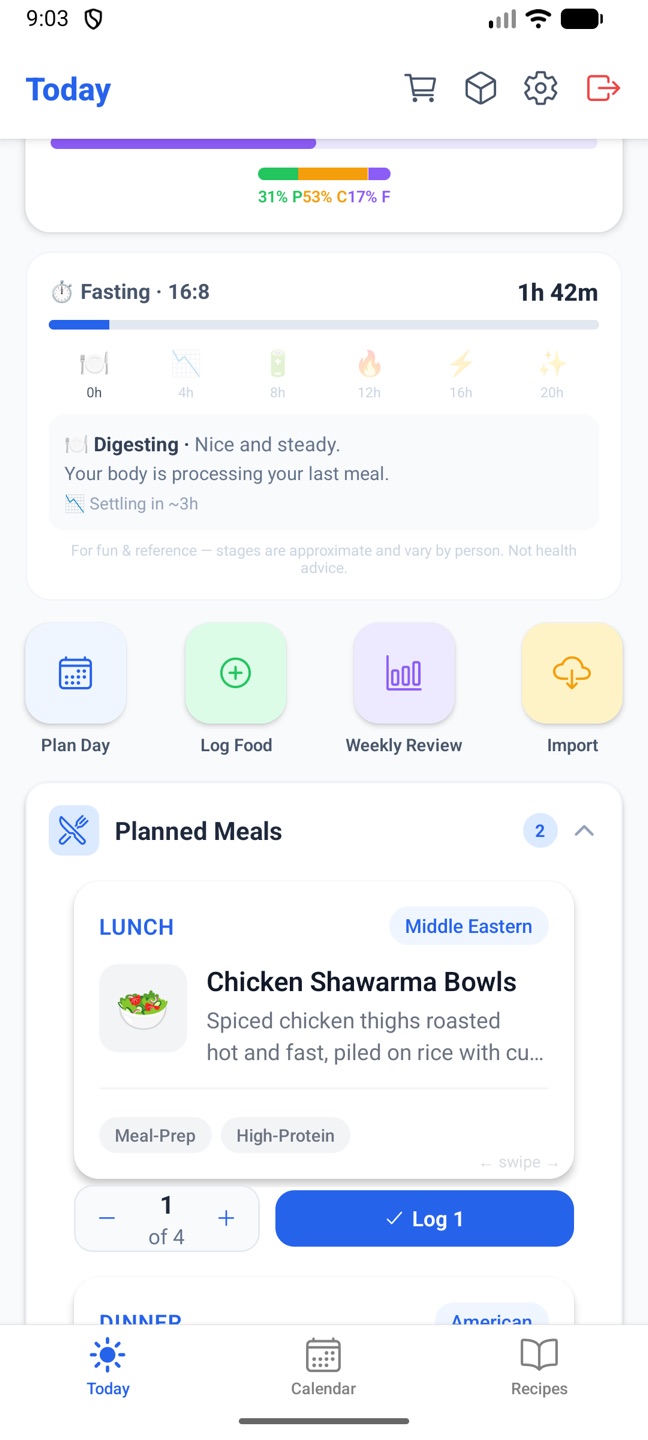
Three tabs along the bottom: Today, Calendar and Recipes. The icons at the top of Today open the Shopping List (cart), Kitchen Staples (cube) and Settings (gear). Today's buttons open the planner, food logging, the weekly review and recipe import.
Today on the phone.Further down: fasting, the action buttons and planned meals.
Web
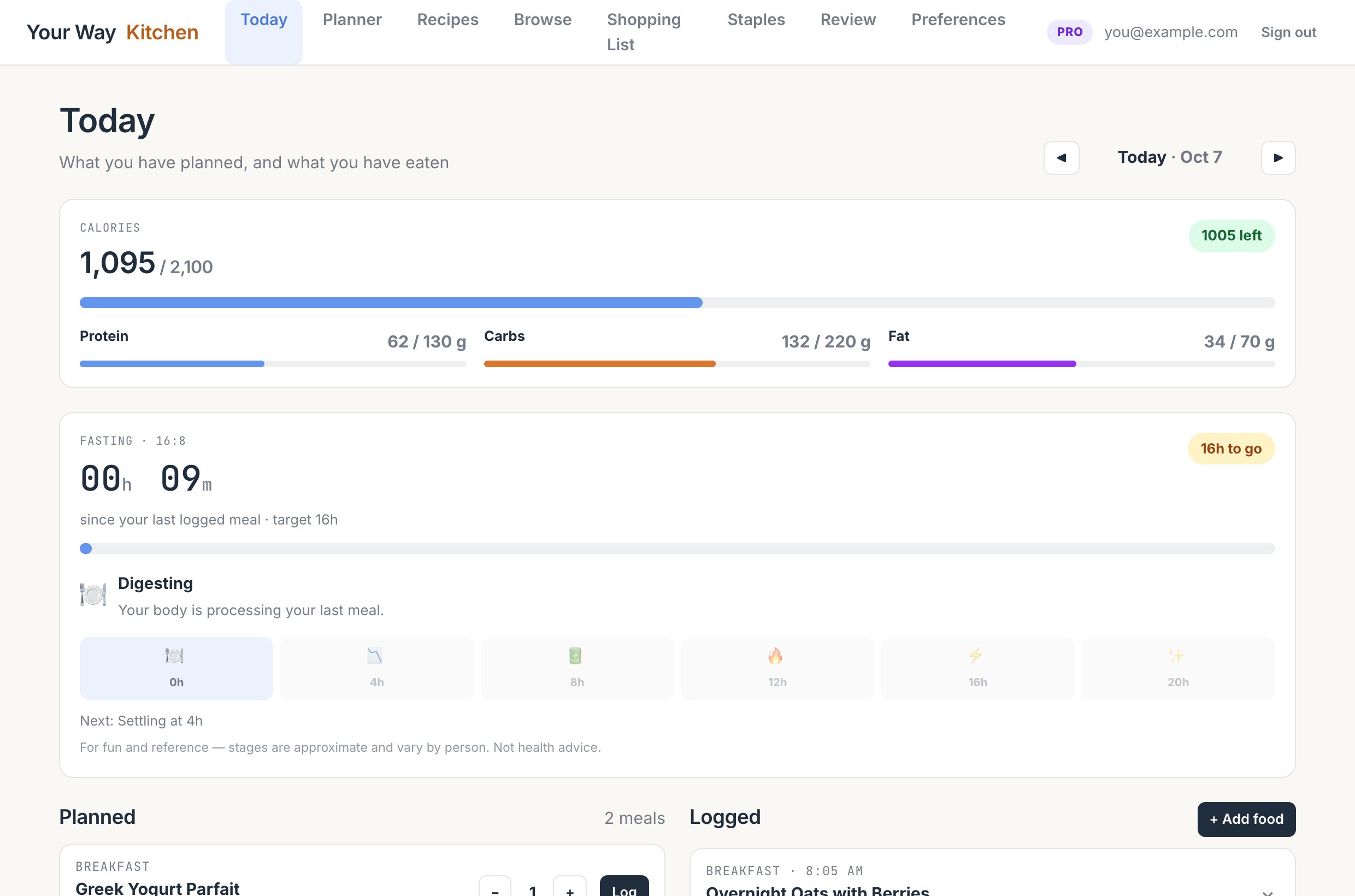
The top bar: Today, Planner, Recipes, Browse, Shopping List, Staples, Review, Preferences. The pill on the right says FREE or PRO.
The web app. The top bar is the same on every page.
2. Your profile
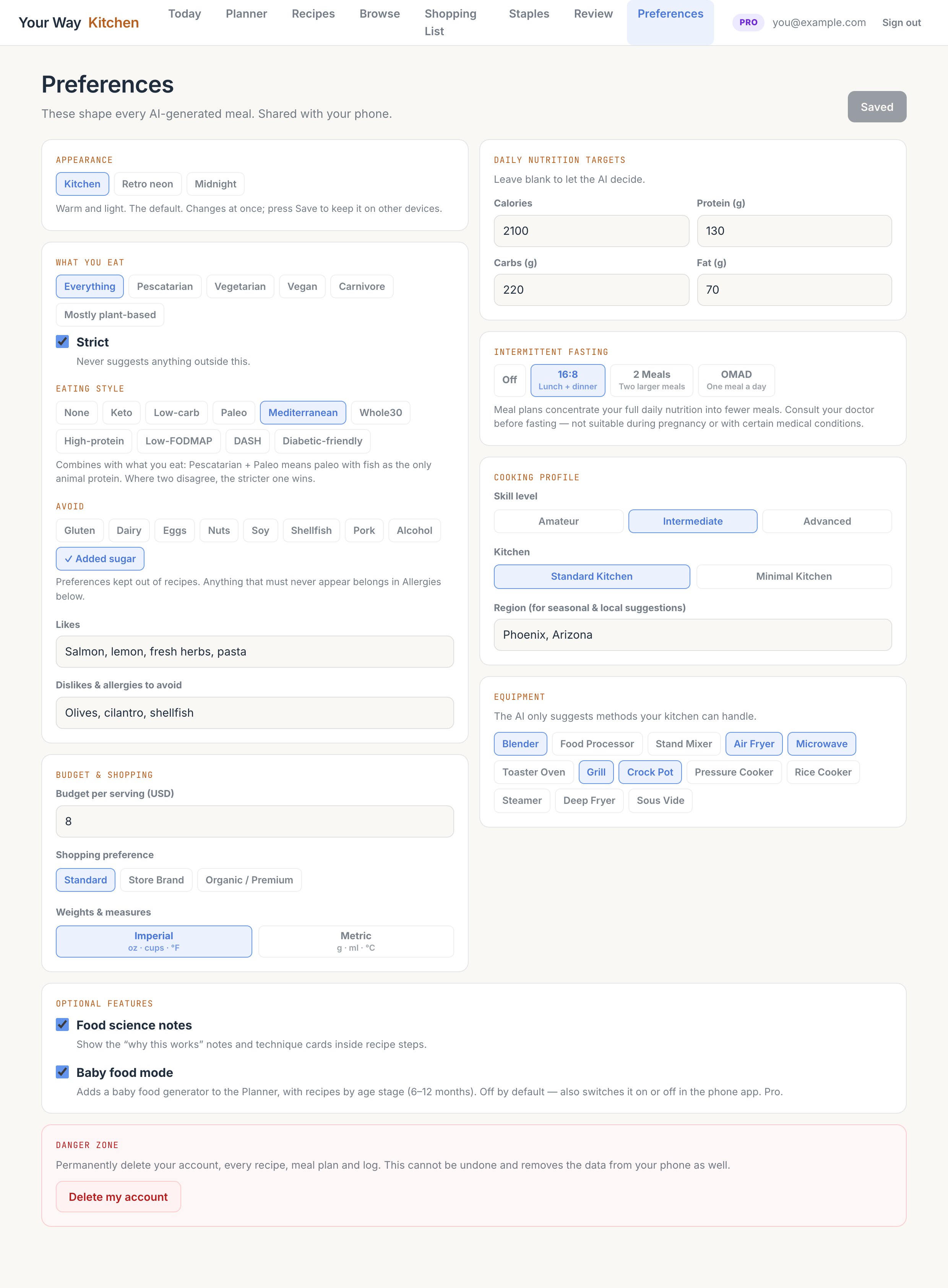
Your profile shapes every recipe the AI writes. Set it once, in Settings on the phone or Preferences on the web; both edit the same profile.
Two layers, which combine. Where they disagree, the stricter one wins.
What you eat: Everything, Pescatarian, Vegetarian, Vegan, Carnivore or Mostly plant-based.
Strict: on by default. On means the AI never suggests anything outside your choice. Off makes it a preference: meals lean that way and the odd exception is fine.
Eating style: None, Keto, Low-carb, Paleo, Mediterranean, Whole30, High-protein, Low-FODMAP, DASH or Diabetic-friendly. Low-FODMAP, DASH and Diabetic-friendly are general guidance, not medical advice.
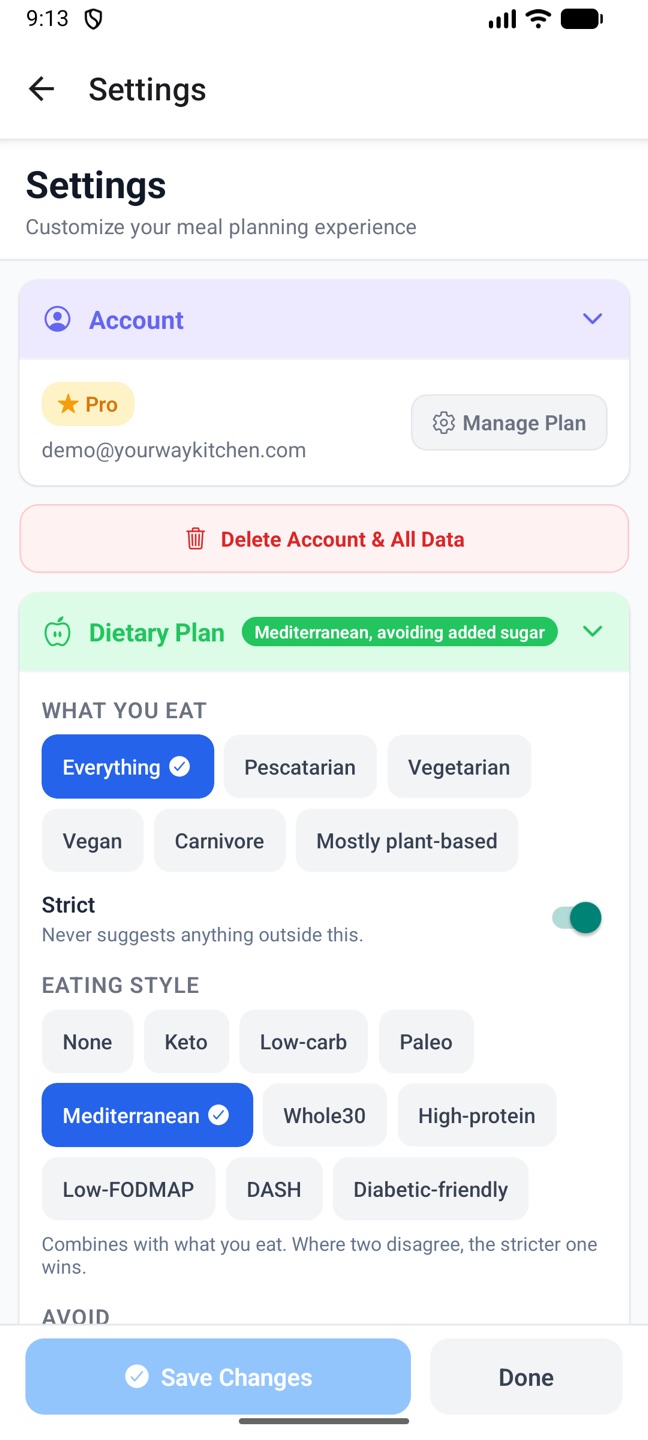
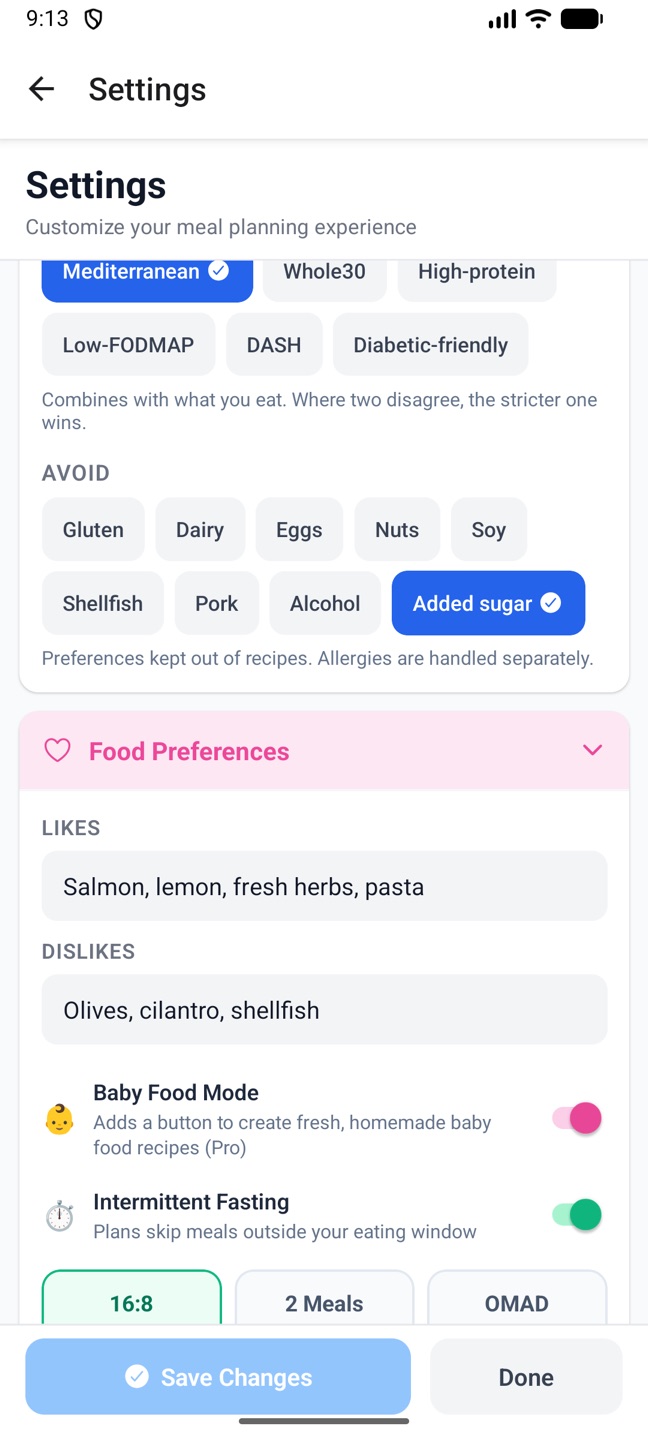
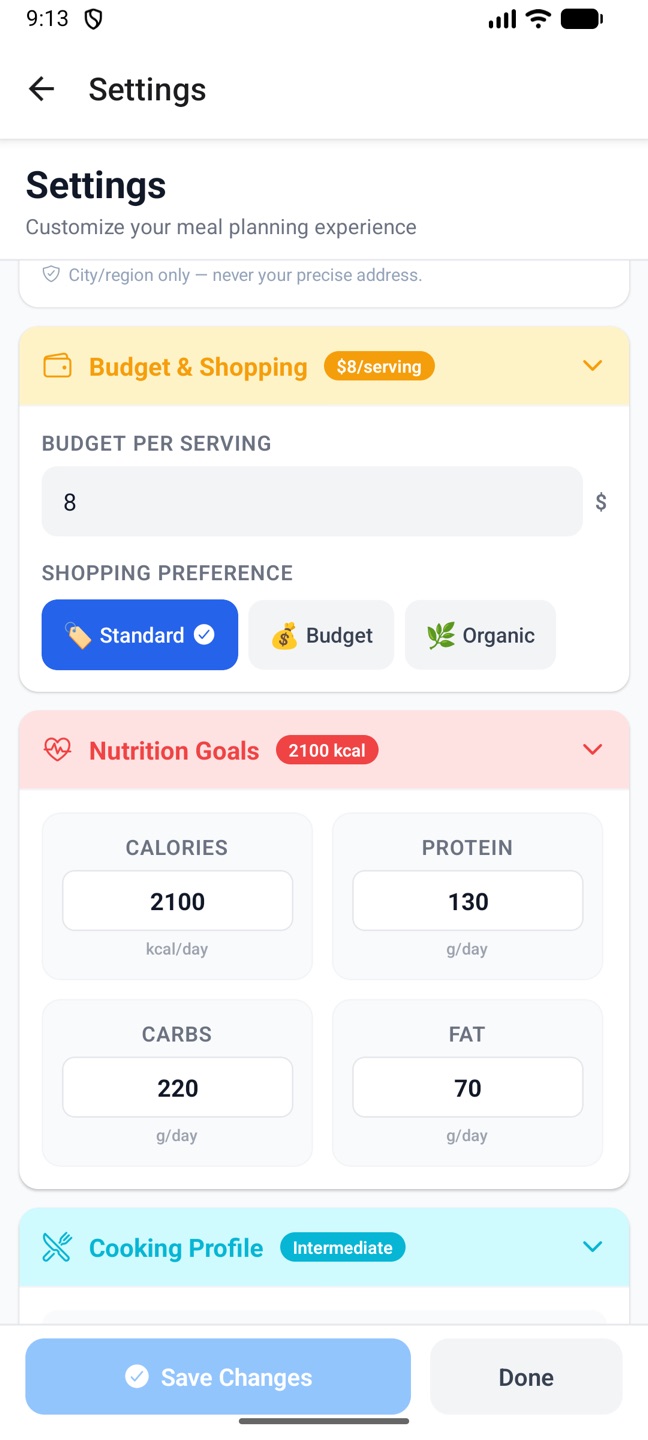
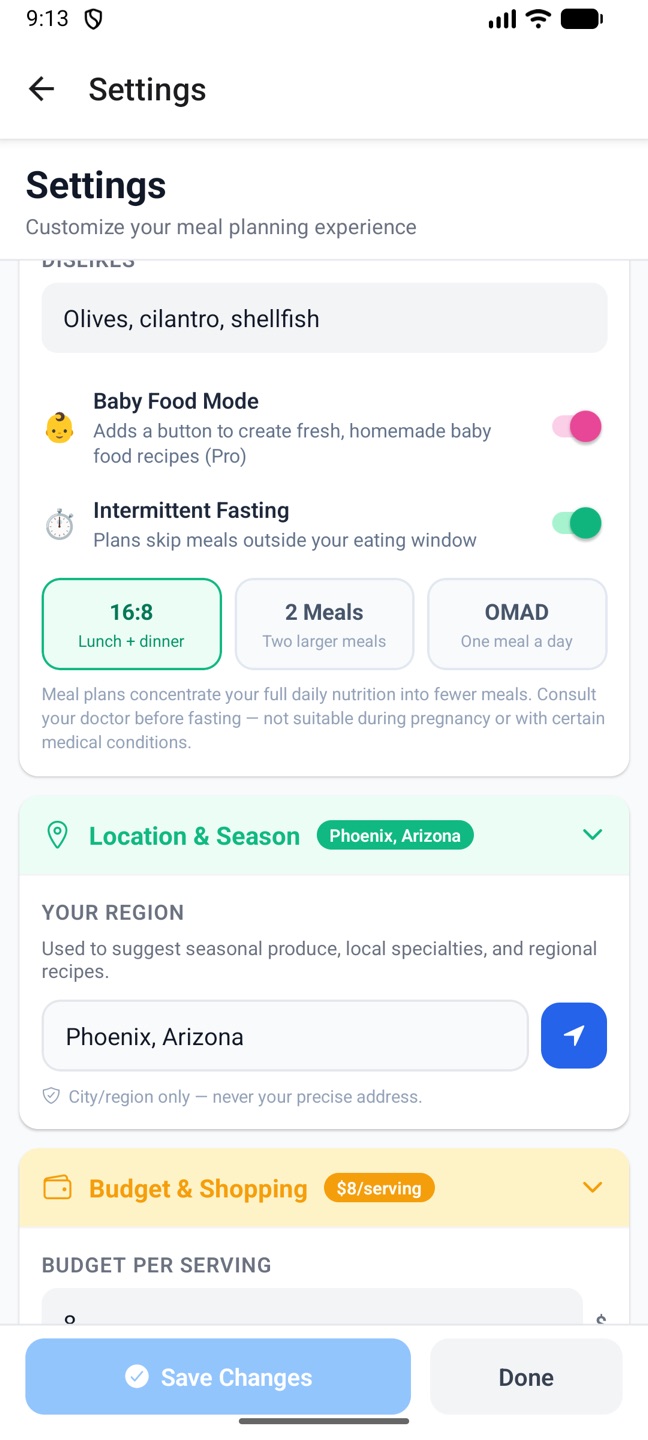
Settings on the phone: account and diet.Avoid, likes and dislikes, baby food mode, fasting.Budget, shopping preference and nutrition goals.
Avoid toggles: Gluten, Dairy, Eggs, Nuts, Soy, Shellfish, Pork, Alcohol, Added sugar. These are preferences the AI keeps out of recipes.
Likes and Dislikes: free text, for example "avocados, salmon, pasta" and "olives, cilantro, shellfish".
Allergies are treated as an absolute rule. Put anything that must never appear, for medical reasons, in your dislikes or allergies. The AI is told these are off limits in any amount, and every recipe it returns is checked on our side before you see it: if a forbidden ingredient slips in, the recipe is sent back for correction, and if it still fails you get an error rather than the recipe. Still read ingredient lists yourself, as with any recipe.
Budget per serving (in US dollars) steers ingredient choices, and the planner shows an estimated cost per serving against it. Shopping preference tells the AI whether to lean on store brands, standard value, or organic and premium ingredients.
Calories, protein, carbs and fat per day. Leave them blank to let the AI decide. Targets drive the progress bars on Today, the charts in the weekly review, and how generated plans are sized. On the phone, clearing a goal resets it to zero; the dashboard then uses defaults of 2,000 kcal, 150 g protein, 200 g carbs and 70 g fat.
Choose Off, 16:8 (lunch and dinner), 2 Meals or OMAD (one meal a day). With a schedule set:
Generated plans skip the meals outside your window: 16:8 and 2 Meals drop breakfast, OMAD makes dinner only. The remaining meals carry the full day's nutrition.
Skill level: Amateur, Intermediate (the default) or Advanced. Recipes match the level.
Kitchen: Standard (stovetop, oven, pots, pans and knives) or Minimal (stovetop and basic pots and pans only).
Equipment: tick what you own. Blender, Food Processor, Stand Mixer, Air Fryer, Microwave, Toaster Oven, Grill, Crock Pot, Pressure Cooker, Rice Cooker, Steamer, Deep Fryer, Sous Vide. The AI only suggests methods your kitchen can handle.
Region: a city or region for seasonal and local suggestions. Never an exact address.
Cooking away from home, at a campsite or in a hotel, is set per plan, not here: see where you're cooking.
Weights and measures: Imperial (oz, cups, °F) or Metric (g, ml, °C).
Food science notes: on by default. Recipe steps then carry short "why this works" notes and technique cards, with the science, how to execute, and what to watch for.
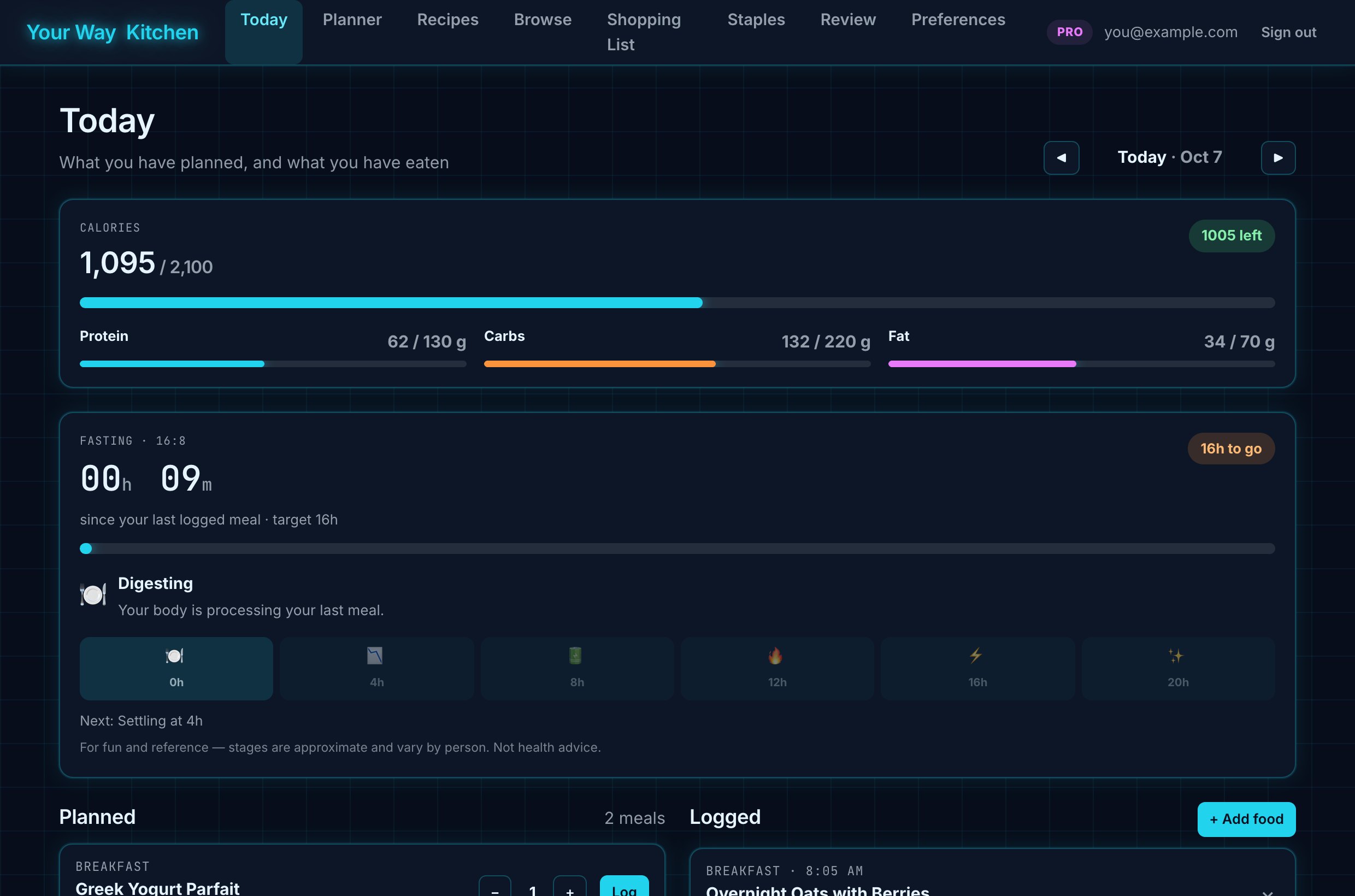
AppearanceWeb: Kitchen (warm and light), Retro neon, or Midnight (plain dark). It changes at once; press Save to keep it on other devices.
A switch in Settings or Preferences. Turning it on adds a Baby Food card to the phone's planner and a 🍼 Baby button to the web Planner. The switch is shared between both apps. See Baby food recipes.
On the phone, Settings shows "Unsaved changes" and a Save Changes button; Done asks before discarding edits. On the web, Preferences has a Save changes button at the top and a floating one at the bottom whenever something has changed. Saved settings reach the other app within seconds.
Preferences on the web, with every section.
3. Today and logging food
Today is the daily view: what's planned, what you've eaten, how you're tracking against your targets, your fasting clock and your weight.
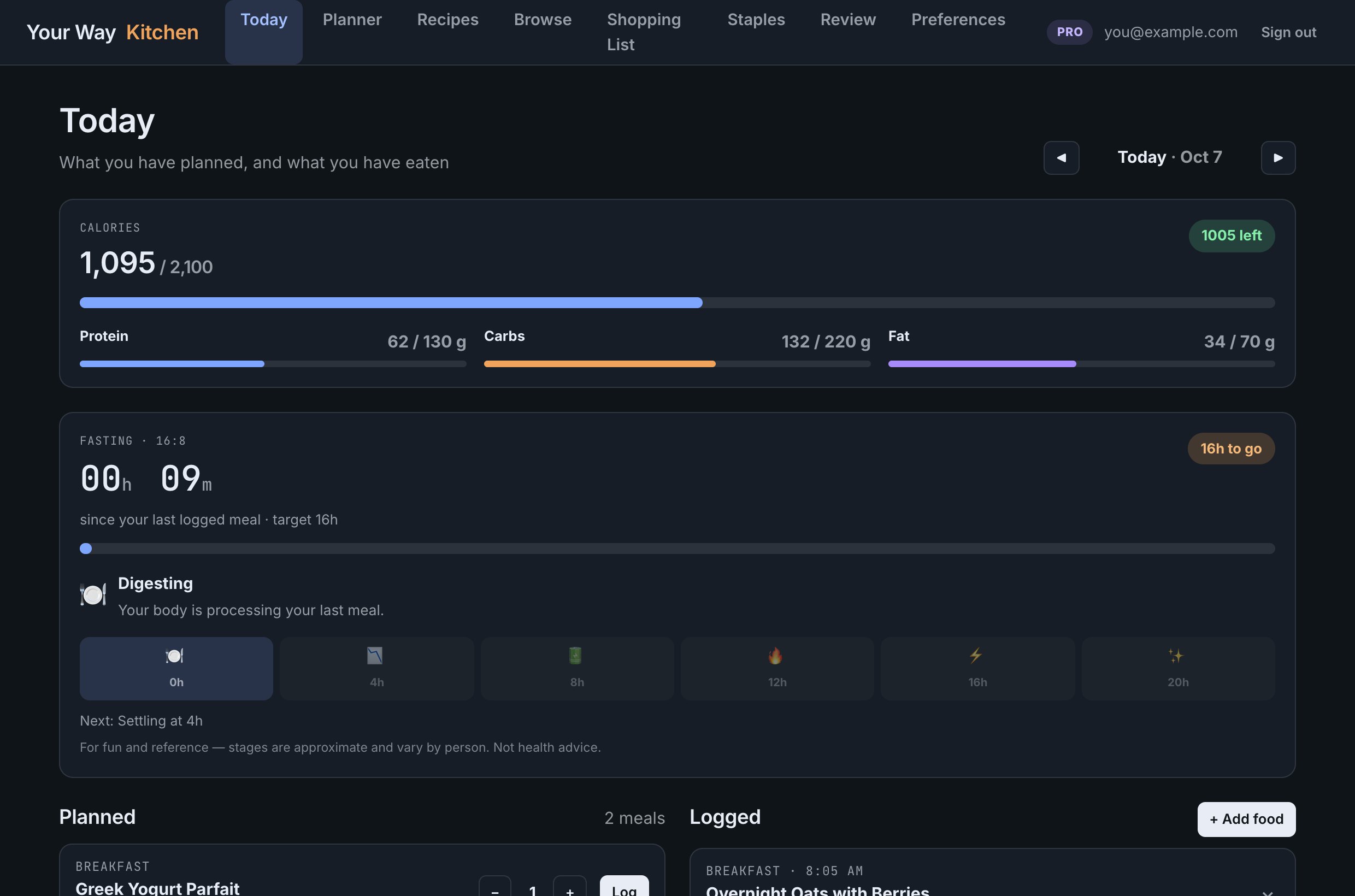
Calories and macros. What you've eaten against your target, with protein, carbs and fat bars. The phone shows a ring that turns amber past 85% and red when over; the web shows "N left" or "N over".
Planned: the meals on your calendar for this day, each with a servings stepper and a Log button.
Logged: everything you've eaten, with time, calories and macros. Edit or delete any entry.
Day navigation: arrows move a day at a time, and a Jump to Today link appears when you're elsewhere. The phone's date picker covers 30 days back and 30 ahead.
StreakPhone: the flame badge counts consecutive days with at least one log. It appears once you've logged something today.
Set the servings with the −/+ stepper (half-serving steps) and press Log. The calories logged are the recipe's total divided by the servings it makes, times the servings you ate. Once an entry with the same name exists for the day, the planned meal is marked logged so you don't record it twice.
Phone Planned meals are swipe cards: swipe right for Cooked, which asks "How was it?" with a 1 to 5 star rating; swipe left for Edit (opens Customize Meal) or Delete. Tap the card to open the full recipe.
Web Click a meal's name to read the full recipe in a pop-up.
Every way of logging shares the same basics: a meal type (Breakfast, Lunch, Dinner, Snack, Drink, Other), servings, and the date and time eaten. The time matters: it feeds the fasting clock and the weekly review. You can log yesterday's dinner this morning by changing the date and time.
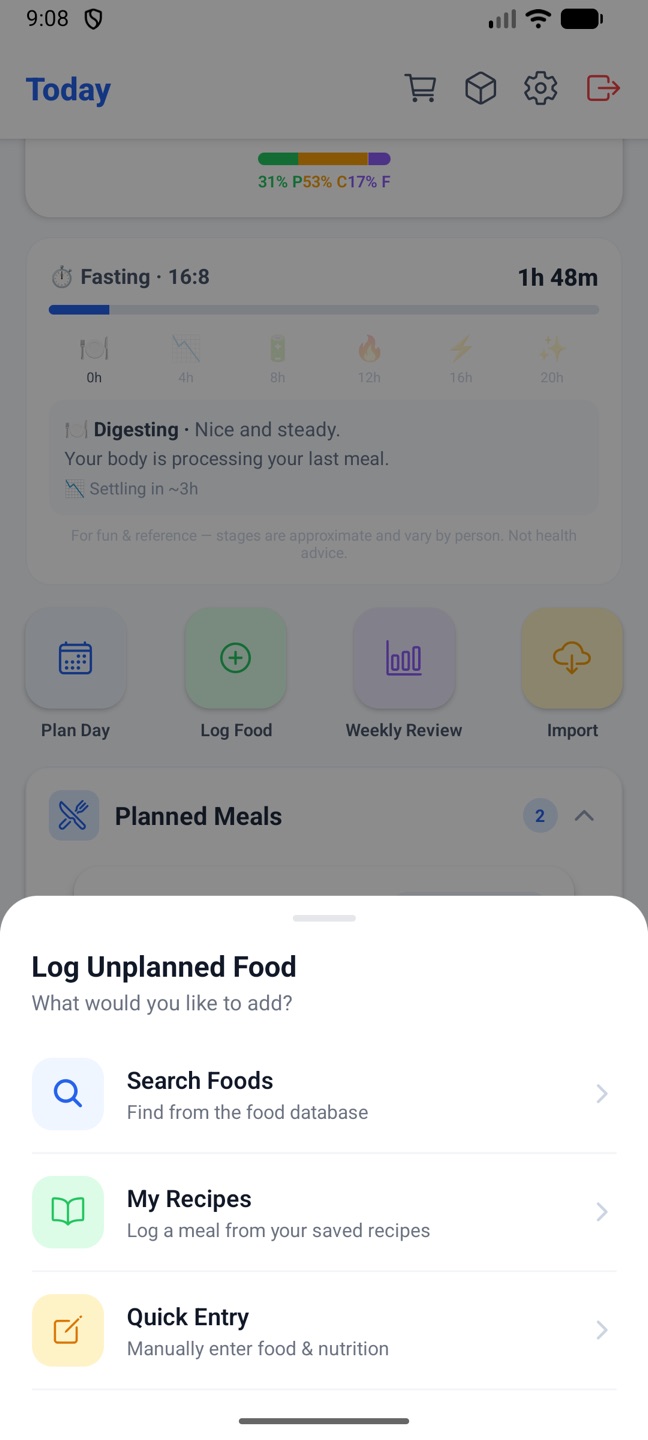
PhoneLog Food on Today offers Search Foods, My Recipes and Quick Entry. The time picker moves in 15-minute steps, with a Now button.
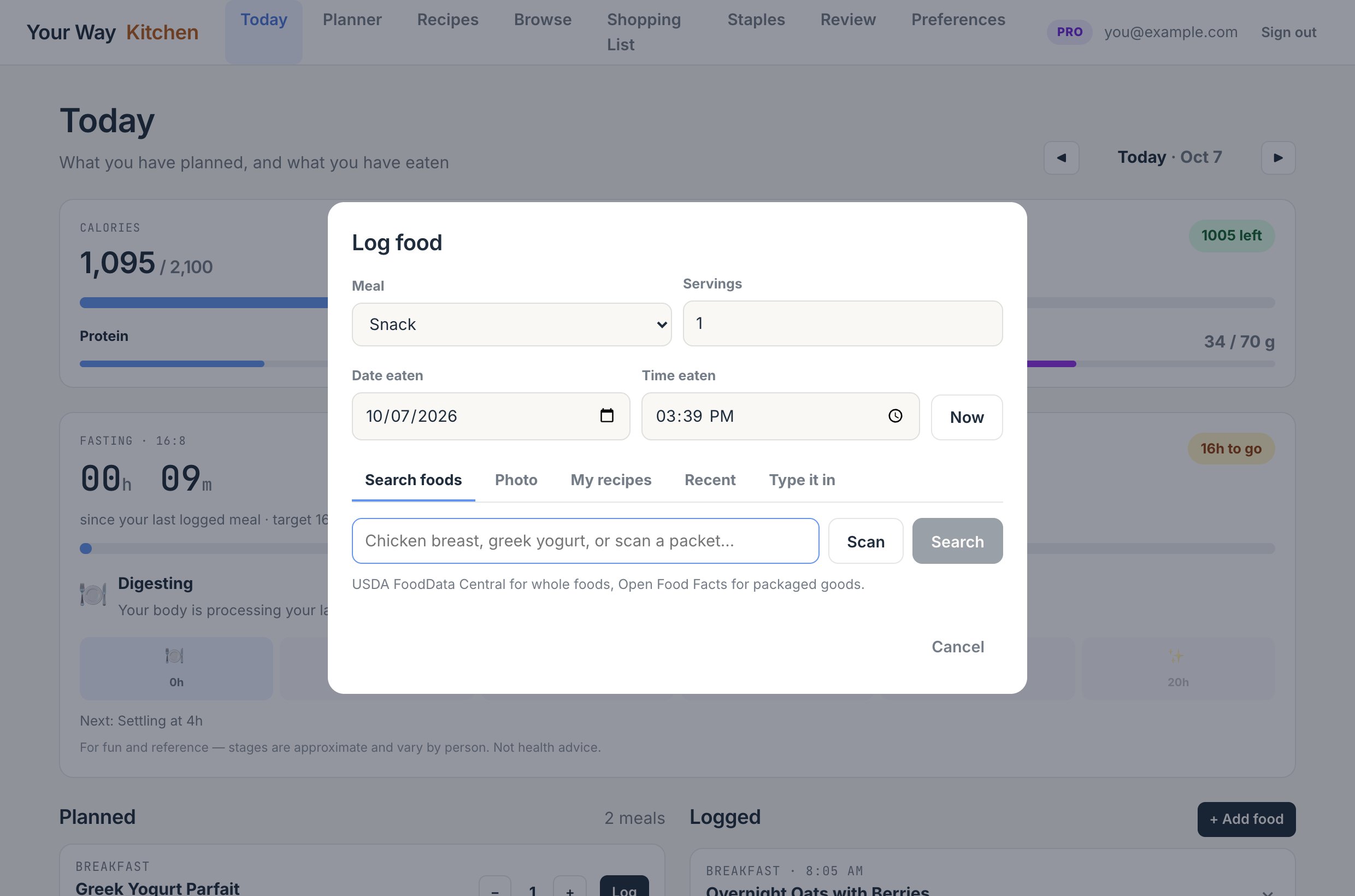
Web+ Add food opens the Log food window with tabs: Search foods, Photo, My recipes, Recent and Type it in. If you change the date, a line reminds you the entry is going to another day.
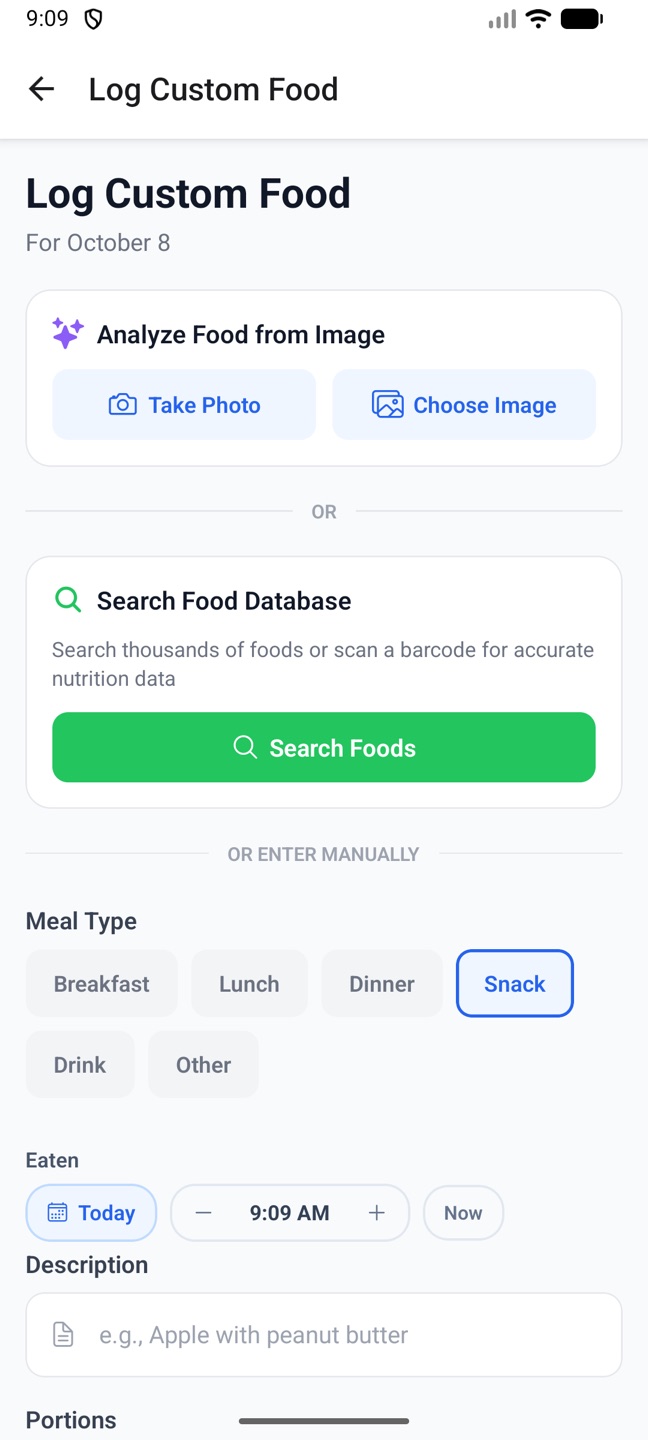
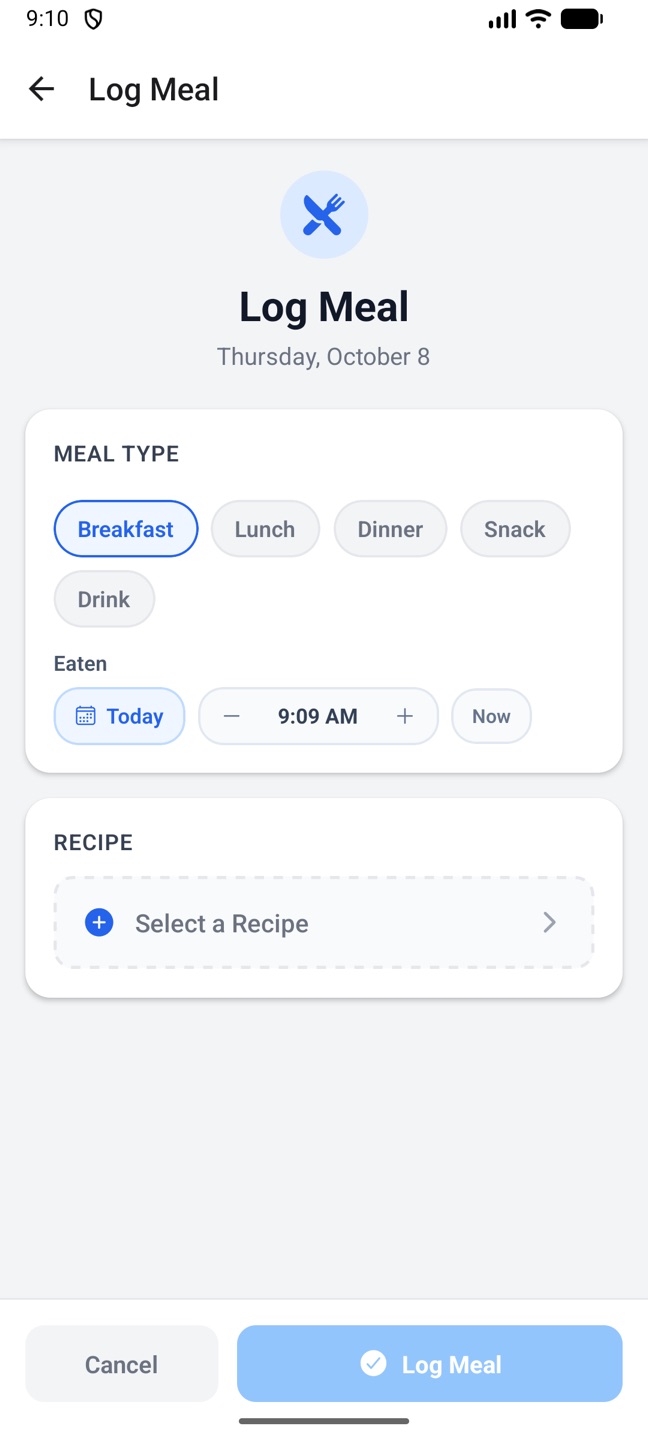
Log Food on the phone.Quick Entry.Logging a saved recipe.
Type at least two characters and search. Results come from USDA FoodData Central for whole foods and Open Food Facts for packaged goods, labelled USDA or OFF, each with calories, protein, carbs and fat per serving (USDA items without a serving size are per 100 g).
On the web, clicking a result logs it straight away and adds it to Recent. On the phone, tapping a result opens the entry form pre-filled so you can adjust the portion first.
If one source is unavailable you still get results from the other. Nothing found? Type the food in by hand.
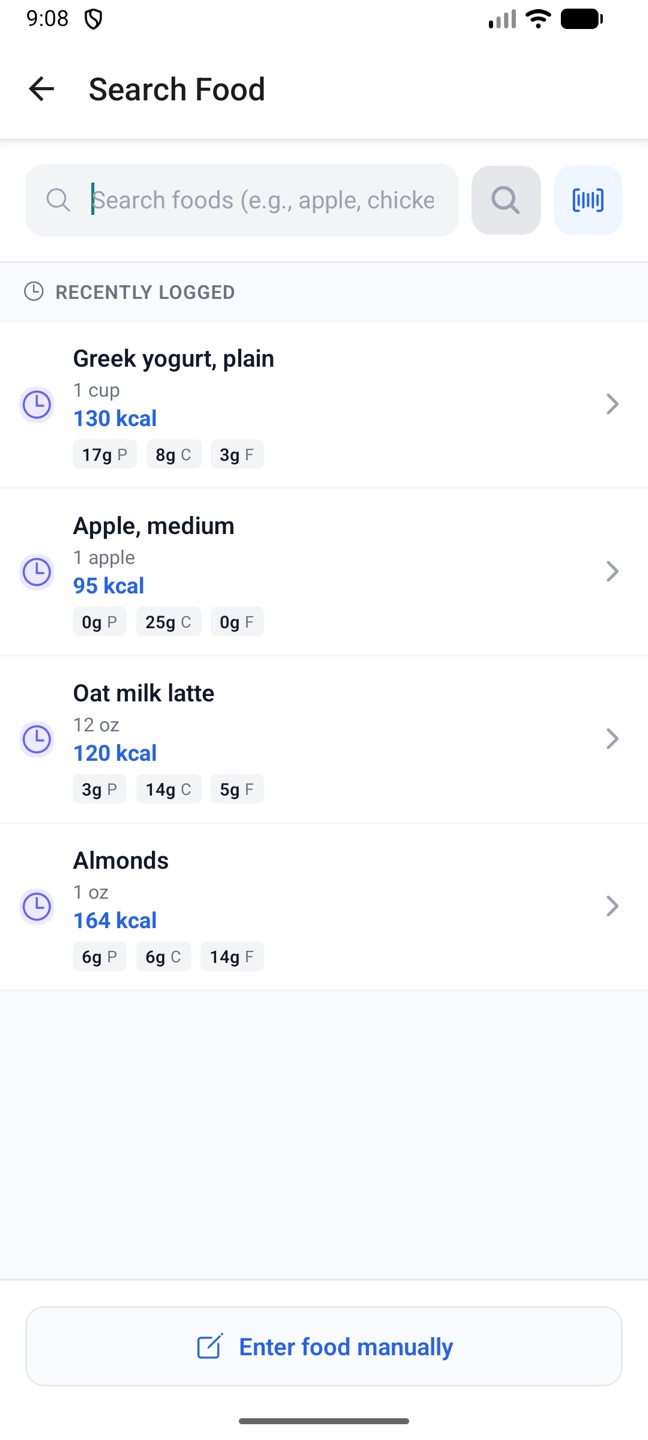
Search Food on the phone, with the barcode button beside the search box.
Point the camera at the barcode on a packet and it reads automatically, then looks the product up in Open Food Facts. It reads EAN-13, EAN-8, UPC-A and UPC-E, the codes on food packaging. QR codes are ignored.
Phone The barcode button in Search Food.
Web The Scan button next to the search box. It appears only on a secure (https) page in a browser that can use the camera; Safari and Firefox download a small decoder the first time. You can also type the number printed under the barcode into the search box.
If the product isn't in Open Food Facts you're offered manual entry instead.
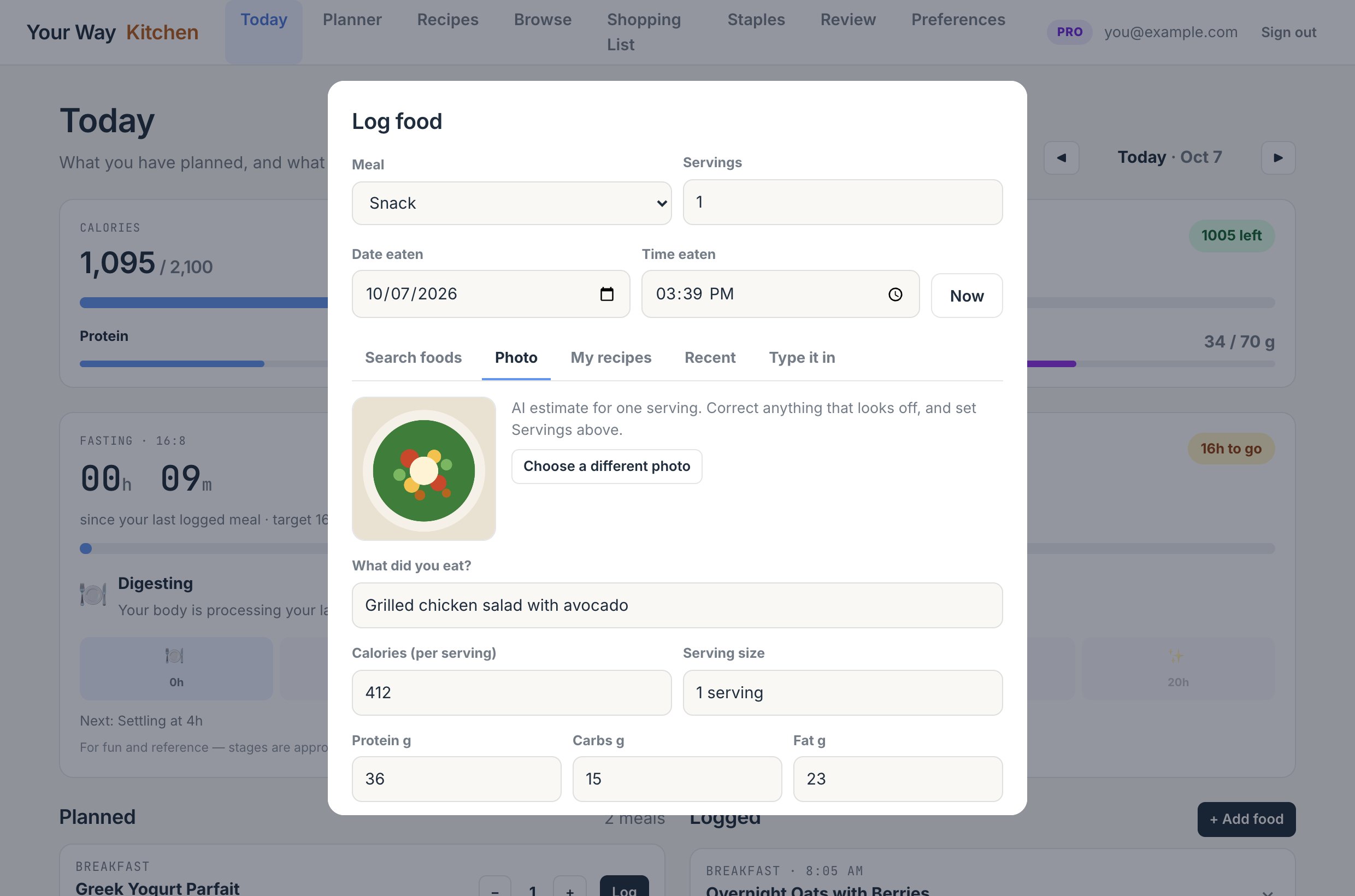
Take or upload a picture of what you're eating. The AI names the food and estimates one serving's calories, protein, carbs and fat. The numbers land in the normal entry form, so correct anything that looks off and set the servings before you log it.
Phone In Quick Entry (Log Custom Food), use Take Photo or Choose Image. Analysis starts as soon as the photo is chosen.
Web The Photo tab of the Log food window. Choose a picture, take one on a phone, drop an image in, or paste one, then press Estimate nutrition. Photos are shrunk in the browser before upload, so even a big camera picture goes up quickly.
Estimates are just that. A clear, close, well-lit picture of the plate gives the best result. If the AI can't see food in the picture it says so and you can try another or type it in.
After "Estimate nutrition" on the web: the AI's guess, ready to correct and log.
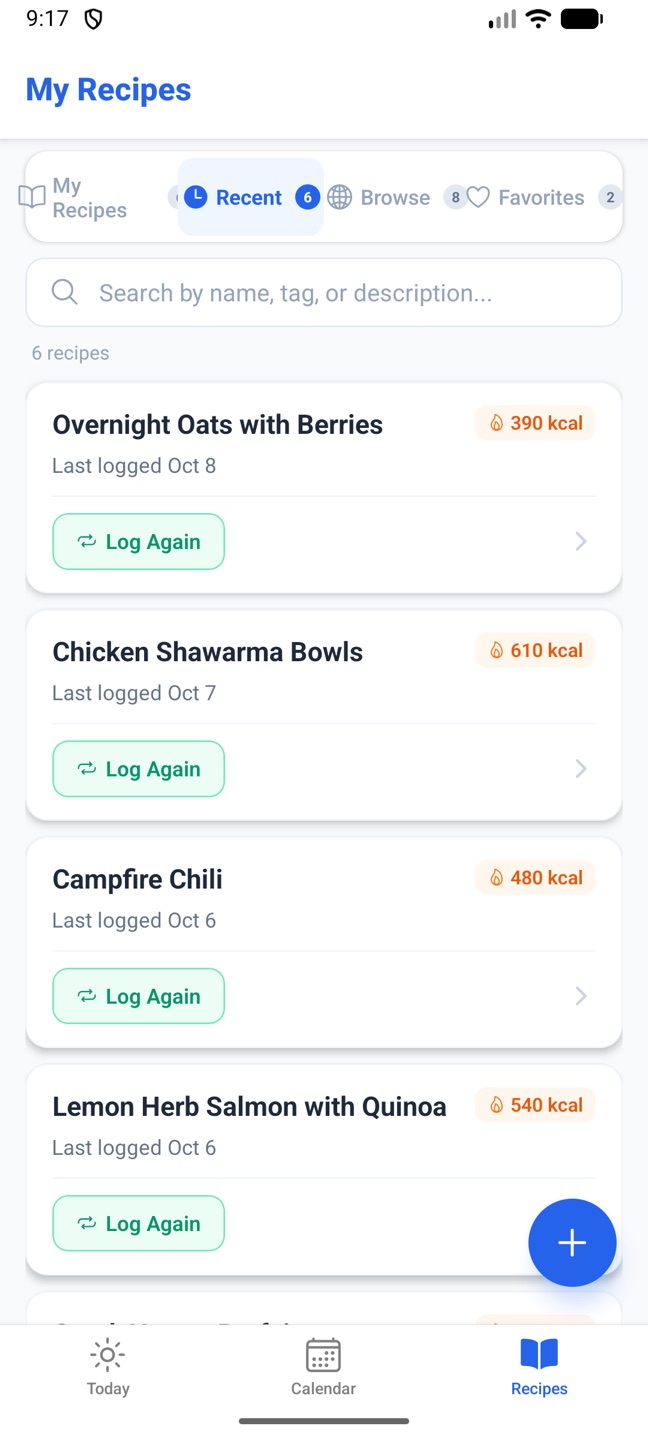
My recipes lists your saved recipes with calories per serving; pick one and set the portions. Recent holds your last 20 foods from search, scan, photo and manual entry, stored per serving, for one-tap re-logging. The phone's Recipes tab also has a Recent list of meals logged in the last 14 days with a Log Again button.
Enter what you ate, calories per serving, a serving size if you like, and protein, carbs and fat. Only the name and calories are required. On the phone this is Quick Entry; on the web it's the Type it in tab.
Tap the pencil (phone) or click the entry's name (web) to change the food, meal type, servings, date, time and nutrition. Nutrition is shown per serving and rescaled when you change the servings. The trash icon or × removes an entry after a confirmation.
Shown on Today when a fasting schedule is set in your profile. It counts the time since your most recent logged meal (looking back up to three days) against the target: 16 hours for 16:8, 16 hours for 2 Meals on the web and 12 on the phone, 23 hours for OMAD. There is no start button; logging a meal restarts it, so log meals with the right time.
The stages along the way, Digesting, Settling, Tapping reserves, Fat burning, Ketosis deepening and Peak state, are for fun and reference. They're approximate, vary by person, and aren't health advice.
Enter a weight and save. Web The Weight card on Today uses the unit from your preferences and shows the last weight logged. PhoneLog today's weight is in the Weekly Review's Weight Tracking section and is recorded against today. Weights feed the trend line in the review.
4. Planning meals
Ask the AI for a day, a week, or a single meal. Everything it writes lands on your calendar, where you can rearrange, replace or add your own recipes.
Choose the days and meals, and the AI writes a full recipe for each slot: ingredients, steps, nutrition and an estimated cost, all fitted to your profile. Up to 7 days per run.
The options
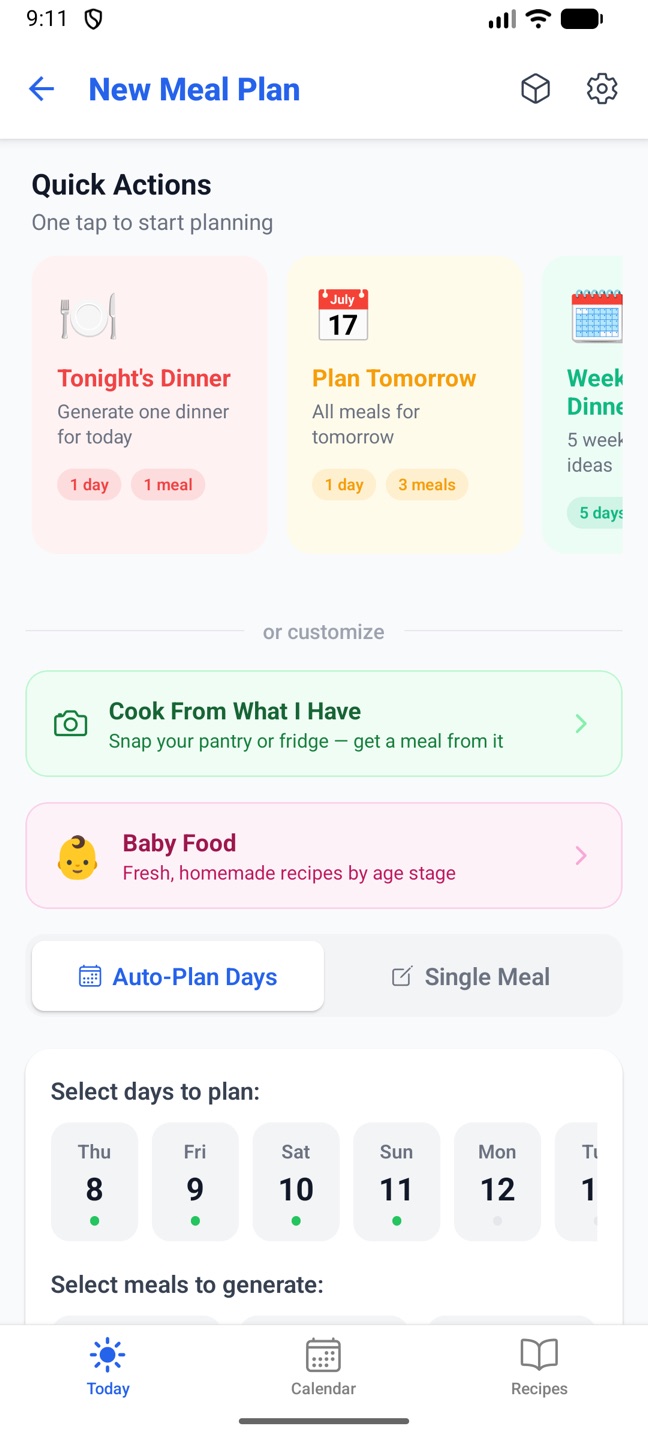
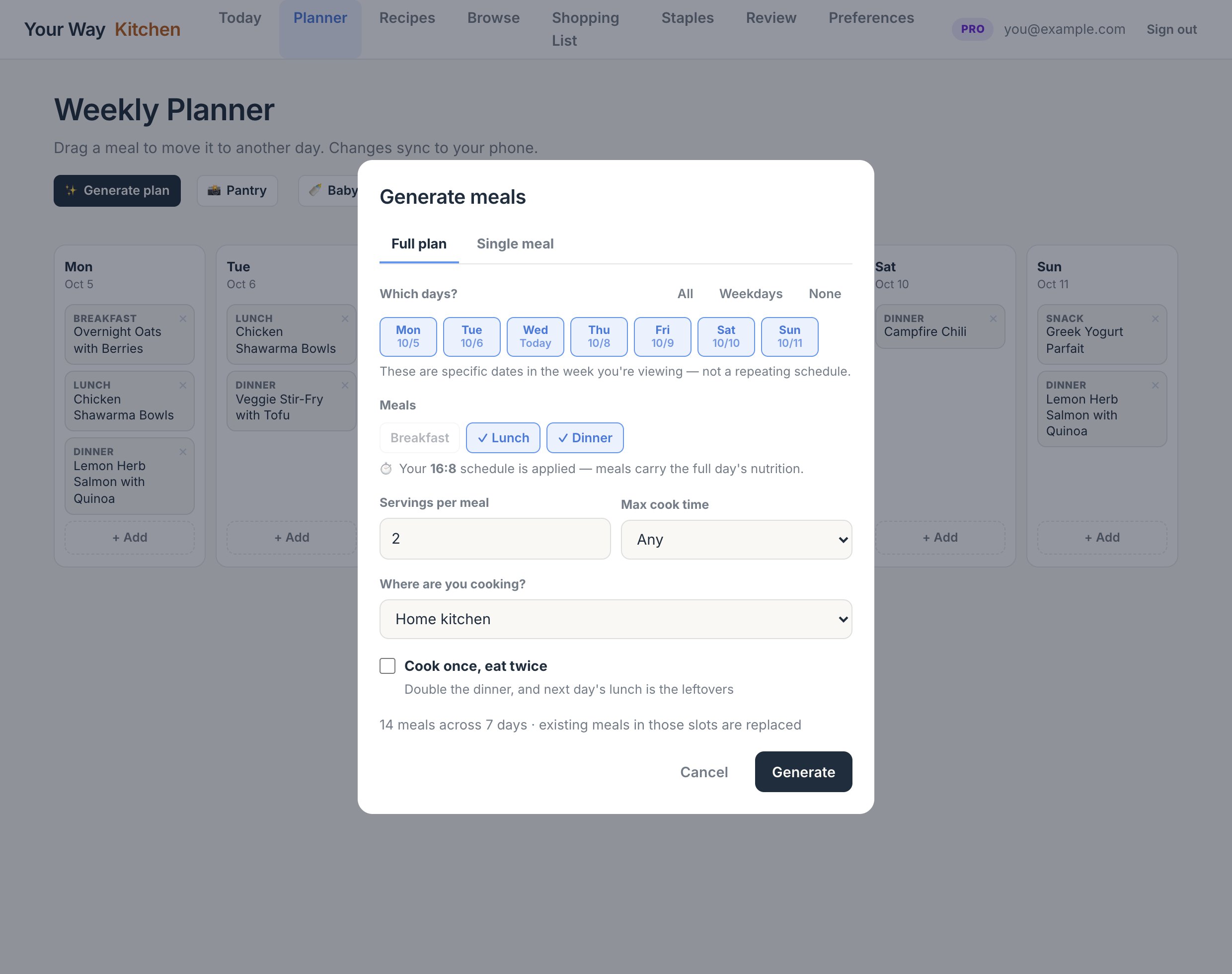
Days: specific dates, not a repeating schedule. The phone shows a 30-day strip with a dot on days that already have meals; the web shows the week you're viewing with All, Weekdays and None shortcuts.
Meals: Breakfast, Lunch, Dinner. A fasting schedule locks the ones outside your window.
Cook once, eat twice: shown when lunch and dinner are both selected. Dinner is doubled and the next day's lunch is the leftovers.
Generating replaces AI-made meals already in those slots (the phone asks first). Meals you added yourself stay. It usually takes 20 to 60 seconds; the screen shows progress while it works.
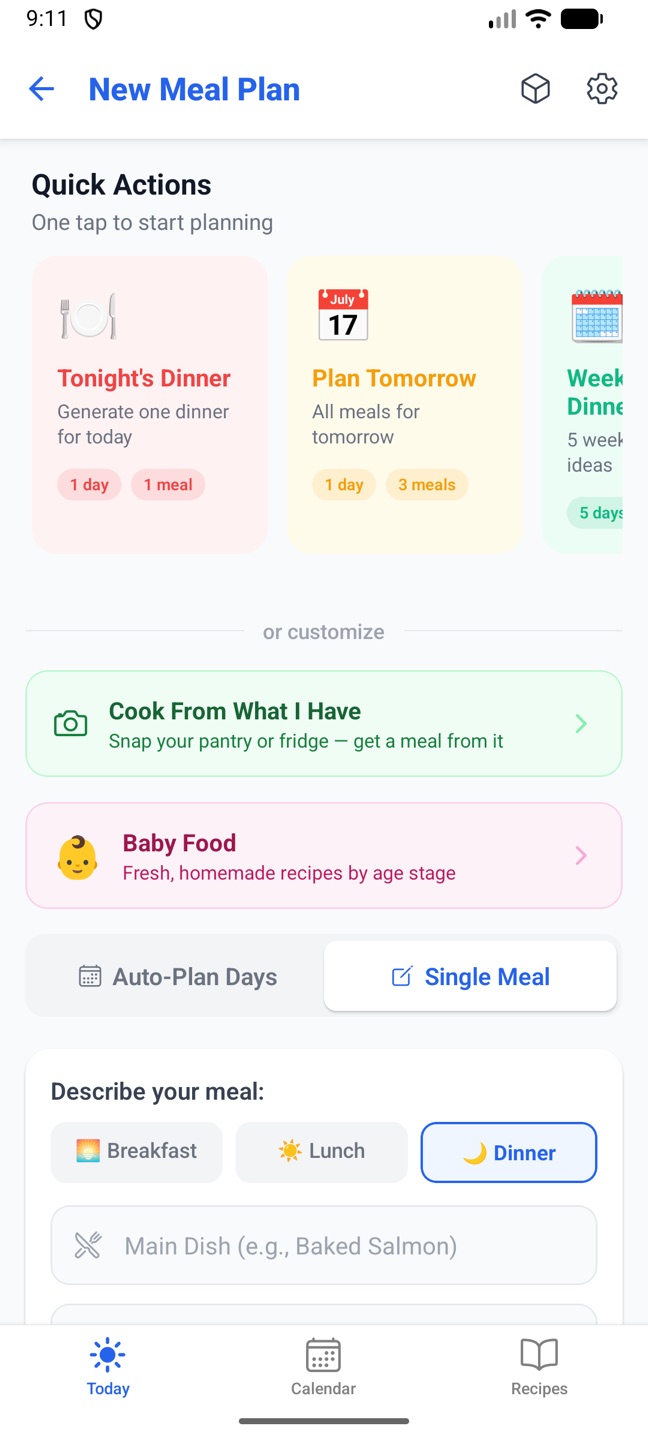
PhonePlan Day on Today opens the planner. Quick Actions start a plan with one tap: Tonight's Dinner, Plan Tomorrow, Weekday Dinners (5 days), Weekend Brunch, Full Week Plan and Healthy Week. They all count forward from today. When a plan finishes you can jump to the calendar or the shopping list.
New Meal Plan on the phone.The Single Meal tab.
Web✨ Generate plan on the Planner, Full plan tab.
Generate meals on the web. Breakfast is locked here because the profile uses a 16:8 fasting schedule.
The Single Meal tab writes one recipe around your description. Fill in any of: the main dish, sides, ingredients to use (the recipe is built around these and keeps extras to a minimum; oil, salt and common spices are assumed) and notes such as "one pan, not too spicy". Pick the day and meal type, and the same servings, cook-time and location options apply. It replaces an AI-made meal of that type already on that day; your own meals stay.
Every generation and AI rewrite can be told where you're cooking: Home kitchen, Campfire and Dutch oven, Camp stove, Grill only, RV or boat galley or Hotel room. Recipes are then written for that setup: coals or burners instead of an oven, cooler-safe ingredients, prep-at-home steps. It applies to that run only and doesn't change your profile. Such recipes are tagged, and Cook Mode reminds you that times are estimates when you're off the grid.
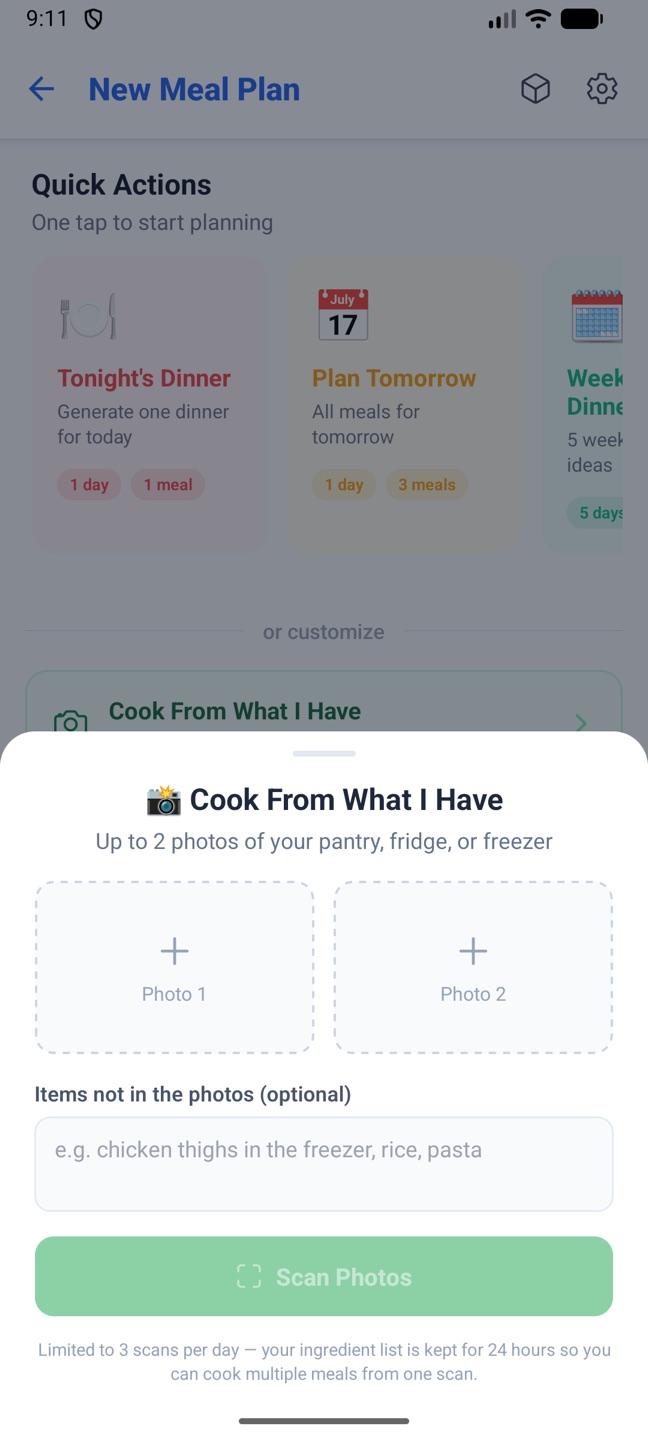
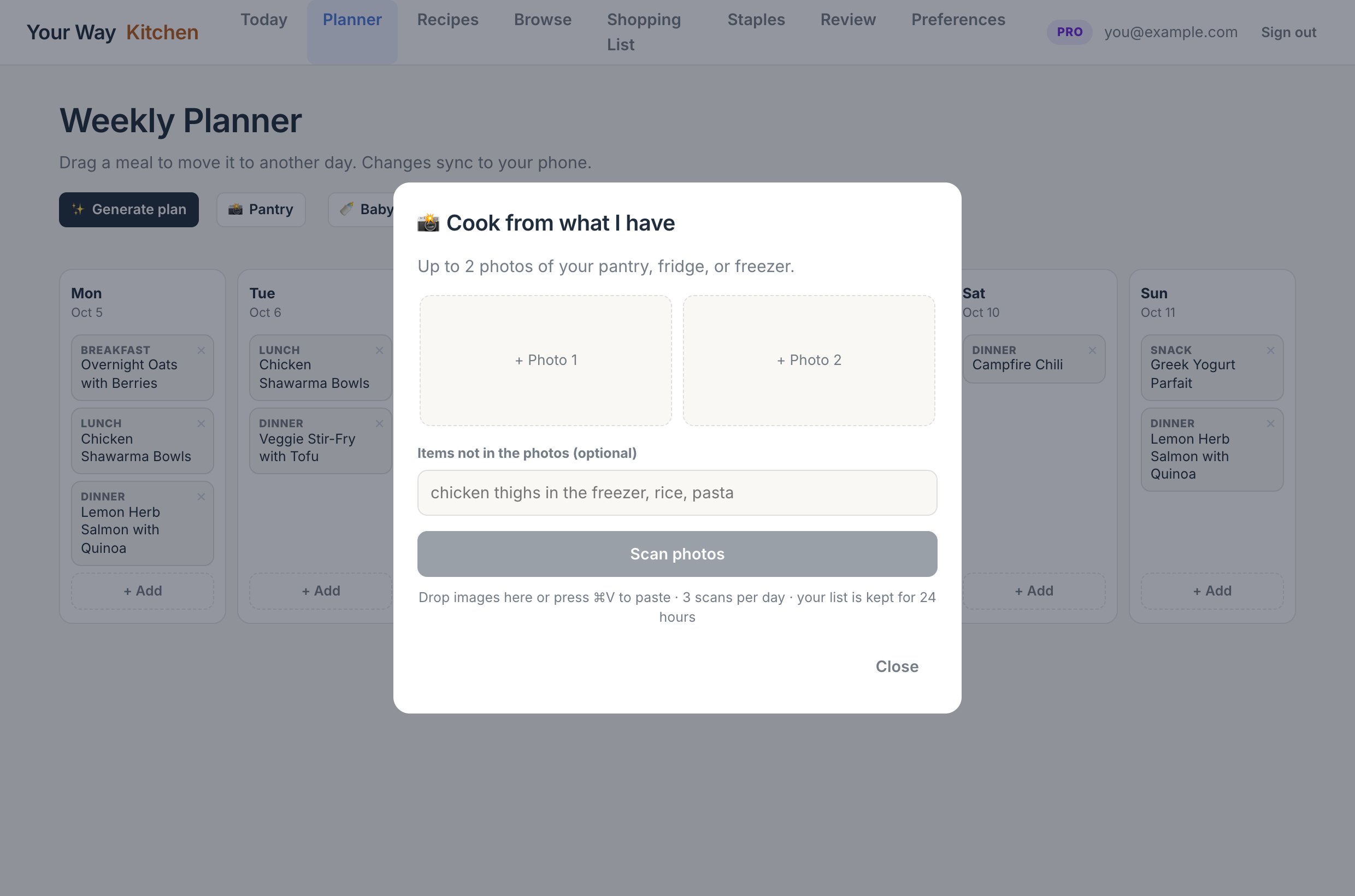
Photos. Up to two pictures of your pantry, fridge or freezer, plus anything not in the photos ("chicken thighs in the freezer, rice").
Check the list. The AI reads the photos into an editable ingredient list. Fix anything it got wrong. The list is kept for 24 hours, so you can come back for a second meal without scanning again.
Pick an idea. You get three meal ideas with rough calories and cost per serving. Show me different ideas never repeats one.
Build it. Choosing an idea writes the full recipe from those ingredients plus basic staples. On the phone it fills the Single Meal form for you to date and generate; on the web it opens in the recipe editor to review and save.
Three scans per day. Getting more ideas from the same list doesn't count as a scan.
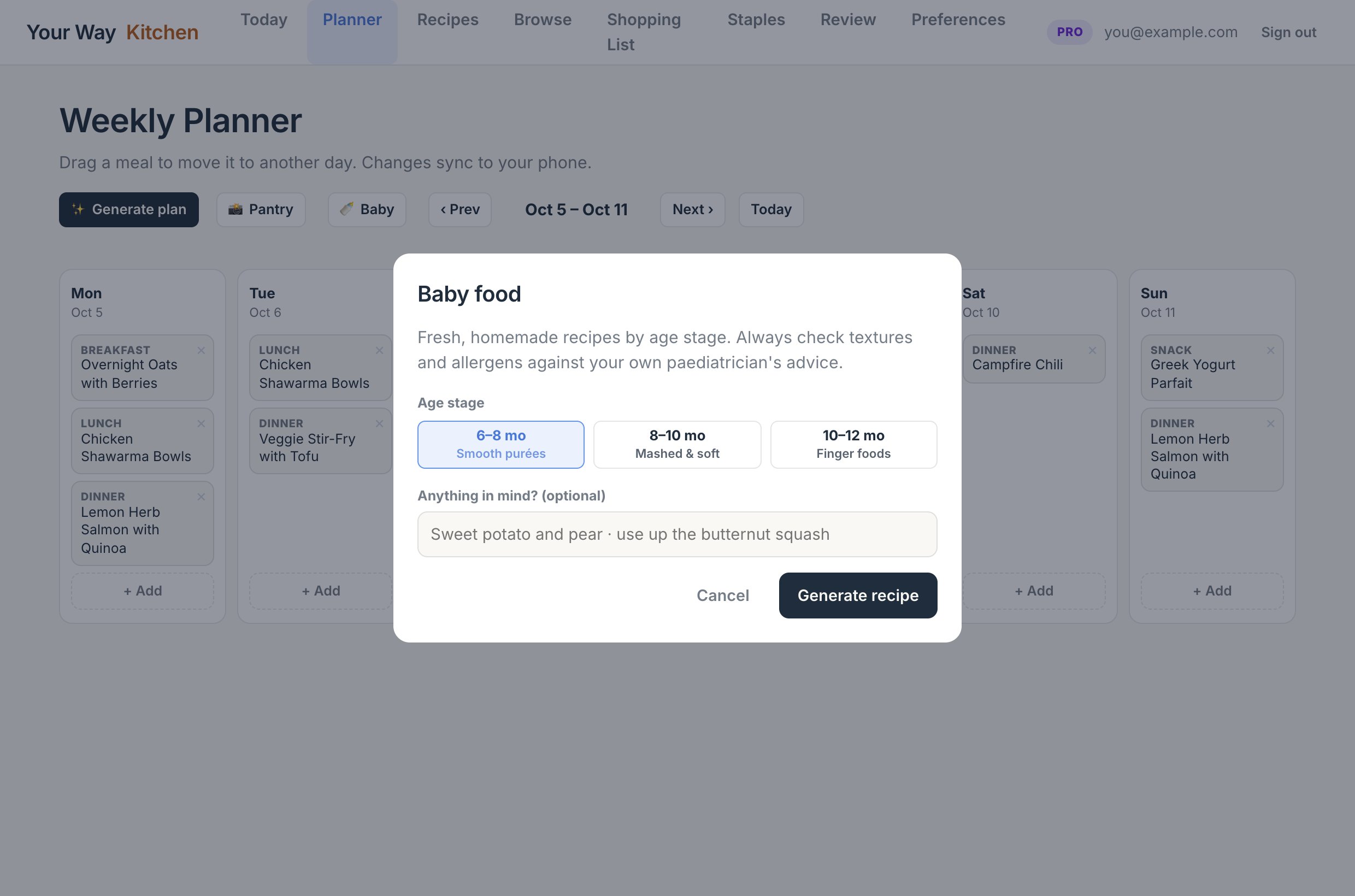
With Baby food mode on, the planner gets a Baby Food card (phone) or a 🍼 Baby button (web). Pick the age stage, 6 to 8 months (smooth purées), 8 to 10 (mashed and soft), 10 to 12 (finger foods) and on the phone 12+ (toddler meals), and optionally what you have in mind or on hand. The recipe follows infant feeding safety guidelines (no honey under 12 months, no added salt or sugar, age-appropriate textures) and opens for you to review before saving.
Always check textures and allergens against your own paediatrician's advice, and supervise every meal.
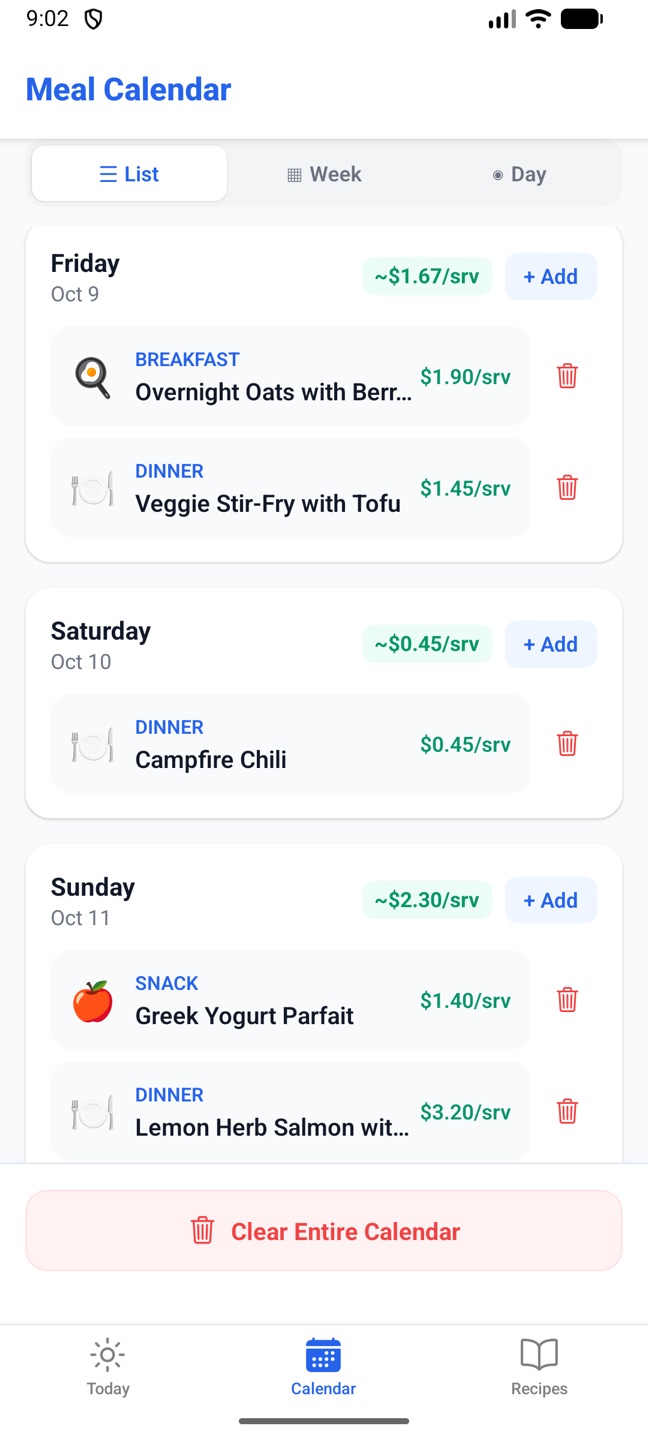
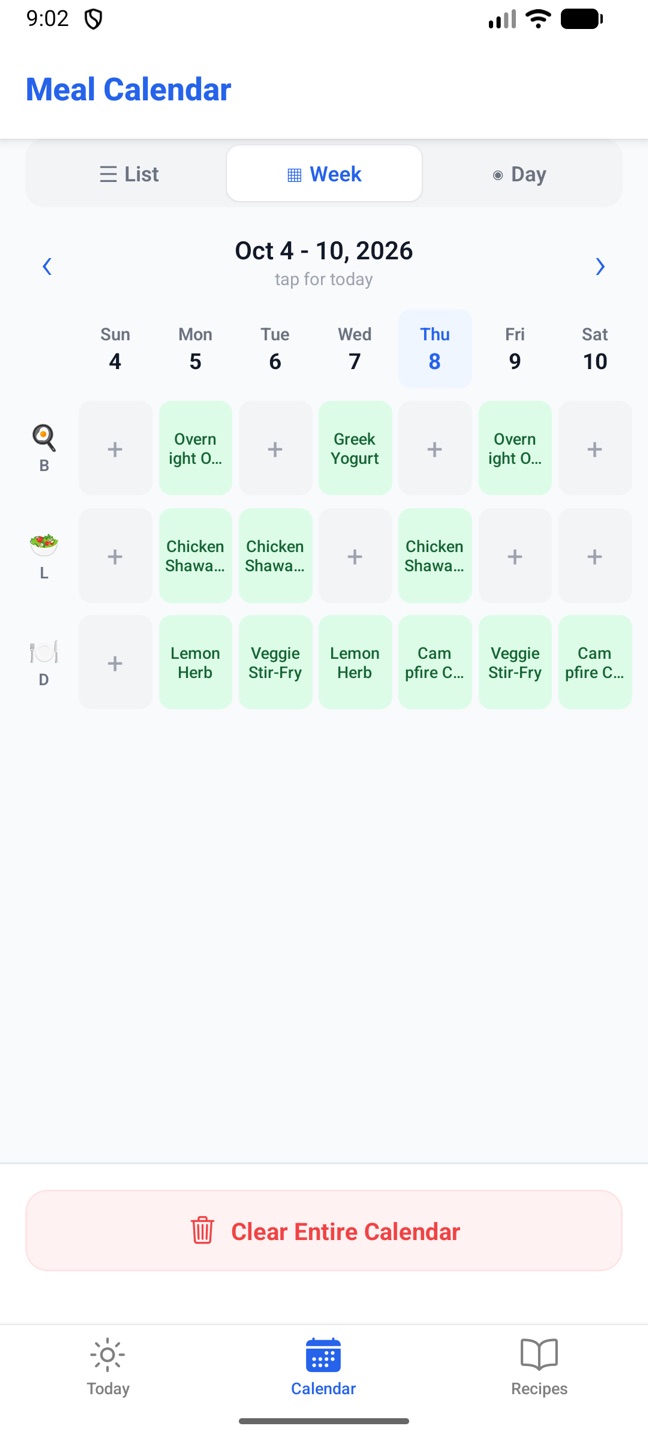
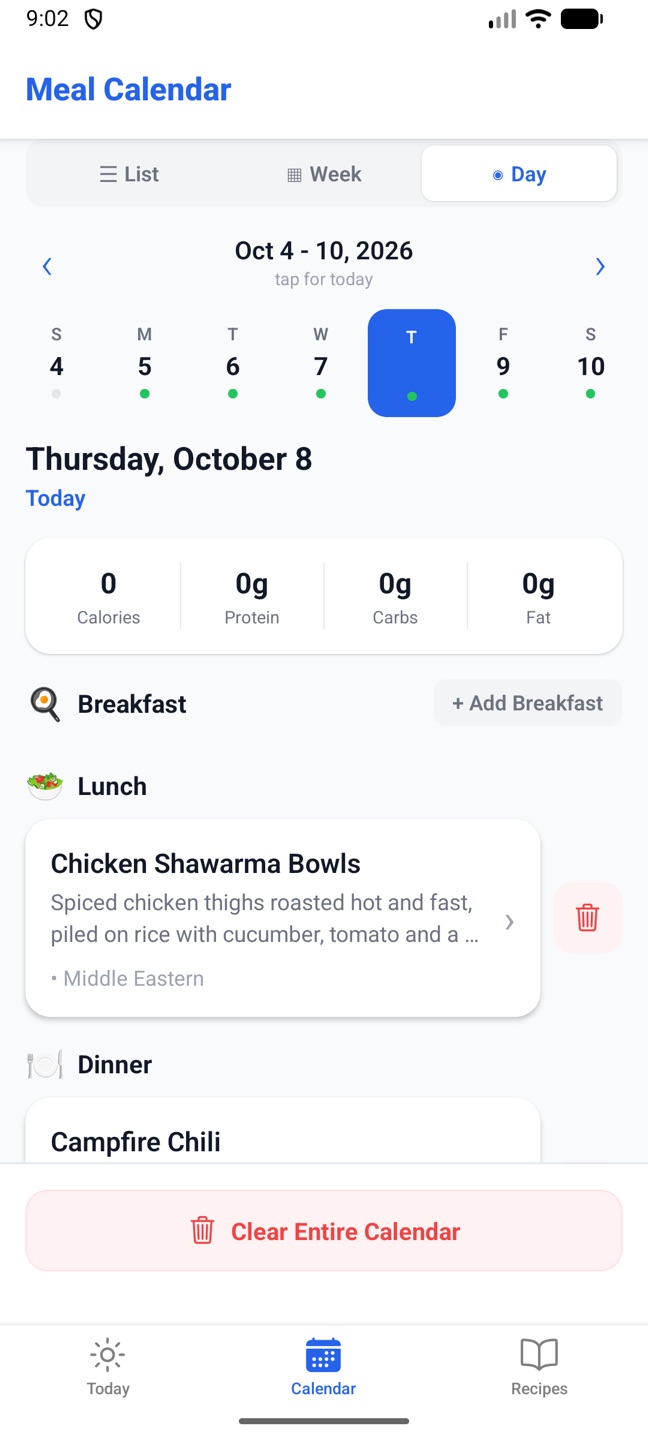
Phone The Calendar tab has three views. List shows the next 14 days with each day's meals, a cost per serving badge and an + Add button, plus a budget banner comparing the average cost per serving with your budget. Week is a grid of breakfast, lunch and dinner across seven days. Day shows one day's slots with calorie and macro totals. The trash icon deletes a meal; Clear Entire Calendar at the bottom removes everything after a confirmation.
List view.Week view.Day view.
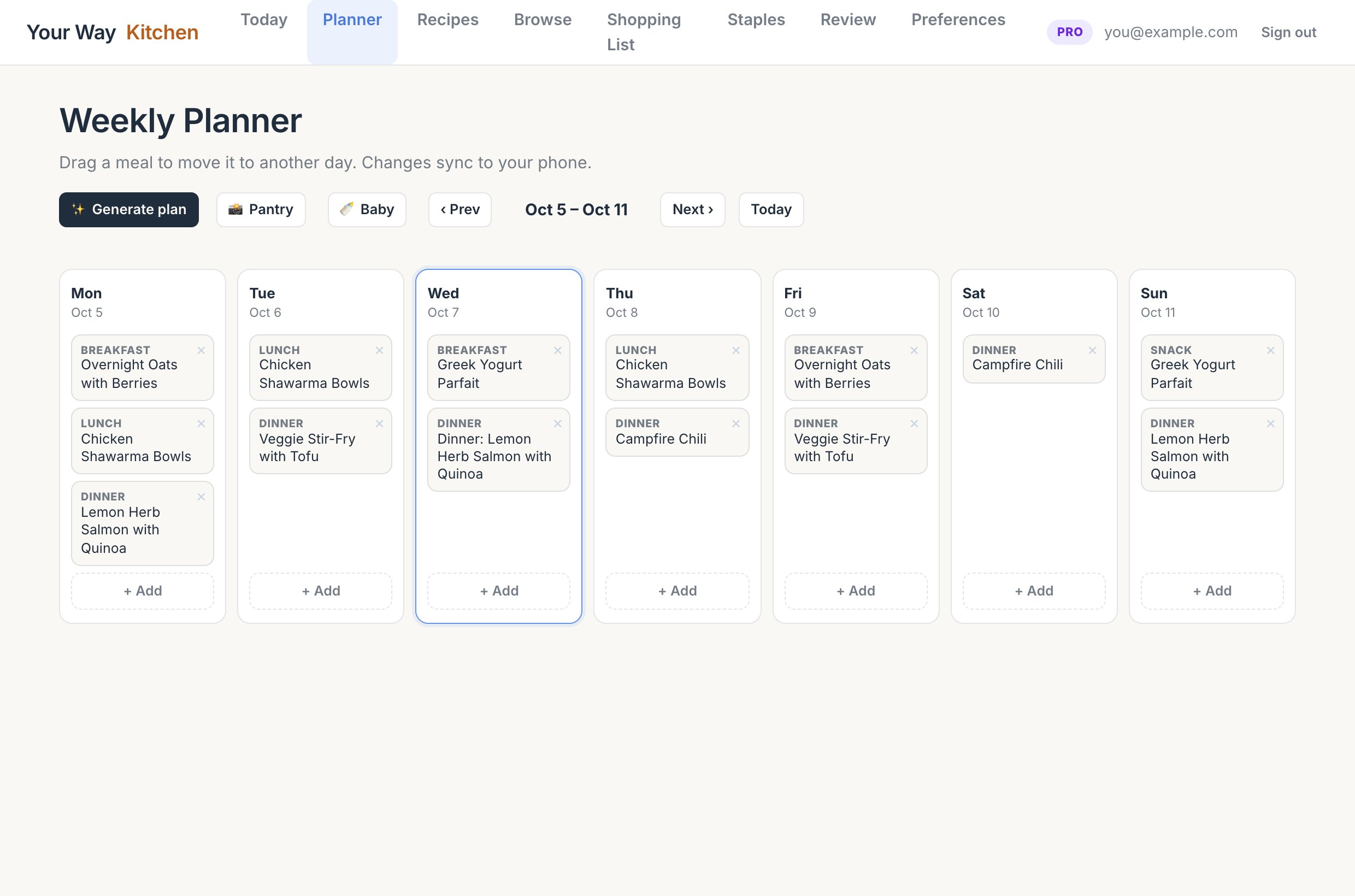
Web The Planner is a Monday to Sunday grid. Drag a meal to another day to move it. × removes a meal immediately. Click a meal to read the recipe, where + Save to My Recipes keeps a copy. Use ‹ Prev, Next › and Today to change weeks.
Phone+ Add on a calendar day, then Pick from My Recipes: choose the days of that week and the recipe. Or from a recipe card in My Recipes, Add to Calendar picks one date. Recipe Details also has a calendar icon.
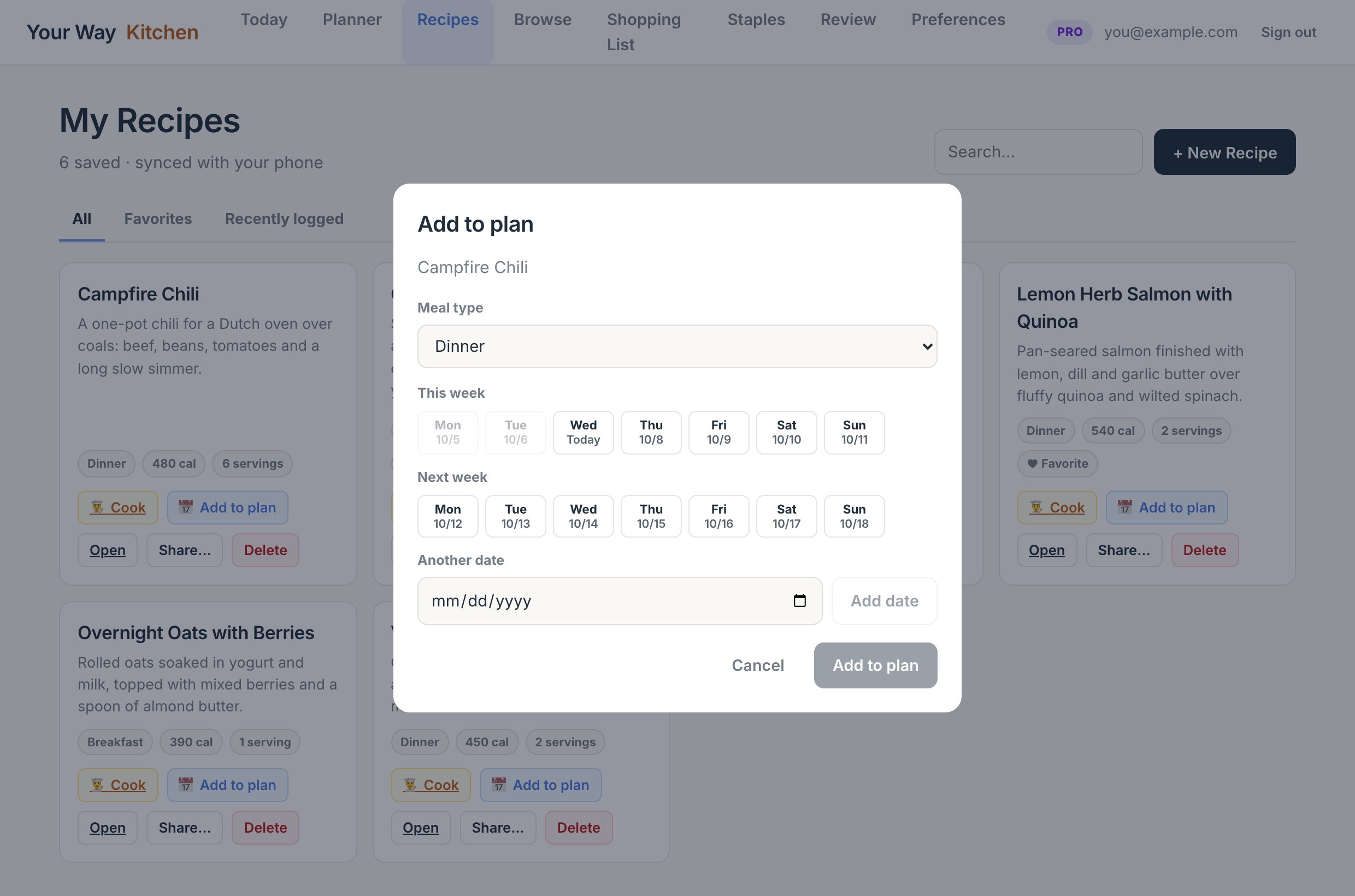
Web+ Add under a day in the Planner searches your recipes. Or from a card on Recipes, 📅 Add to plan lets you pick several days this week and next, or any other date, in one go.
5. Recipes
My Recipes is your own collection: typed in, imported, generated and saved, or copied from the community. Every recipe can be edited, cooked, planned, shared and, with Pro, rewritten by the AI.
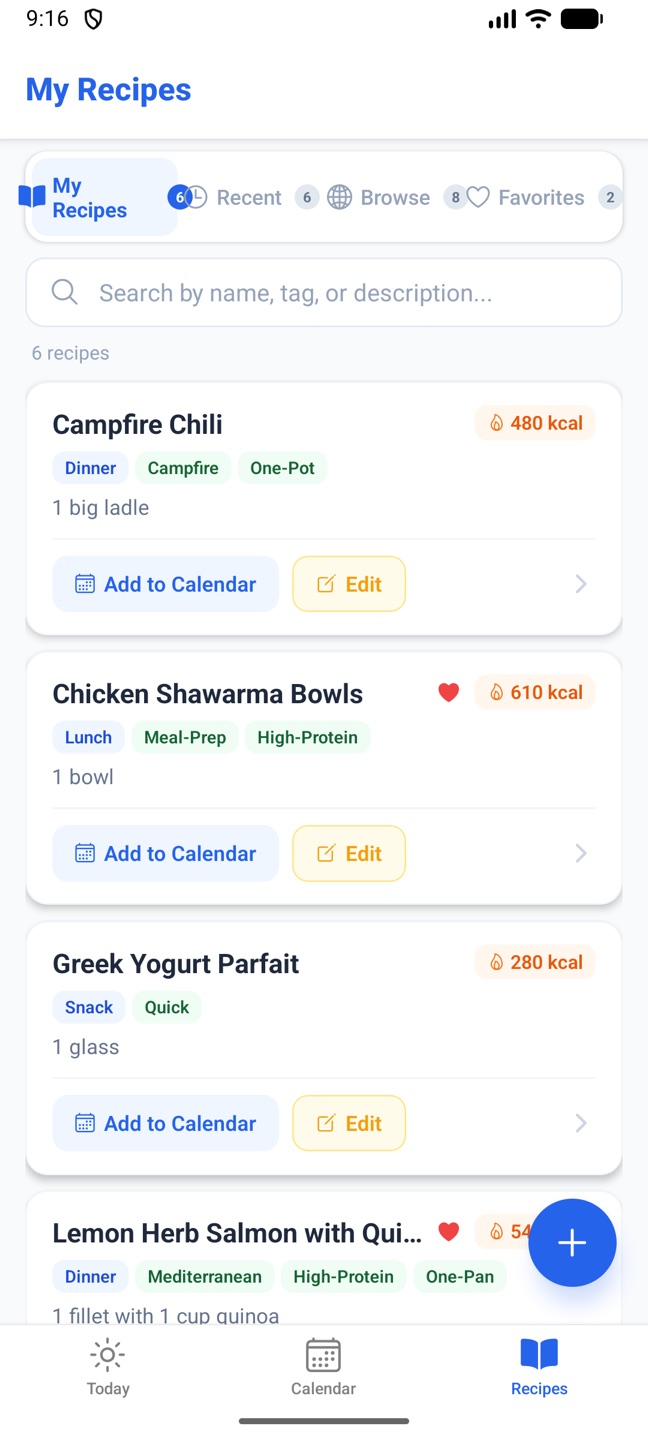
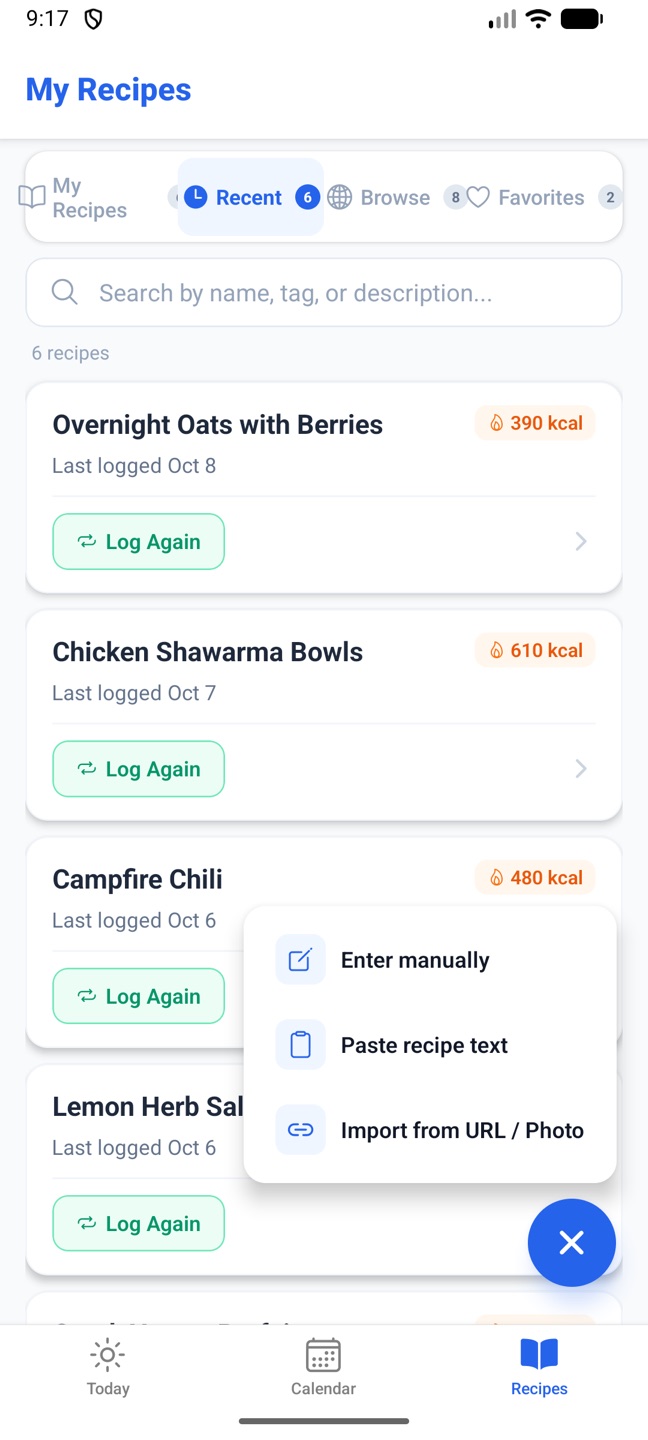
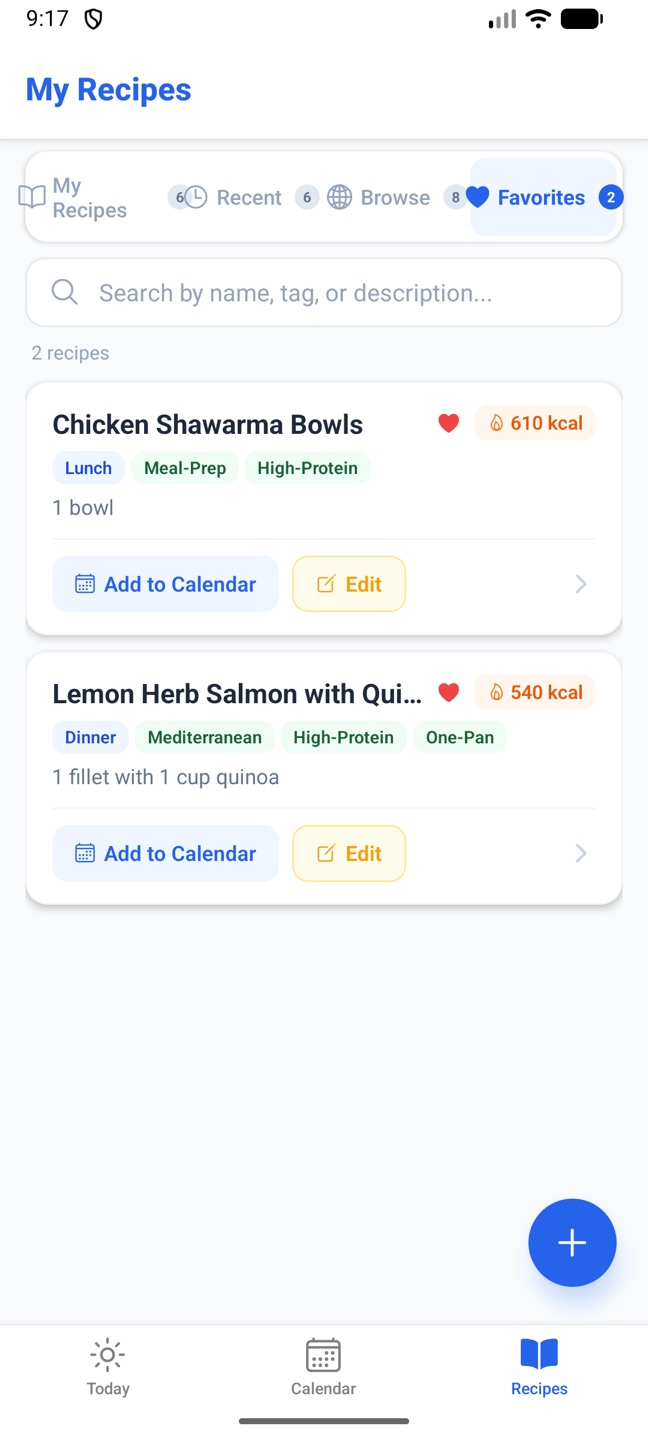
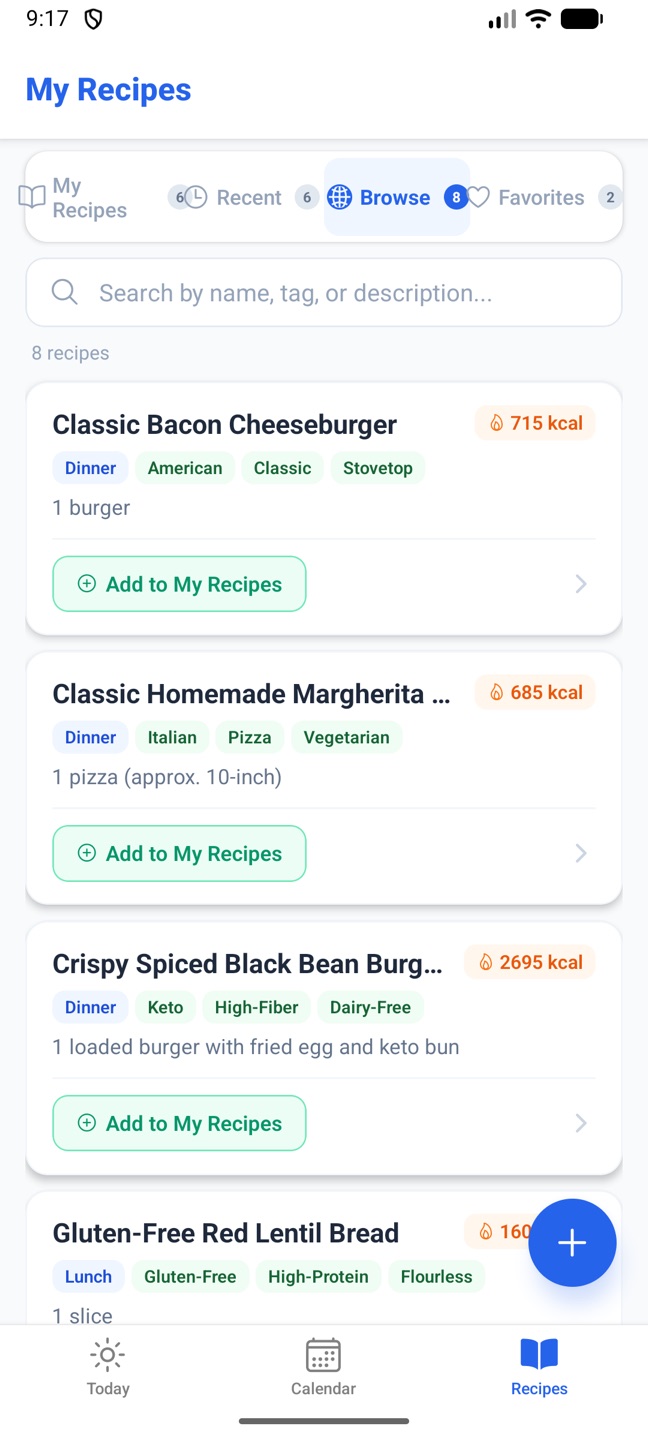
Phone The Recipes tab has My Recipes, Recent (meals logged in the last 14 days), Browse (the community) and Favorites. Search matches names, tags, descriptions and chef names. The + button offers Enter manually, Paste recipe text and Import from URL / Photo. Tap the heart on a saved recipe to make it a favourite.
My Recipes on the phone.The + menu.Favorites.
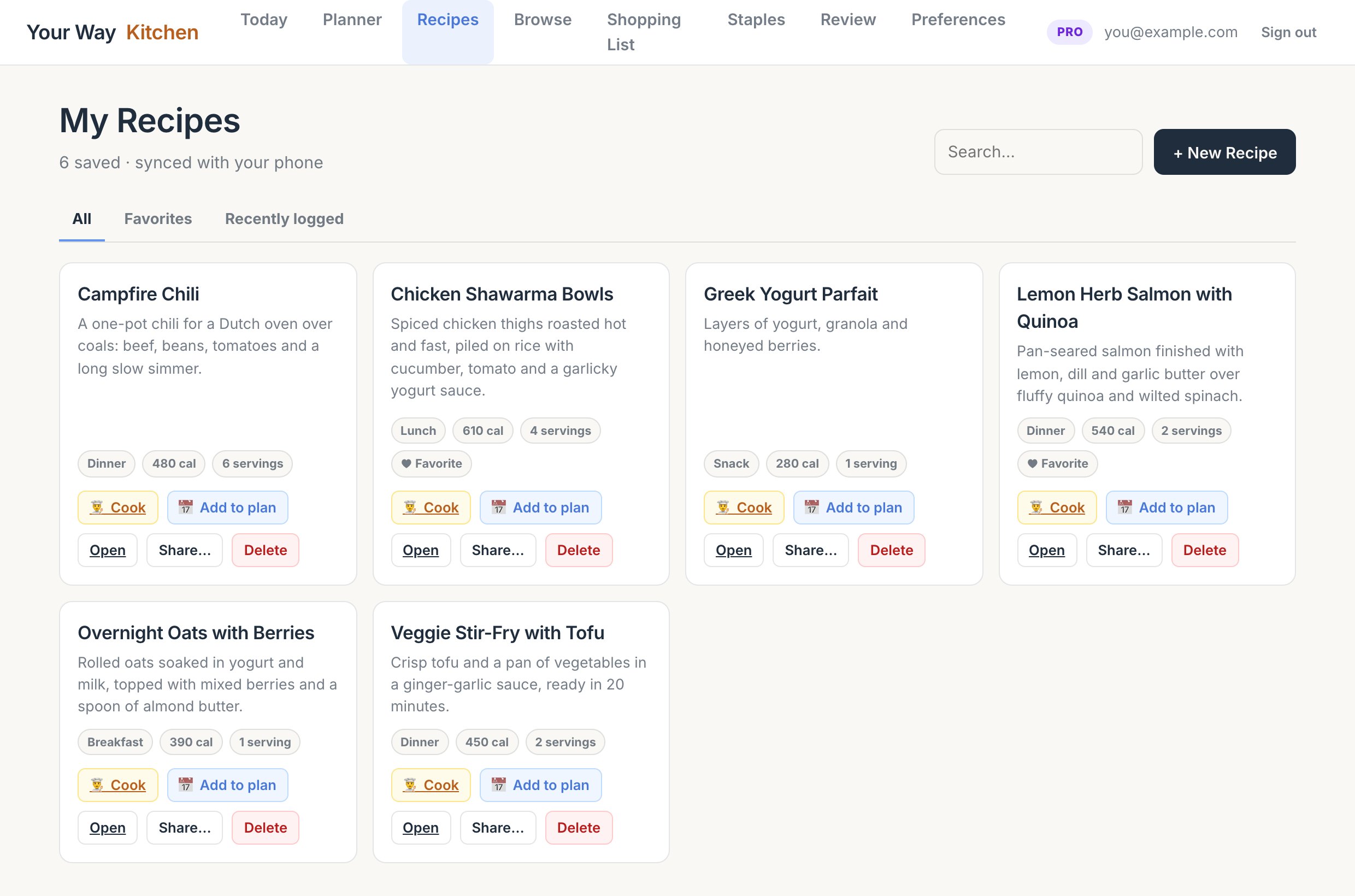
WebRecipes lists everything A to Z with All, Favorites and Recently logged tabs and a search box. Each card has 👨🍳 Cook, 📅 Add to plan, Open, Share… and Delete. Favourites are marked on the phone.
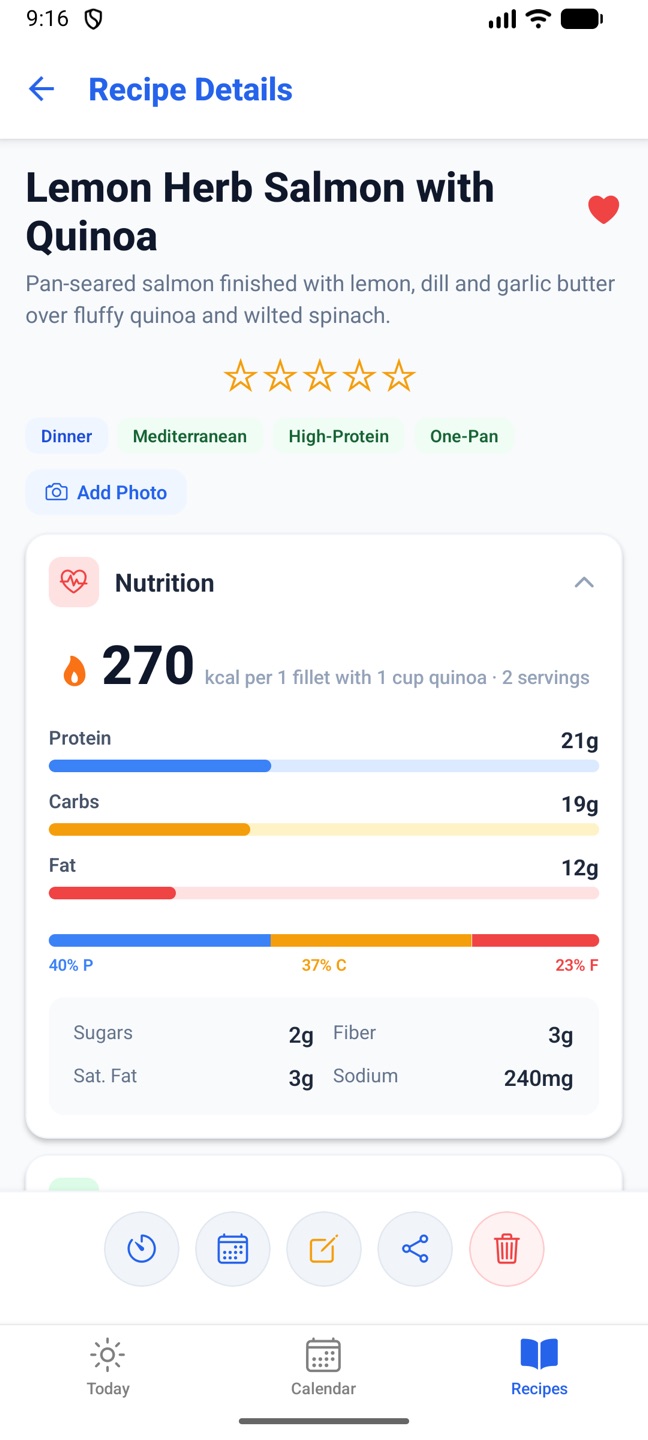
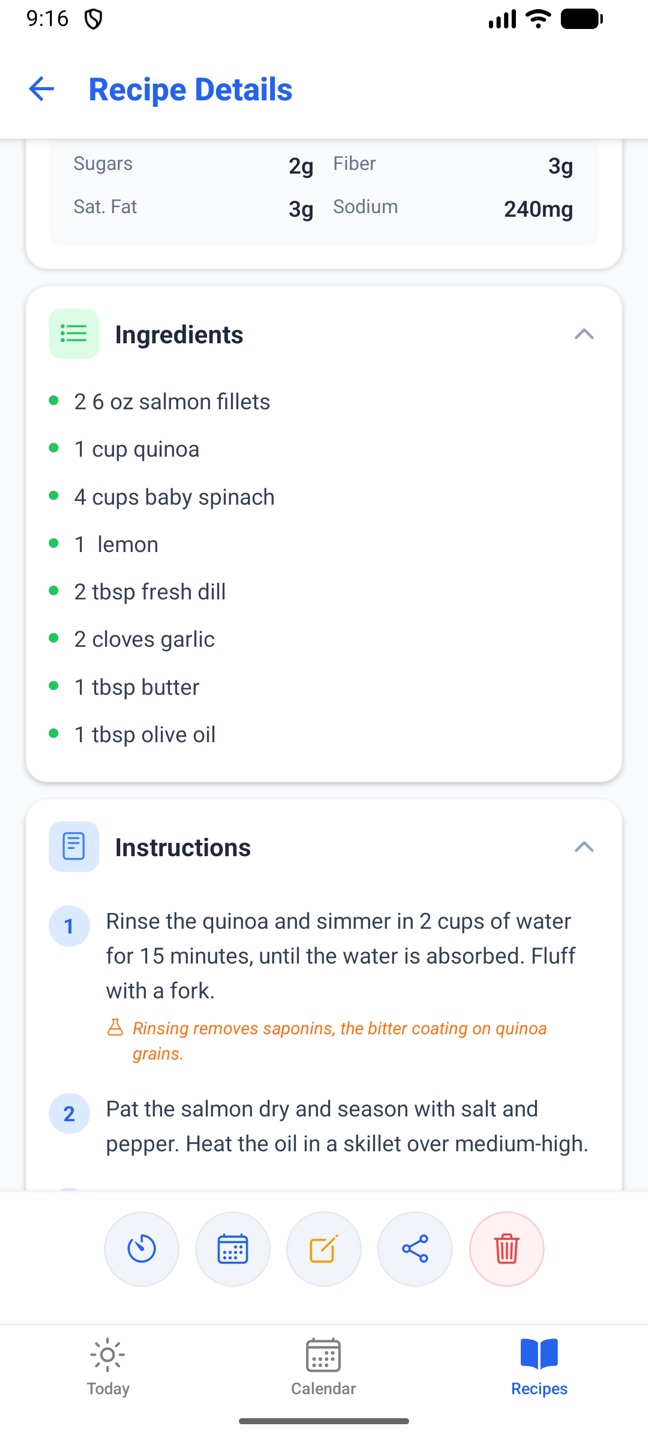
Recipe Details (phone) and the recipe pop-ups and editor (web) show the same things:
Nutrition per serving, how many servings, and the estimated cost per serving and in total.
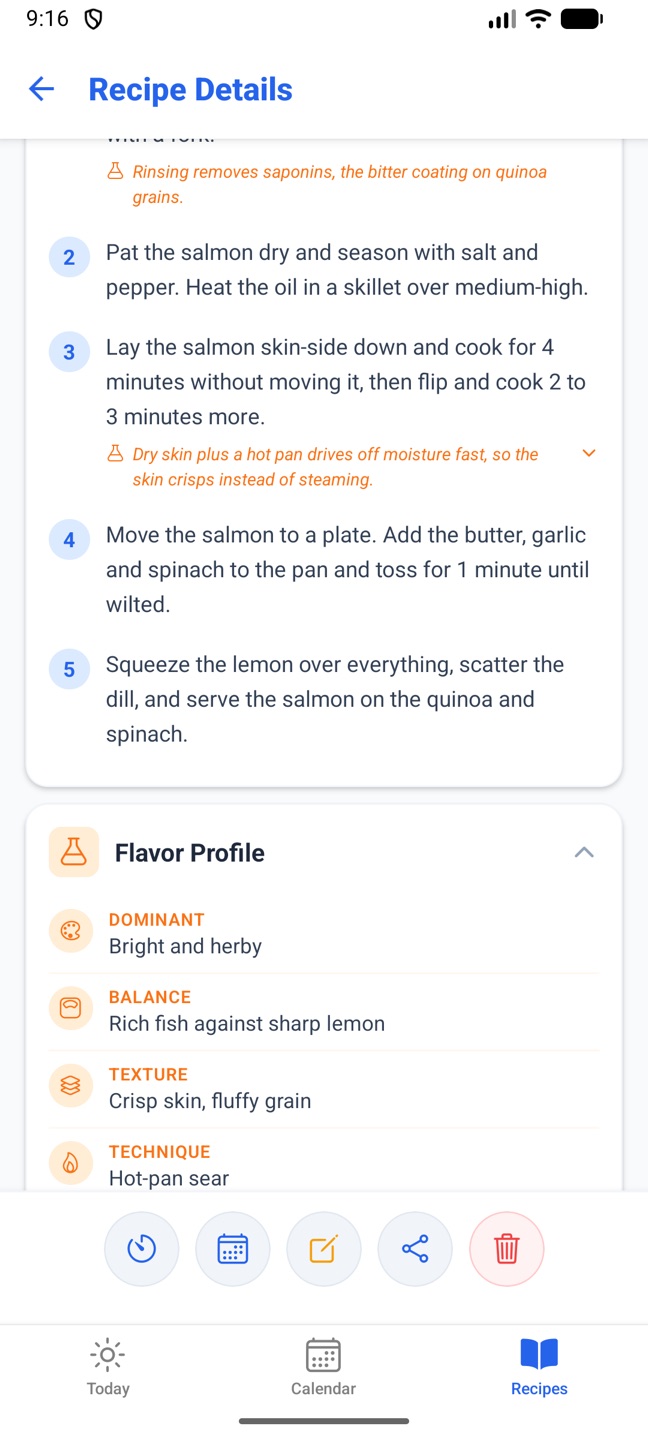
Ingredients and numbered instructions. With food science notes on, steps carry an orange flask note; tap it for the technique card with the science, how to execute, and what to watch for.
Flavor profile when the AI provided one: dominant flavour, balance, texture, technique.
PhoneMy Notes, your own photo (Add Photo, from your library), a rating for shared recipes, and the share icon, which sends the ingredients and steps as text to any app.
Recipe Details.Ingredients, steps with a science note, and the icon bar: Cook Mode, calendar, edit, share, delete.Notes, rating, re-adapt and sharing.
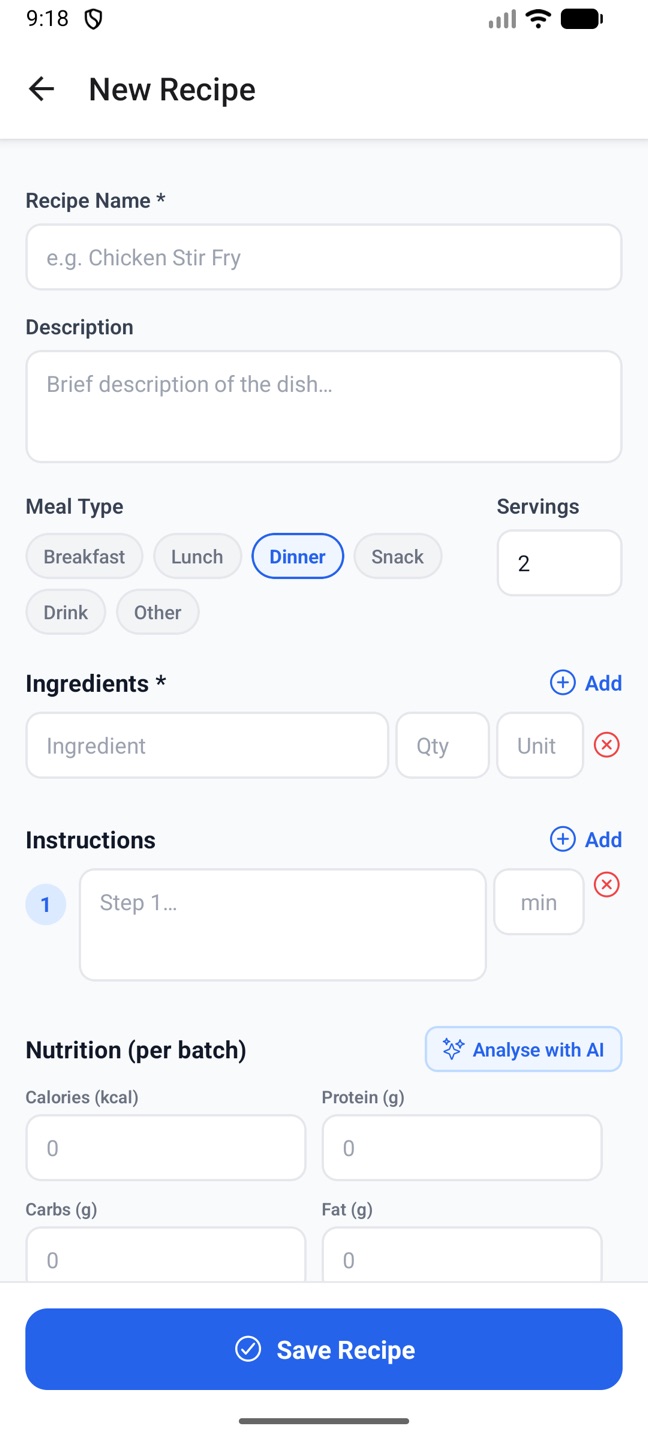
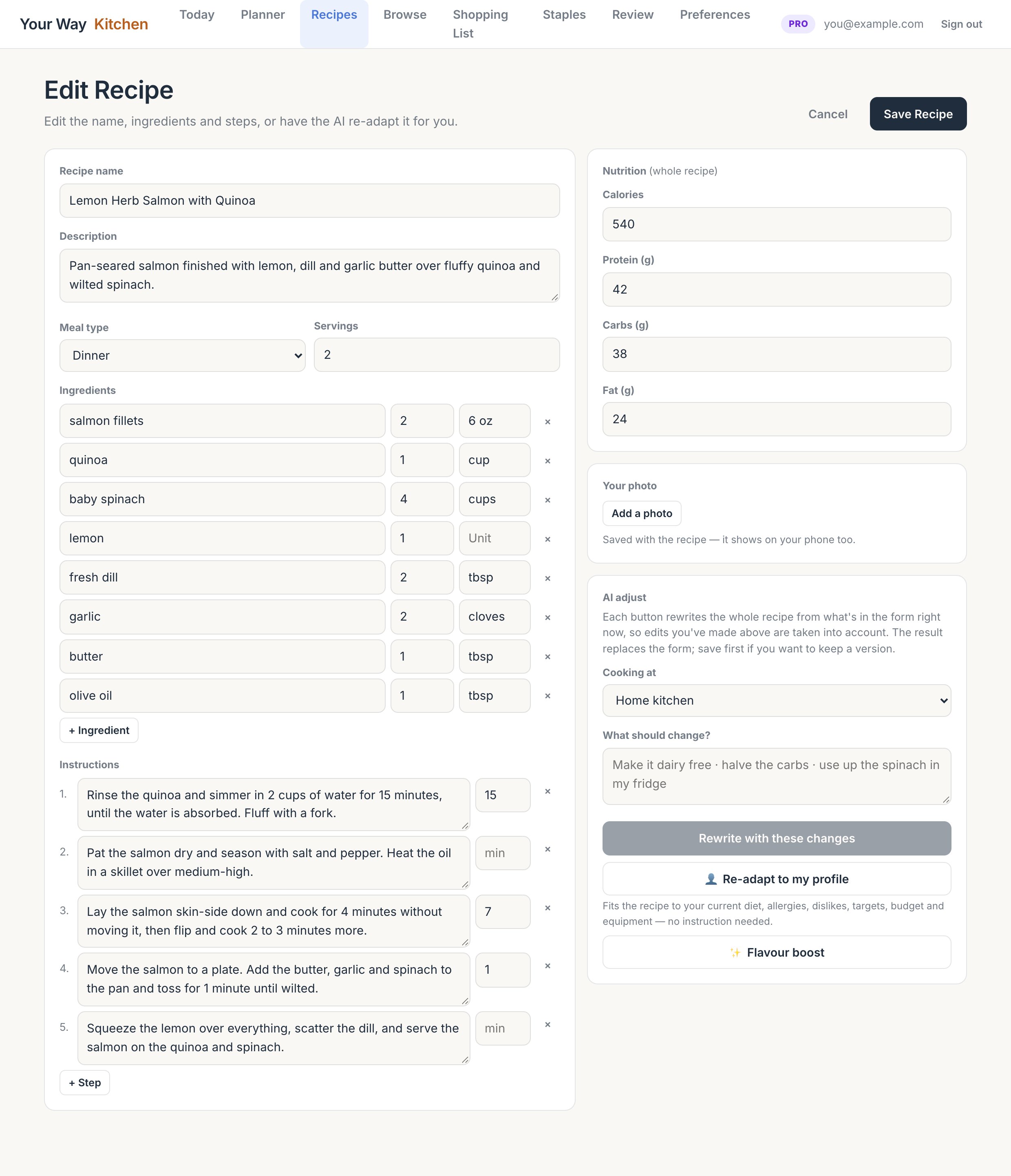
Name, description, meal type, servings, ingredient rows (ingredient, quantity, unit), numbered steps, and nutrition for the whole batch. Only a name and ingredients are required.
Minutes per step. Each step has an optional "min" box that seeds the timer in Cook Mode. Leave it blank and Cook Mode reads the time from the step's own words: "10 minutes", "1½ hours", "30 sec", and the lower figure of a range like "10–12 minutes".
ProAnalyse with AI on the phone fills in the nutrition, and a description if it's empty.
The web editor is the comfortable place to type long recipes; it saves straight to your phone.
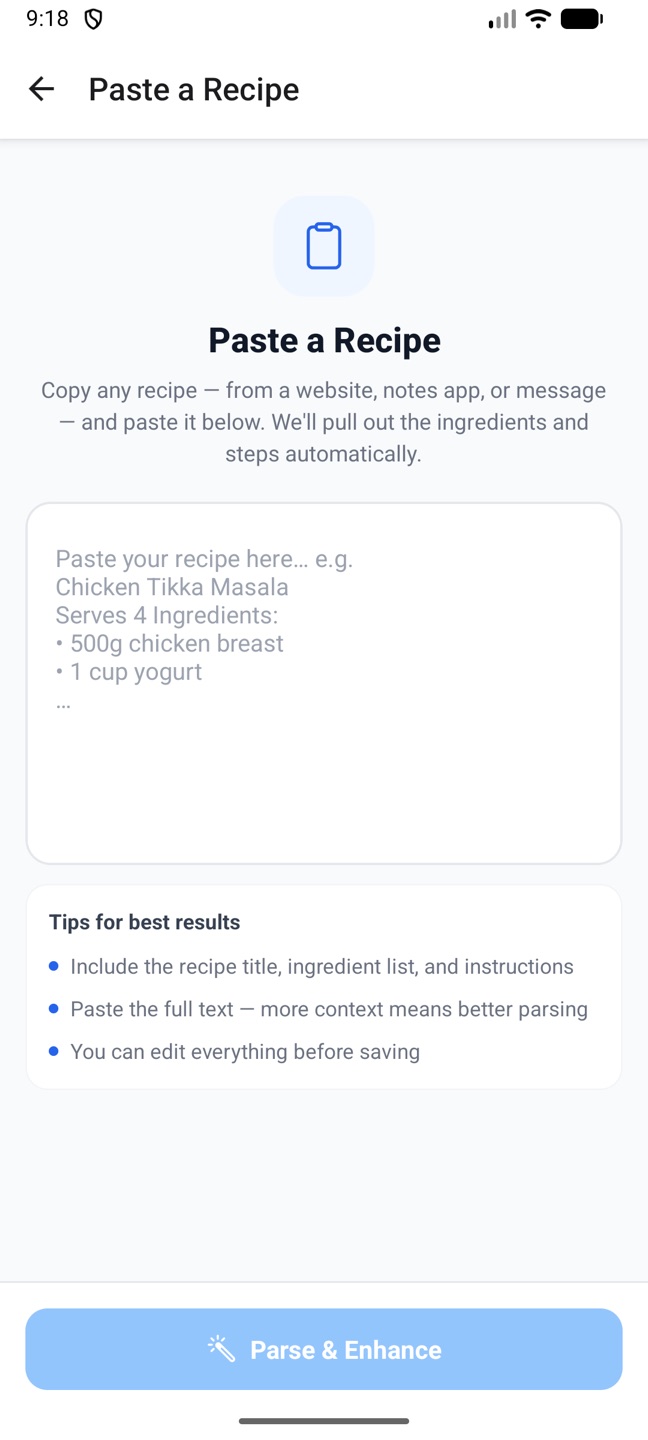
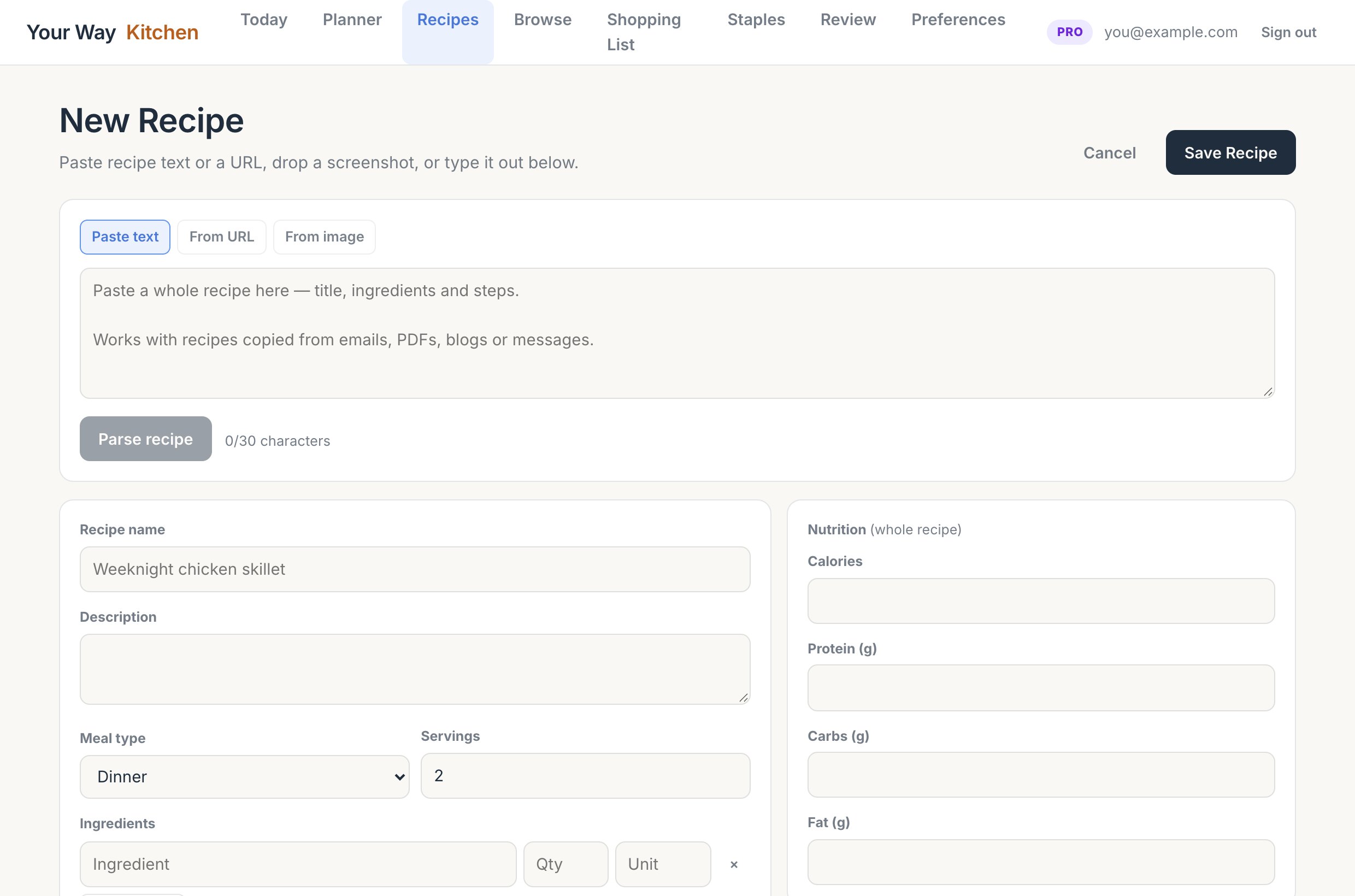
Copy a whole recipe from a website, email, PDF or message and paste it in. The app pulls out the title, ingredients and steps for you to check and save. It needs at least 30 characters and works on every plan. With Pro, Parse & Enhance also adds nutrition, cook times and technique cards.
On the phone: + then Paste recipe text. On the web: + New Recipe, the Paste text tab.
Paste a Recipe on the phone.A new recipe on the web starts with the import bar.
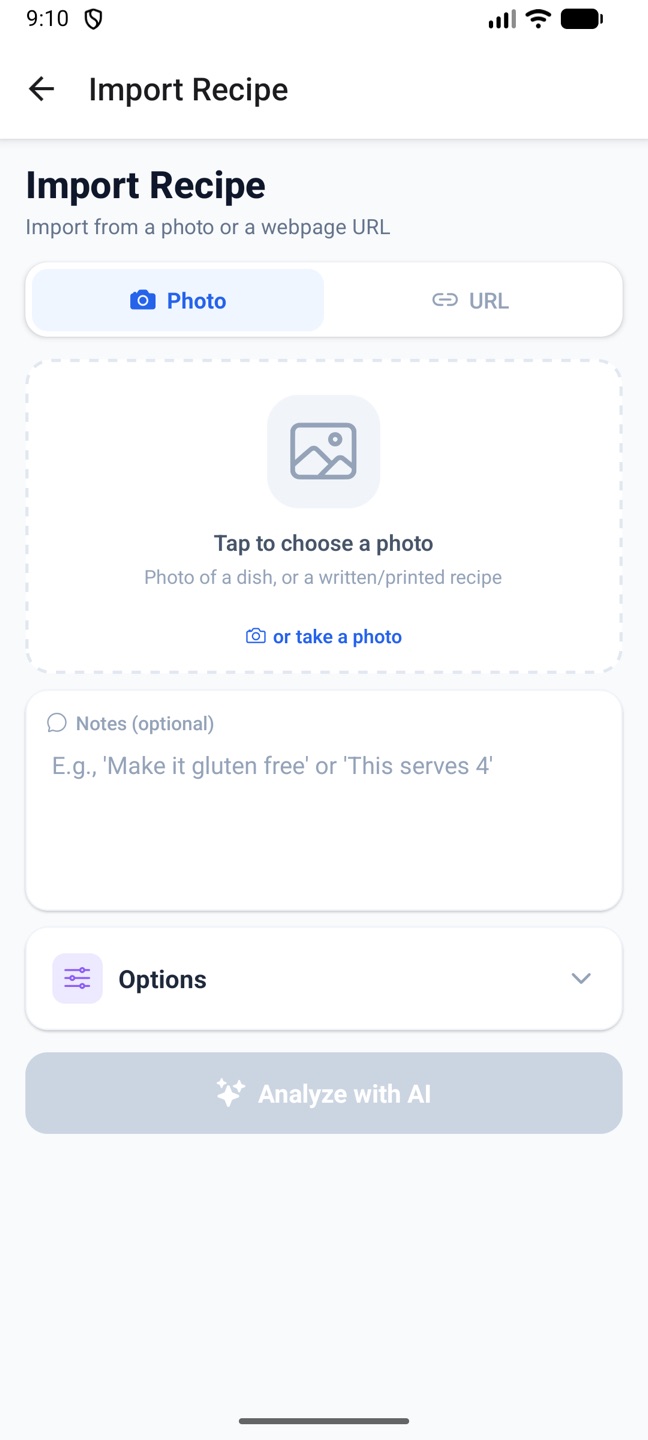
Give the AI a recipe webpage URL, or a photo of a printed recipe, a screenshot, or even the dish itself, and it turns it into a full recipe with nutrition. On the phone, Import on Today or + on Recipes, with an optional note such as "make it gluten free" and an Apply profile preferences option that adapts the recipe to your diet as it imports. On the web, the From URL and From image tabs on a new recipe; you can also paste a screenshot anywhere on that page.
The result opens for review; nothing is saved until you confirm.
Three ways to change a recipe without retyping it:
Adjust with an instruction. Say what should change ("make it dairy free", "halve the carbs", "swap chicken for tofu") and the whole recipe is rewritten.
Re-adapt to my profile. No instruction needed: the recipe is refitted to your current diet, allergies, dislikes, targets, budget and equipment. The new description starts with "Adapted:" and says what changed.
Flavour boost. The AI improves seasoning, technique and texture, and lists what it changed.
PhoneCustomize Meal (swipe a planned meal and choose Edit) has AI Adjust Recipe and Flavor Boost; after an AI change you can Save as New Recipe or save the change to that day. Re-adapt to My Profile is on Recipe Details and opens an adapted copy, leaving the original alone.
Web The AI adjust panel in the recipe editor: a "Cooking at" location, an instruction box with Rewrite with these changes, Re-adapt to my profile and Flavour boost. The result replaces the form, so save first if you want to keep the old version.
Customize Meal also lets you change the meal type and description, remove or add ingredients, and set servings from 1 to 20, which rescales the ingredient amounts and nutrition. Save Changes updates that day's meal on the calendar.
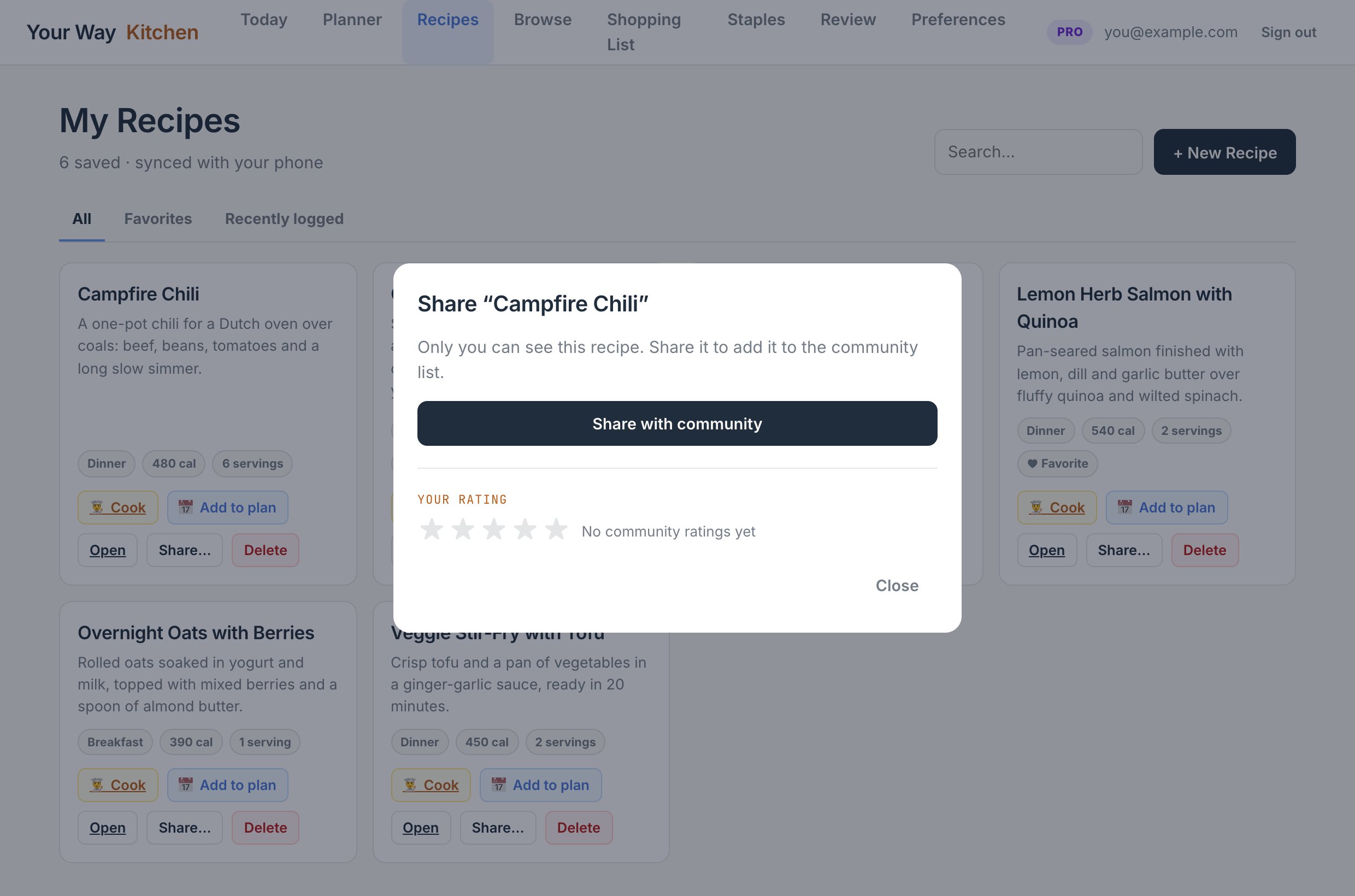
Sharing puts a recipe in Browse for every signed-in user to find, rate and copy. Your own saved copy is unaffected, and you can make it private again at any time. Only the person who shared a recipe can change its sharing.
Every share is checked first. When you share, the recipe and any photo are reviewed automatically against the community guidelines, usually within a minute. While that runs you see "Checking your recipe"; once approved it appears in Browse. If it's turned down, the share screen tells you why so you can edit it and try again. Editing a shared recipe sends it through the check again, and it's hidden until it passes.
PhoneShare with Community on Recipe Details; tap again (Shared with Community) to remove it from Browse.
WebShare… on a recipe card: Share with community or Make private, plus your own star rating and the community average.
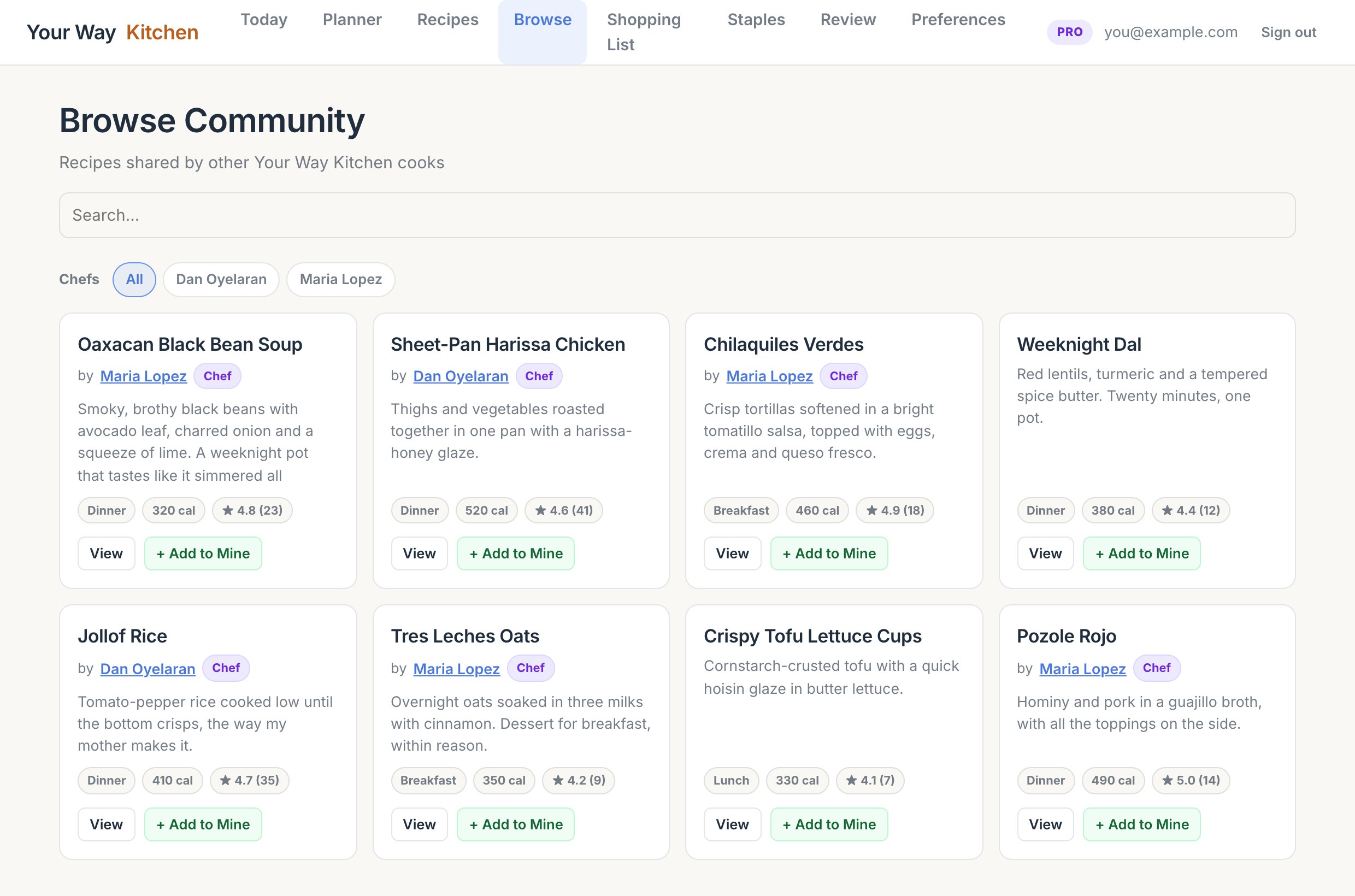
The phone's Browse tab in Recipes and the web's Browse page list recipes other cooks have shared, newest first, with a search box that matches names, descriptions and chef names.
PhoneAdd to My Recipes asks how: Save as-is copies it unchanged, or Adapt to my preferences opens it in Customize Meal to rewrite first.
WebView opens the full recipe; + Add to Mine copies it into My Recipes. Your copy stays linked to the original so ratings are shared.
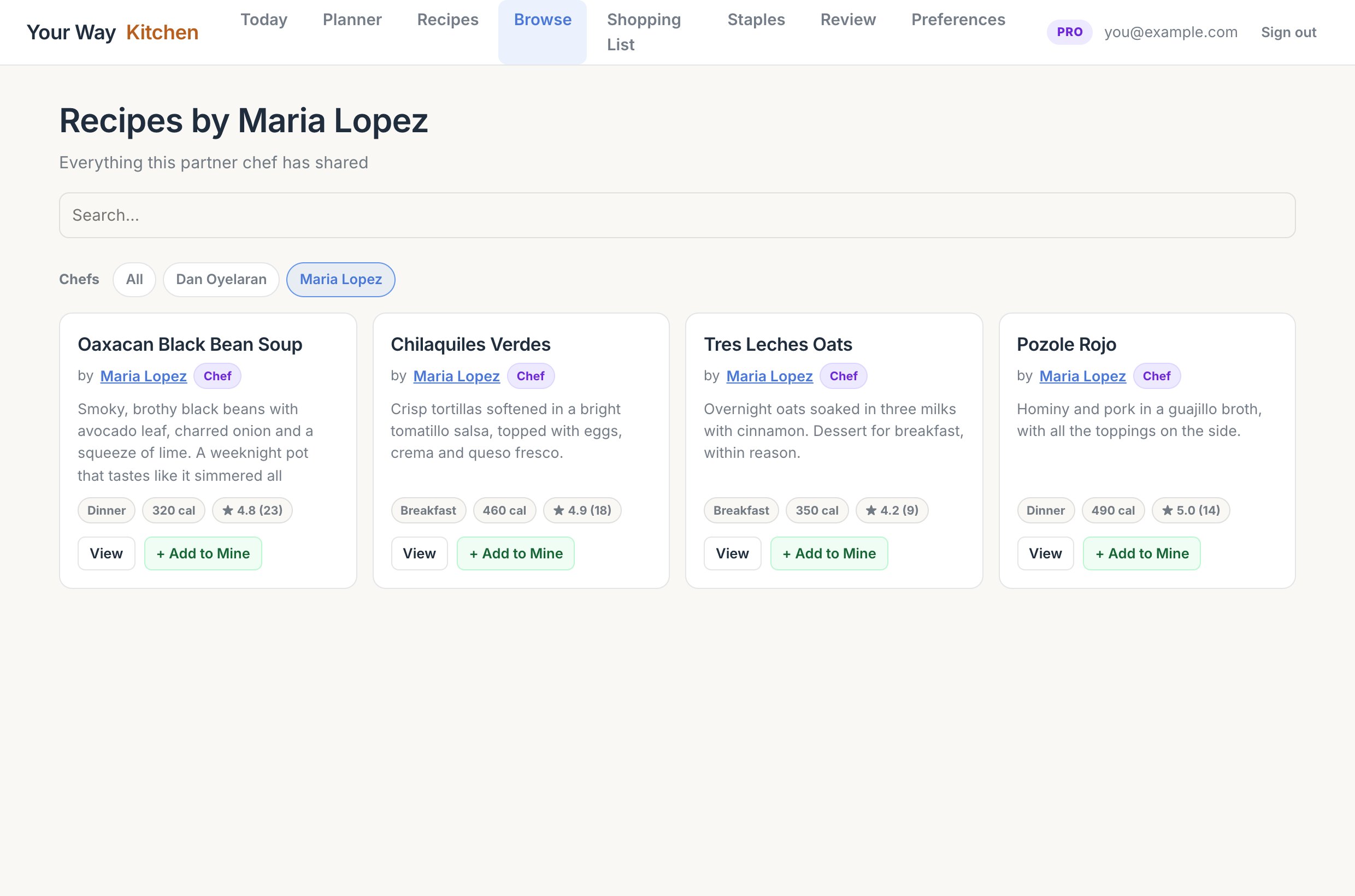
Recipes from our partner chefs carry a by {chef} line and a purple Chef badge. The credit is added by Your Way Kitchen itself, so it can't be faked or removed by anyone else. A row of chef chips above the list filters to one chef's full catalogue, and tapping a chef's name anywhere, on a card or on a recipe, does the same. Searching by a chef's name finds their dishes too.
When you copy a chef's recipe into your own collection, your copy is yours: it doesn't carry the credit, and you can edit or adapt it freely.
On any community recipe you didn't create, Report lets you flag it as an inappropriate photo, offensive or harmful, spam or advertising, unsafe or misleading, or something else, with an optional note. Reports go to us; a recipe reported by three different people is hidden automatically until we've looked at it, and we remove recipes and accounts that break the guidelines.
Hide recipes from this cook (phone) or Hide this cook (web) removes everything from that person from your Browse list. Settings or Preferences shows how many cooks you've hidden, with Unhide all.
Shared recipes can be rated 1 to 5 stars from Recipe Details on the phone or the Share… window on the web; the community average shows on Browse cards. Swiping a planned meal right on the phone (Cooked) also asks how it was.
7. Cook Mode
One step at a time in large type, with a timer for each step. Nothing to pay for: it works on every plan.
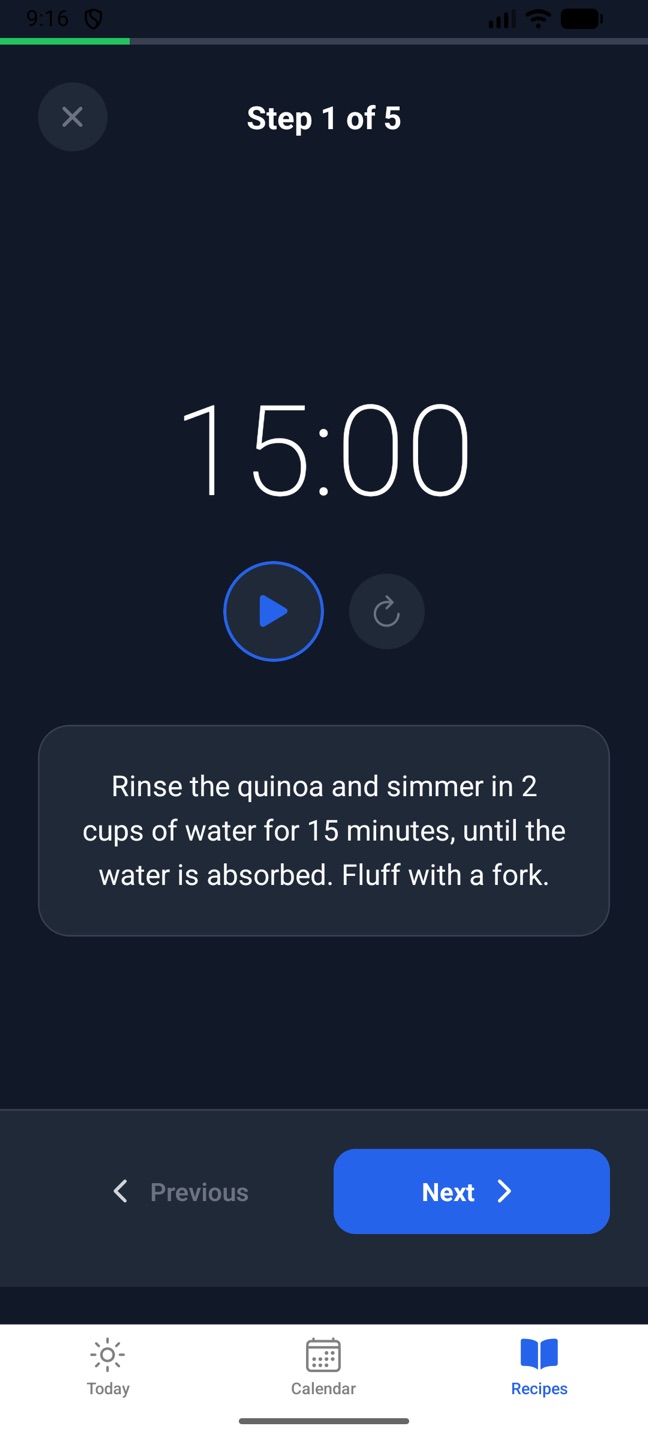
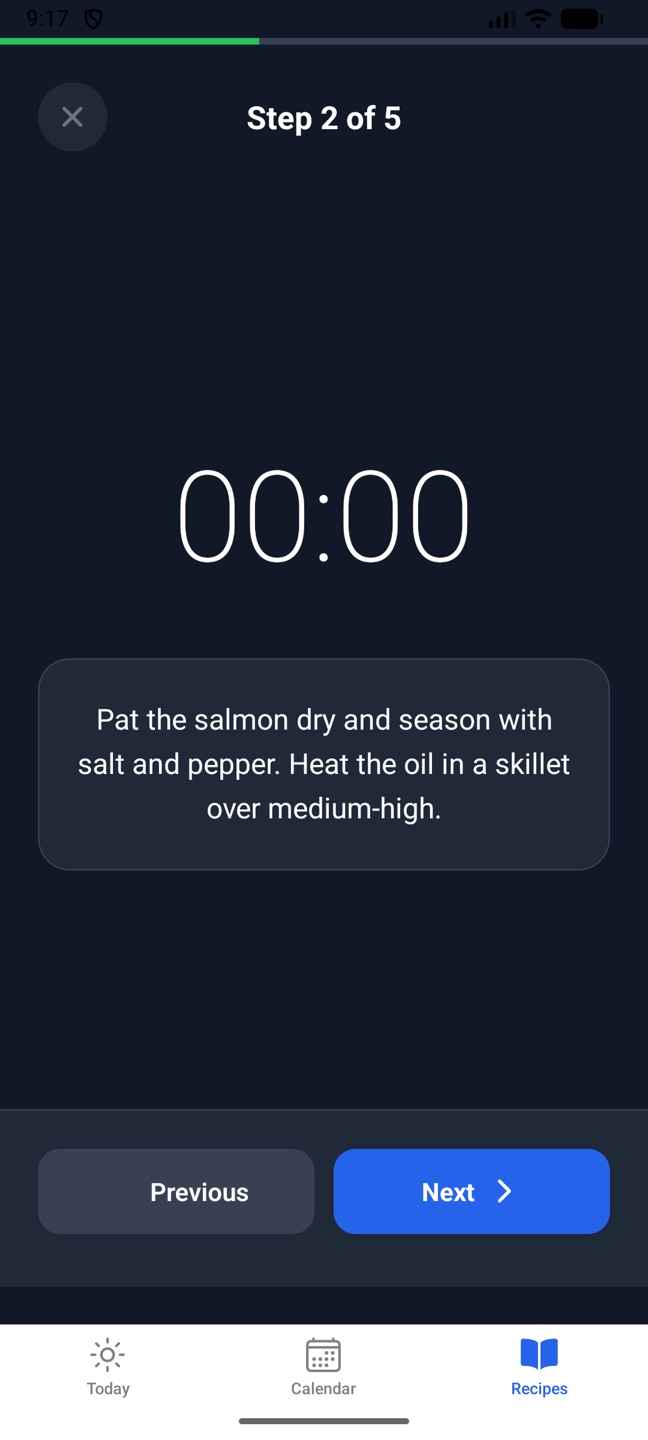
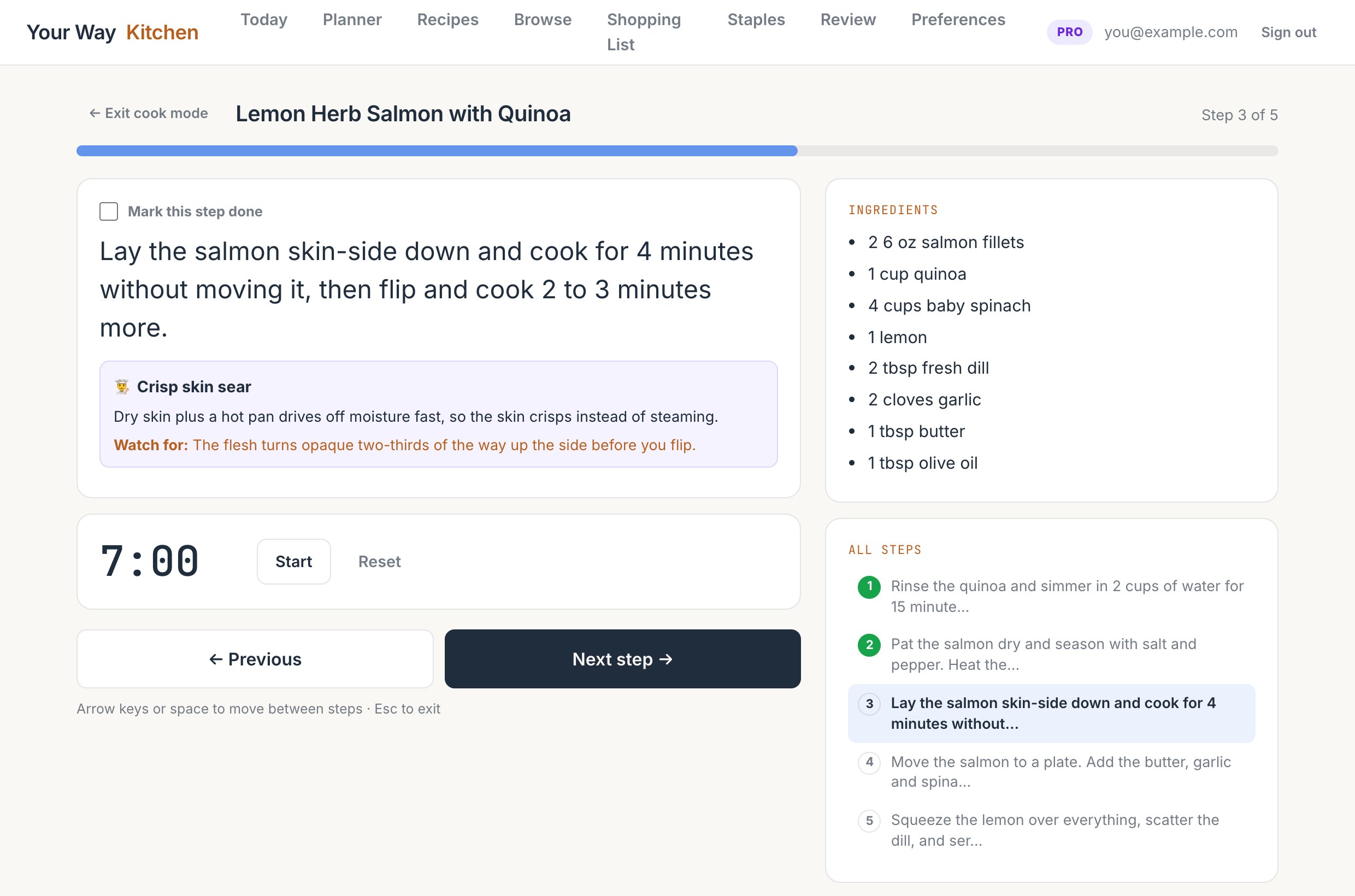
Open it from the timer icon on Recipe Details (phone) or 👨🍳 Cook on a recipe card (web). You see the step, its science note and technique card, and a progress bar.
Timer. Shown when the step has a time, either typed into the recipe's "min" box or read from the step's wording. Start, Pause, Reset. At zero the web plays three beeps and shows "Time's up"; the phone vibrates. Changing step resets the timer to that step's time.
Moving along.Previous, Next step (which also marks the step done) and Finish on the last one.
Web Keyboard: right arrow or space for the next step, left arrow for the previous, Esc to leave. Ingredients and an all-steps list sit beside the step so you can jump around. The screen stays awake while you cook in Chrome, Edge and recent Safari.
Recipes written for a campfire, camp stove, grill, RV or hotel room show a reminder that times are estimates. Go by the cues in each step, not the clock.
Cook Mode on the phone.The next step.
8. Shopping list and staples
Build a list from the meals you've planned, grouped by aisle, with your staples left out. Tick things off in the store.
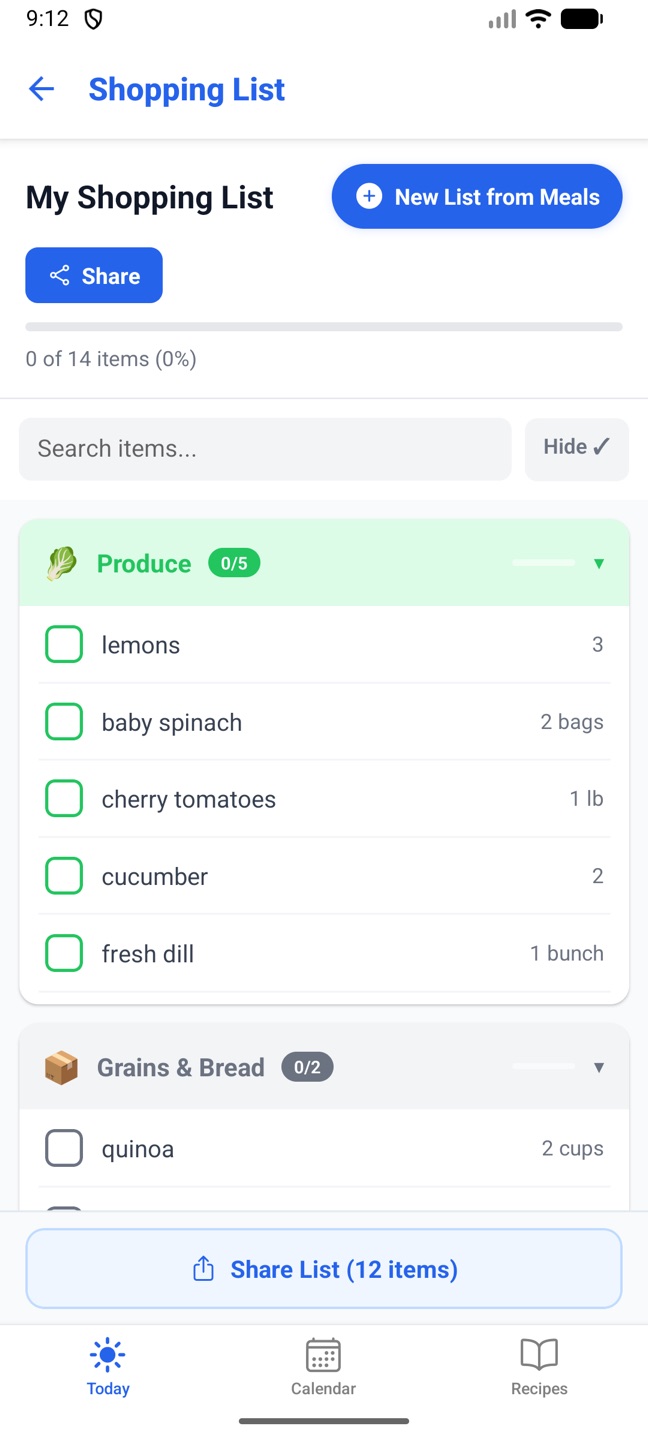
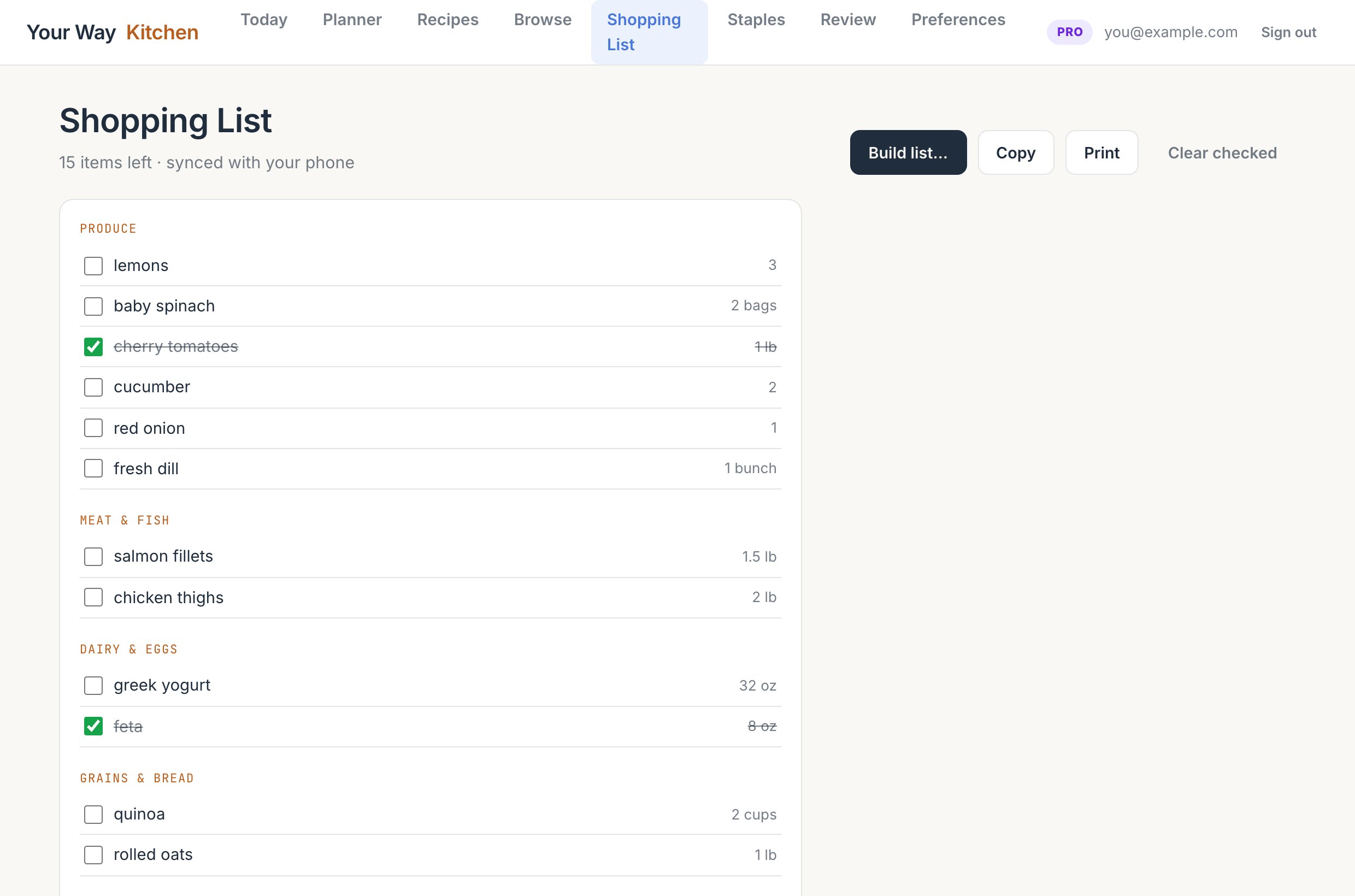
Choose which planned meals to shop for and the list is built from their ingredients: the same ingredient across recipes is combined (1 lb plus 8 oz becomes 1.5 lb), items are grouped into Produce, Meat and Fish, Dairy and Eggs, Grains and Bread, Canned and Dry Goods, Condiments and Oils, Spices and Seasonings, and Other, and anything in your staples is skipped.
Phone The cart icon on Today opens the list. New List from Meals shows the next two weeks of planned meals to tick, or Select All. In the list: search, collapse categories, tap to tick, long-press to edit or delete, Hide ✓ to hide ticked items, and Share to send the unticked items to any app. A list built right after generating a plan must be saved with Save.
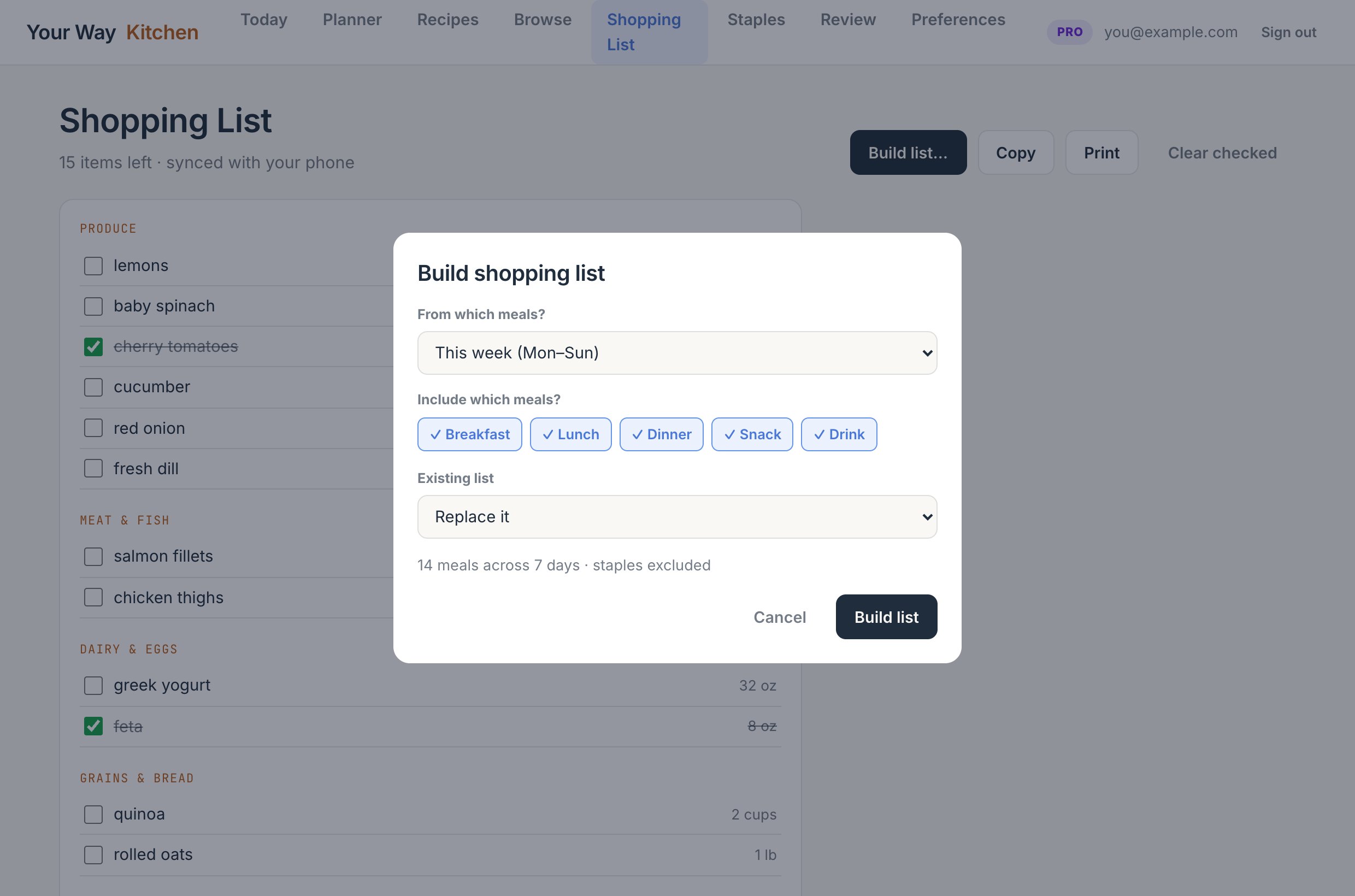
WebBuild list… picks this week, next week, a single day or a date range (up to 31 days) and which meal types. If a list exists you can replace it or add to it without duplicates. Copy copies the unticked items as text, Print prints, Clear checked removes ticked items. Ticks save instantly and show on the phone.
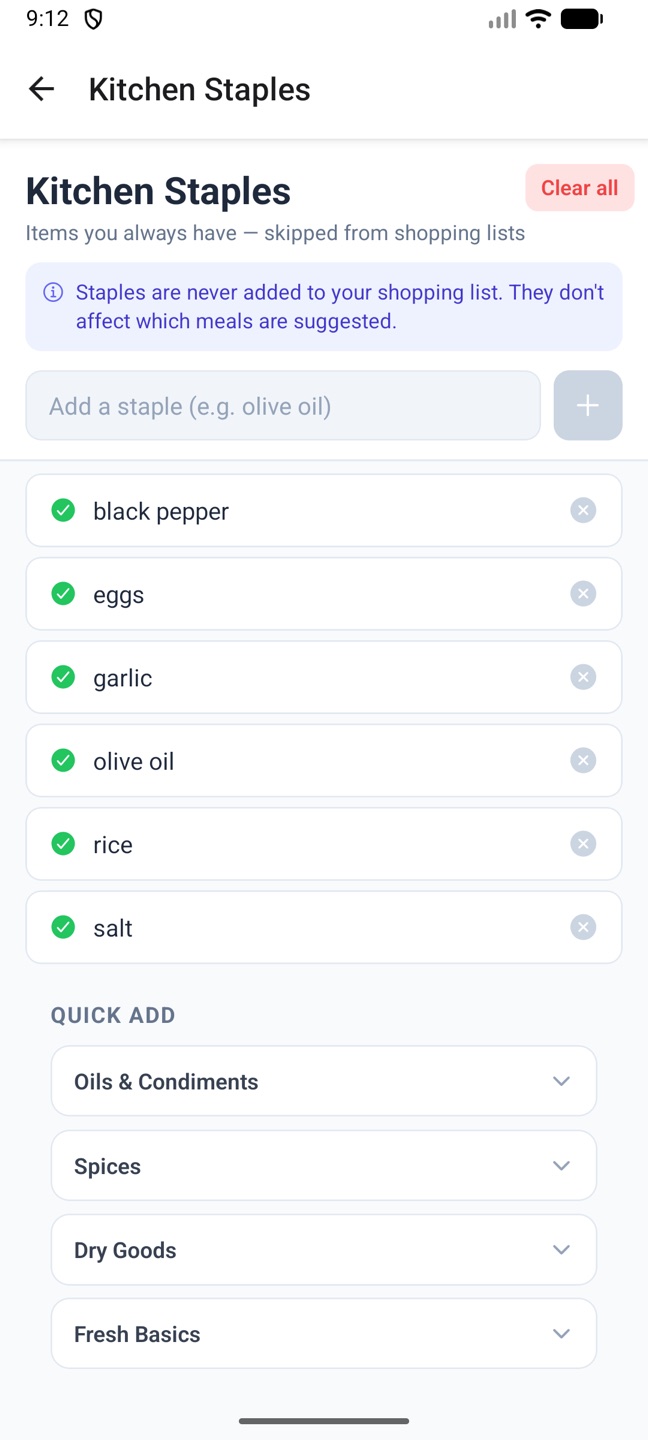
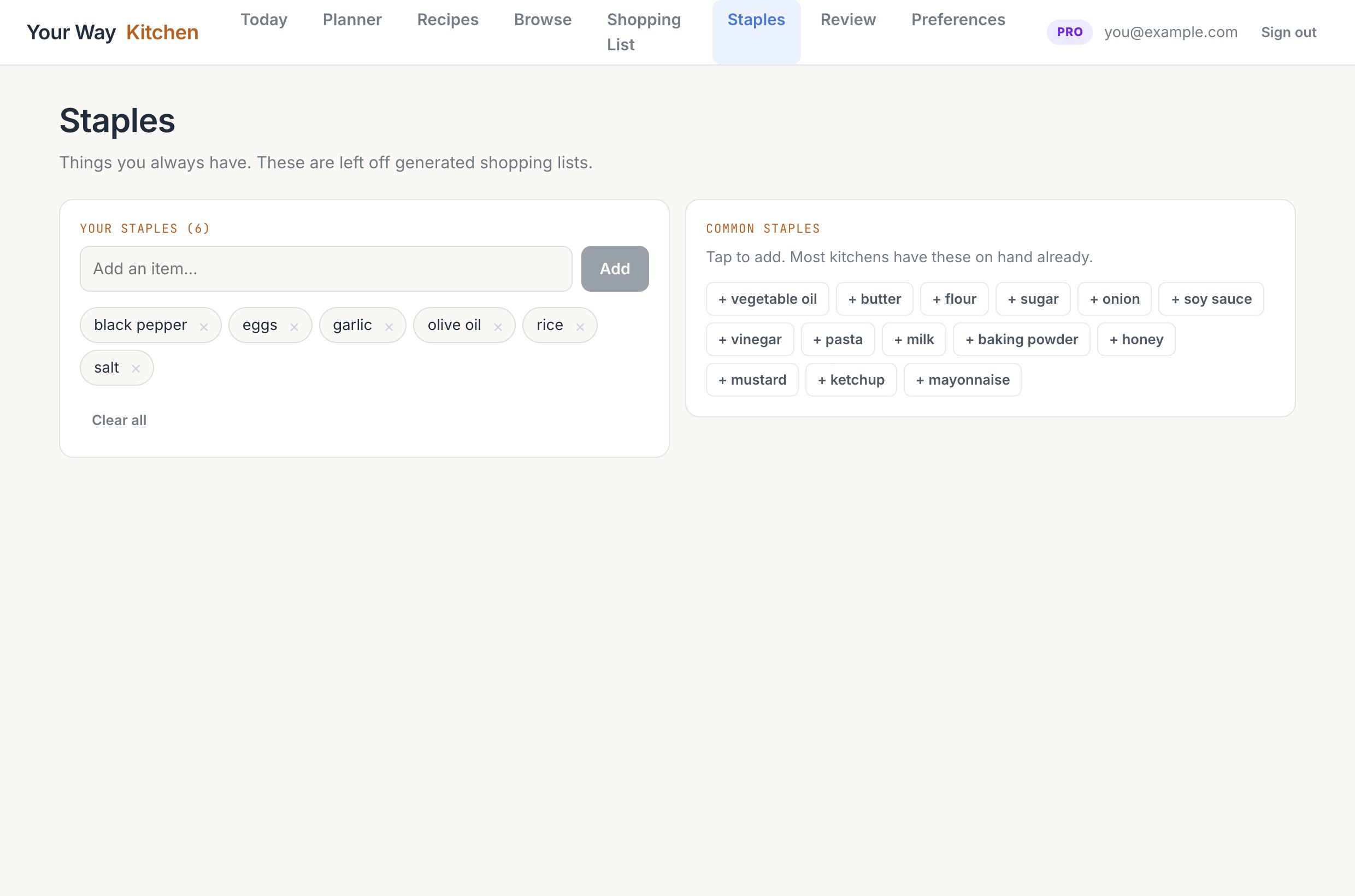
Staples are the things you always have: salt, oil, garlic, rice. They're never added to a shopping list and don't change which meals are suggested. The cube icon on Today (phone) or Staples in the top bar (web). Add your own, or tap the common ones to add them in one go; × removes an item and Clear all empties the list. Changes save immediately.
Kitchen Staples on the phone.
9. Weekly review
How your logging adds up across weeks: calories, macros, consistency and weight.
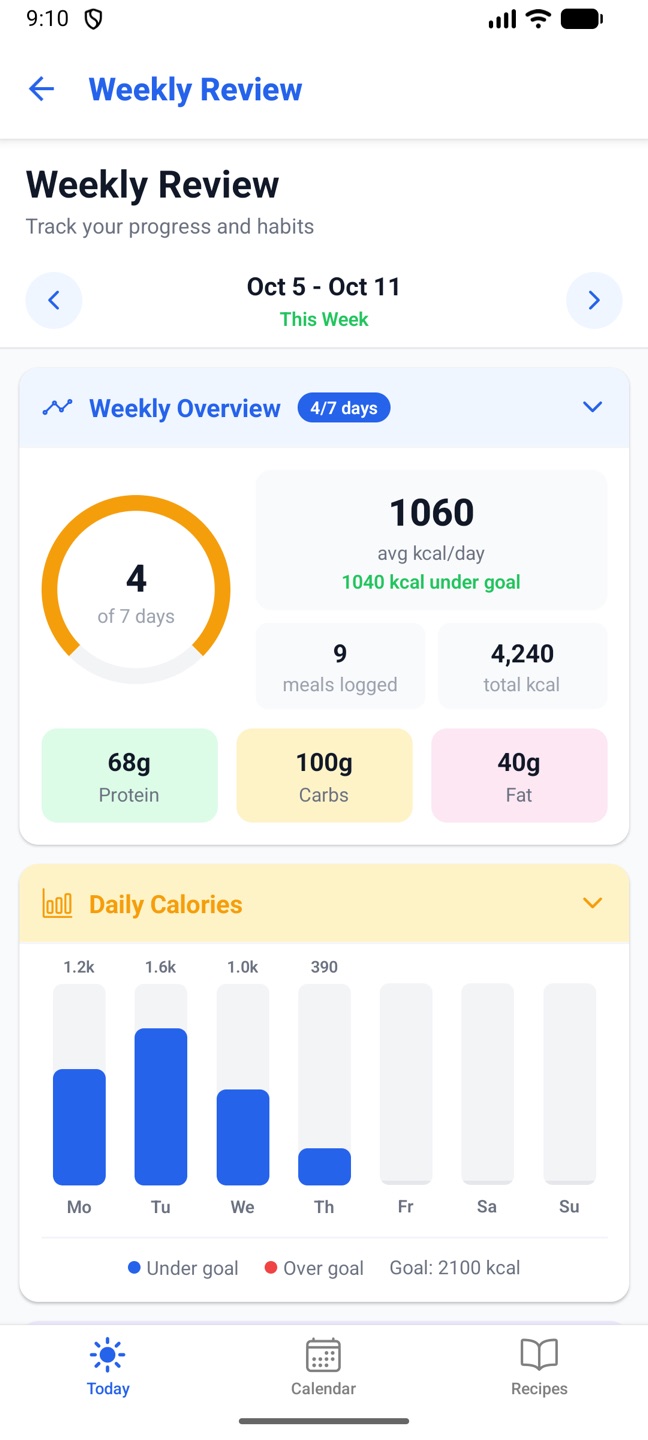
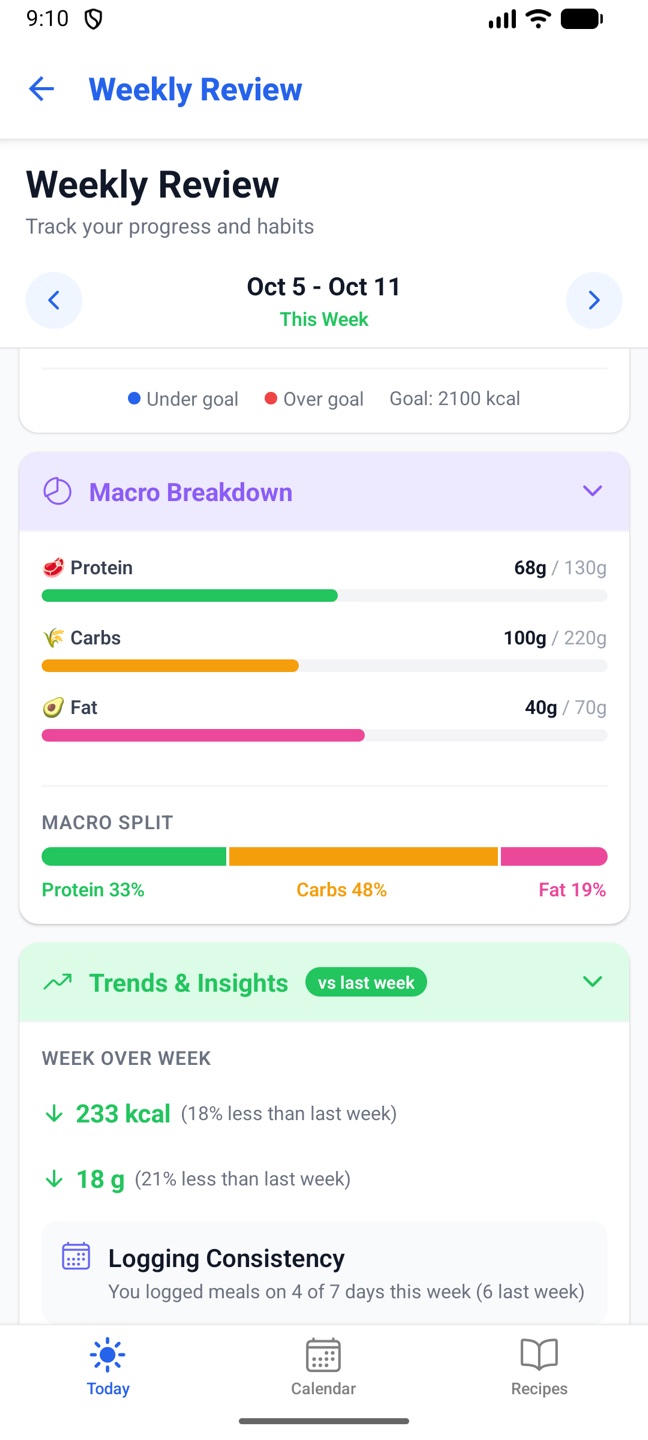
PhoneWeekly Review on Today shows one Monday to Sunday week at a time: days logged, average calories against your goal, meals logged, a daily calories chart, macro averages and split, week-over-week trends, logging and calorie consistency, weight tracking (with Log today's weight) and your top five meals.
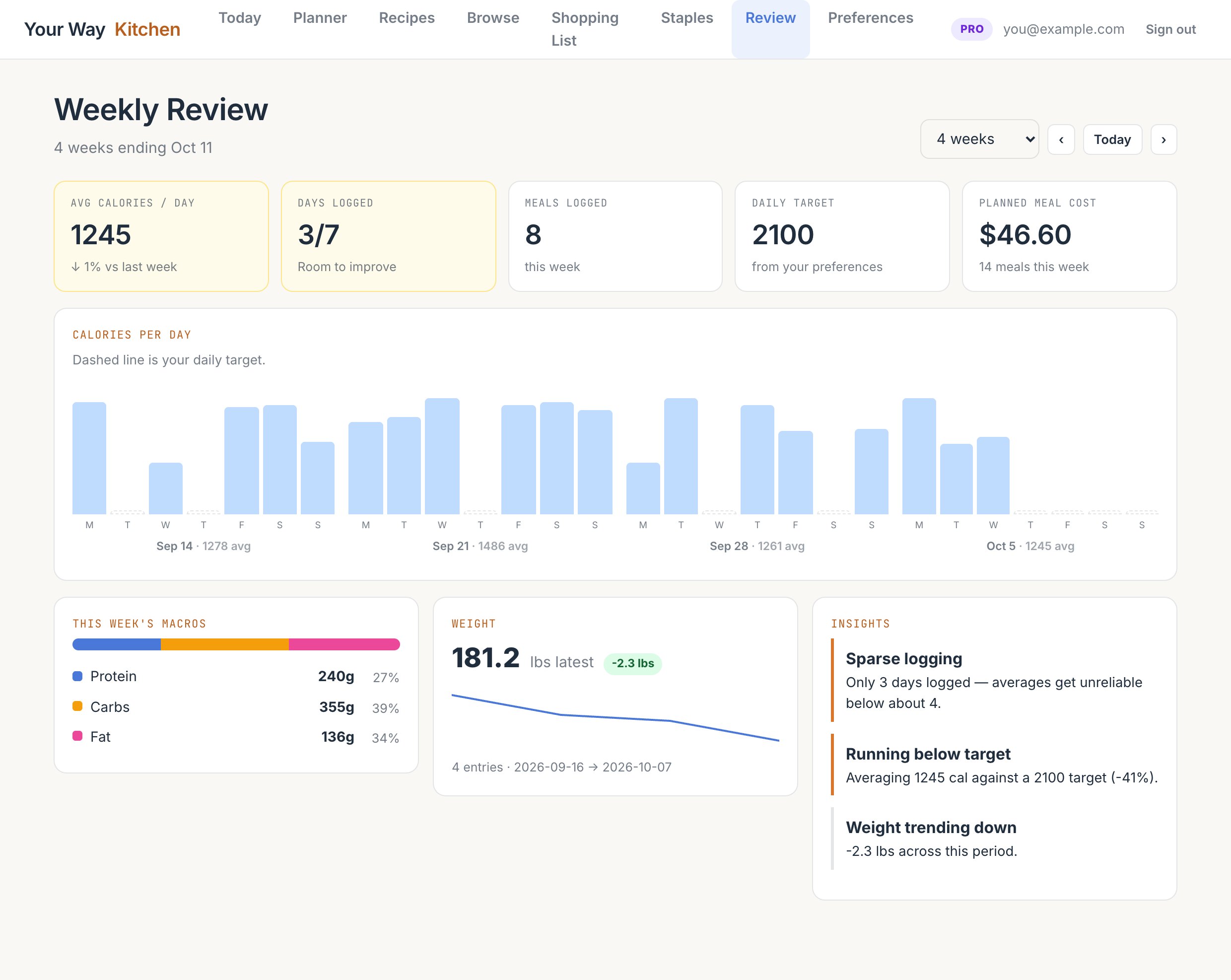
WebReview covers 4, 8 or 12 weeks ending on the week you choose: average calories a day with the change from the previous week, days logged, meals logged, planned meal cost, a bar per day across all weeks with your target line, this week's macro split, your weight trend, and automatic insights such as "running above target" or "strong logging habit".
Only logged days count towards averages, so an unlogged day doesn't drag the number down.
Weekly Review on the phone.Macros, trends and weight.
10. Free and Pro
Free is the whole app except the AI. Pro adds everything the AI does.
Typing and pasting recipes, Cook Mode, shopping lists, staples
Yes
Yes
Community: browse, copy, rate and share recipes, partner chefs
Yes
Yes
AI meal plans (up to 7 days per run), single meals, quick actions
—
Yes
Pantry scan and cook from what you have
—
Yes
Import recipes from a link or photo; parse and enhance pasted text
Basic parsing only
Yes, with nutrition and technique cards
AI adjust, re-adapt, flavour boost, analyse with AI
—
Yes
Log food from a photo
—
Yes
Baby food recipes
—
Yes
Pro is a monthly or yearly subscription. Current prices and the free trial are shown on the Upgrade screen in the phone app, and on yourwaykitchen.com.
Upgrading happens in the phone app: Upgrade in Settings, or the Upgrade button on any Pro feature. Choose Yearly or Monthly and confirm with Google Play (or the App Store on iPhone). If the store offers you a free trial, the button says so, for example "Start 7 days free", and the small print tells you what you'll pay when the trial ends. Cancel before then and you're not charged.
Pro switches on within seconds on both the phone and the web; the web's pill changes to PRO. The web app can't sell subscriptions, so it points you to the phone.
Restore Purchases on the Upgrade screen reconnects a subscription after a reinstall or on a new phone signed in to the same Google or Apple account.
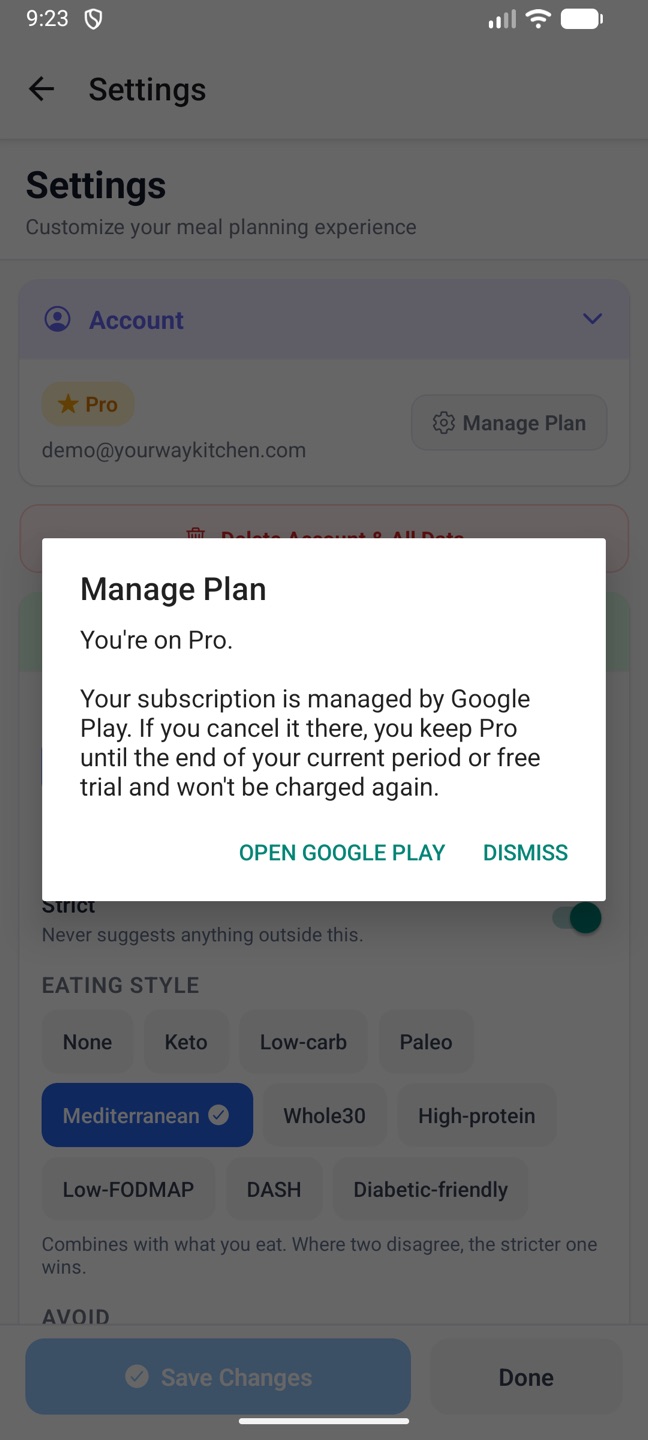
Your subscription is managed by the store, not by us. In the phone app, Settings → Manage Plan shows the date your plan is active through and opens Google Play's subscription page, where you can cancel. You can also go there directly: Google Play → your profile → Payments and subscriptions → Subscriptions.
After you cancel you keep Pro until the end of the period you've already been granted, including a free trial, and you're not charged again. When the period ends, the app returns to Free on its own. Your recipes, plans and logs are untouched; only the AI features switch off.
Manage Plan on the phone.
11. Account, privacy and support
What we keep, how to take a copy, how to delete it, and how to reach us.
Your recipes are yours. On the web you can download every recipe in My Recipes as a file you keep, with ingredients, steps, nutrition, your notes and your photos.
Web My Recipes → Download gives you one web page (.html) with everything. It opens in any browser, works offline, and prints to PDF from the browser's Print menu.
Web Preferences → Your recipes offers the same page plus Download as JSON, which has every field in a form other apps and spreadsheets can read.
Photos are embedded in the file, so it still works after you delete the account. Do this before deleting if you want to keep anything.
Web Preferences → Account → Change password emails you a link to choose a new one. Nothing changes until you use it.
Web Locked out? On the sign-in page use Forgot password?. The same link works for the phone app, since it's one account.
Accounts that sign in with Google or Apple have no password here; manage it with Google or Apple. If the email never arrives, check spam, then write to us and we can send you a link or set a temporary password.
This permanently deletes your account and everything in it: profile, recipes, meal plans, food and weight logs, and photos, on both apps. It can't be undone. Download your recipes first if you want to keep them.
Phone Settings → Delete Account & All Data, then confirm twice.
Web Preferences → Danger zone → Delete my account, then type your email to confirm.
Deleting the account does not cancel a store subscription. Cancel that in Google Play first (see managing or cancelling). You can also ask us by email and we'll delete it for you.
Your profile, recipes, plans and logs are stored in your account so they sync between devices. Photos you upload for a recipe, a food log or a pantry scan are stored privately under your account and sent to the AI only for that one task. Only your city or region is kept, never your precise location. We don't sell your data. The full details are in the Privacy Policy.
The camera permission is used for barcode scanning and for taking photos of food, recipes and your pantry, nothing else.
Email hello@yourwaykitchen.com. When reporting a problem, say whether it was the phone or the web, which screen, what you did and what happened, and include a screenshot if you can. The Info & Support page has the short version of this manual.
12. Troubleshooting
The messages you might see, and what to do about them.
If you created the account with Google, use the Google button; a password won't work for it. If your recipes are missing after signing in, you've probably signed in a different way than before and created a second account. Sign out and sign in the way you did originally. On the web, "Your browser blocked the sign-in window" means pop-ups are blocked for the site; allow them or use email and password. Forgotten the password? See changing or resetting your password.
You're on the Free plan and tried an AI feature. See what each plan includes. If you've paid and still see this, open the phone app, go to Settings and check the badge; if it says Free, use Restore Purchases on the Upgrade screen. "Plans aren't available right now" on the Upgrade screen usually means the app wasn't installed from Google Play; reinstall it from the Play Store.
"Too many requests. Wait a moment." There's a limit of twenty AI calls a minute per account. Wait a minute.
"The AI did not return any meals." Occasional; just generate again.
"The AI kept including…" The recipe was rejected because it kept using something on your allergy or avoid list, and nothing was saved. Try again, or loosen the request.
Pantry scans used up. Three per day; the counter resets overnight. Your last ingredient list is kept for 24 hours, so you can still get ideas from it.
Allow the camera for the app, or for app.yourwaykitchen.com in your browser's site settings. On the web the Scan button only appears over https in a browser with camera support; if it's missing, type the barcode number instead. "Barcode is not in Open Food Facts" means the product isn't in that database; search by name or type it in.
Use a close, bright picture of the plate itself. The estimate is for one serving; set the servings and correct any number before logging. "Couldn't recognise food in that photo" means the AI couldn't see food; try another angle or type the meal in.
Both apps update within seconds while online. If something hasn't appeared, pull to refresh on the phone or reload the web page, and check both devices are signed in to the same account. Edits made offline on the phone are sent when it reconnects.
Open the recipe's share screen. "Checking your recipe" means the automatic review is still running; it usually takes under a minute, and the recipe appears when it passes. "Not shared" shows the reason it was turned down; edit the recipe and share again. "Hidden after reports" means other users flagged it and we're reviewing it. If a check never finishes, we review it by hand.
It only shows with a fasting schedule set in your profile, and it counts from the time on your most recent logged meal. If a meal was logged with the wrong time, edit the entry's time. If nothing is logged in the last three days, it waits for your next meal.